---
title: Affiliate Management
description: The Affiliate Management section allows you to search, manage existing Affiliates and create new Affiliates.
---
[Skip to content](https://support.phonexa.com/affiliate-management#main-content)
[](https://support.phonexa.com/?hsLang=en)
Open main navigation
Close main navigation
- [➜\]](https://phonexa.com/)
[➜\]](https://phonexa.com/?hsLang=en)
Phonexa Support Center
- There are no suggestions because the search field is empty.
1. [Knowledge Base](https://support.phonexa.com/?hsLang=en)
2. [Lynx](https://support.phonexa.com/lynx?hsLang=en)
3. [Affiliates](https://support.phonexa.com/lynx?hsLang=en#affiliates)
# Affiliate Management
## The Affiliate Management section allows you to search, manage existing Affiliates and create new Affiliates.
- [Affiliate Management List](https://support.phonexa.com/affiliate-management#list)
- [How to create an Affiliate](https://support.phonexa.com/affiliate-management#create)
- [How to view Affiliate information](https://support.phonexa.com/affiliate-management#view)
- [How to edit an Affiliate](https://support.phonexa.com/affiliate-management#edit)
#### Affiliate Management List
To view the **Affiliate Management** list, go to the **Affiliates \> Affiliate Management** section.
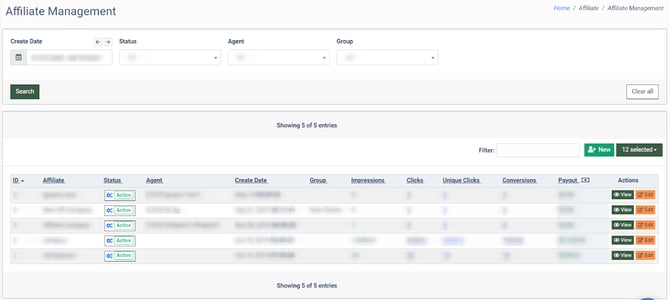The **Affiliates Management** list contains the following information:
- **ID**: The unique identification number of the Affiliate.
- **Affiliate**: The name of the Affiliate.
- **Status**: The status of the Affiliate (*Active, Pending, Blocked, Deleted).*
- **Agent**: The ID number and the name of the connected Agent.
- **Create Date:** The date and time of the Affiliate creation.
- **Group**: The Affiliate group. *Read more about the Affiliate Groups in this Knowledge Base* [*article*](https://support.phonexa.com/groups?hsLang=en)*.*
- **Impressions**: The number of advertiser links displayed on the websites.
- **Clicks**: The number of clicks on the advertiser links.
- **Unique Clicks**: The number of unique clicks on the advertiser links.
- **Conversion**: The ratio of the number of click-throughs with the following purchase to the total number of clicks.
- **Payout**: The amount of the Affiliate payout.
You can narrow down the search results by using the following filters:
- **Create Date**: Select the date range of the Affiliate creation.
- **Status**: Select the status of the Affiliate (*Active, Pending, Blocked, Deleted)*.
- **Agent**: Select the Affiliate agent.
- **Group**: Select the Affiliate group.
#### How to create an Affiliate
To create a new Affiliate, click the “**New**” button and fill in the following fields in the “**New Affiliate**” pop-up window:
- **Affiliate**: Enter the name of the Affiliate.
- **Status**: Select the status for the Affiliate (*Active, Pending, Blocked, Deleted).*
- **Agent**: Select the Affiliate Agent from the drop-down list.
- **Email**: Enter the email address.
- **Country**: Select the country for the Affiliate.
- **Group**: Select the Affiliate group.
- **City**: Select the city for the Affiliate.
- **Address 1**: Enter the address.
- **Address 2**: Enter the address (*not mandatory*).
- **Zipcode**: Enter the zip code.
- **Phone**: Enter the phone number (*Format +\[country code\]\[area code\]\[phone number\]. Must be between 10-15 digits*).
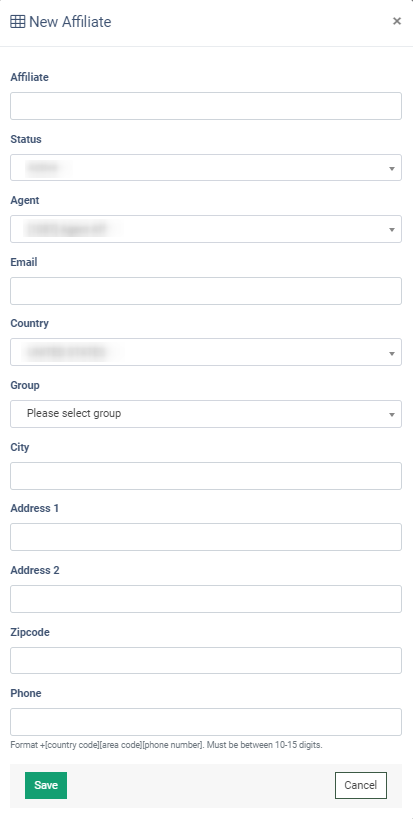
Click the “**Save**” button to create the Affiliate.
*Read more on how to create users for the Affiliate in this Knowledge Base* [*article*](https://support.phonexa.com/how-to-create-affiliate-user?hsLang=en)*.*
#### How to view Affiliate information
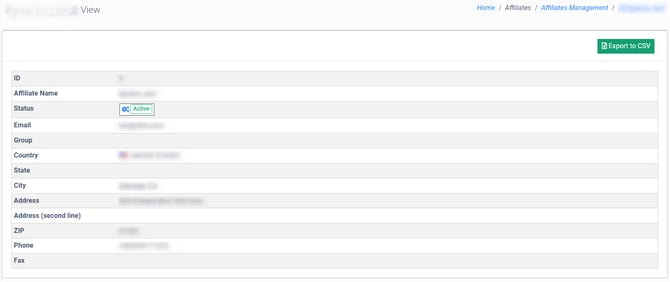
To check the information of the specific Affiliate, click the “**View**” button in the “**Actions**” column. The Affiliate view tab contains the following information:
- **ID**: The unique identification number of the Affiliate.
- **Affiliate’s Name**: The first and last name of the Affiliate.
- **Status**: The status of the Affiliate.
- **Email**: The email address of the Affiliate.
- **Group:** The Affiliate group.
- **Country**: The country of the Affiliate.
- **State**: The state of the Affiliate.
- **City**: The city of occupation.
- **Address**: The address of the Affiliate.
- **Address (second line)**: The address of the Affiliate.
- **Zip code**: The zip code of the Affiliate.
- **Phone**: The phone number of the Affiliate.
- **Fax**: The fax number.
#### How to edit an Affiliate
Click the “**Edit**” button in the “**Actions**” column to edit information about the Affiliate.
The **General** tab contains the following fields:
- **Affiliate**: Enter the name of the Affiliate.
- **Status**: Select the status for the Affiliate (*Active, Pending, Blocked, Deleted).*
- **Agent**: Select the Affiliate Agent from the drop-down list.
- **Email**: Enter the email address.
- **Country**: Select the country for the Affiliate.
- **Group**: Select the Affiliate group.
- **City**: Select the city for the Affiliate.
- **Address 1**: Enter the address.
- **Address 2**: Enter the address (*not mandatory*).
- **Zipcode**: Enter the zip code.
- **Phone**: Enter the phone number (*Format +\[country code\]\[area code\]\[phone number\]. Must be between 10-15 digits*).
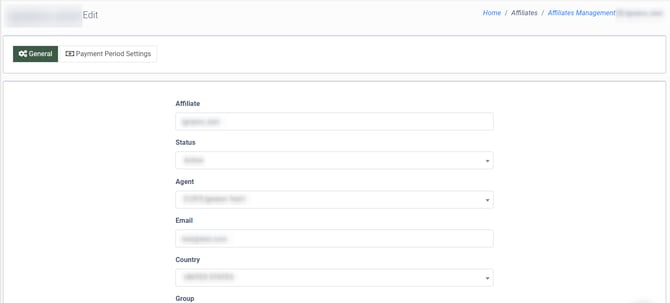The **Payment Period Settings** tab contains the following fields:
- **Hold**: The hold time for payout.
- **Pay Period**: The payout frequency (*manual, weekly, biweekly, monthly, semimonthly).*
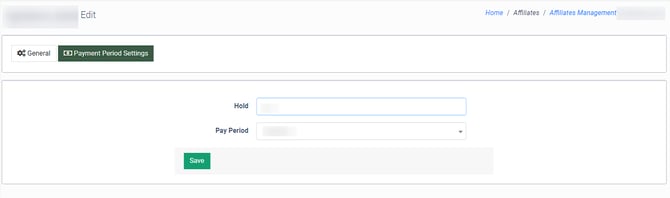Click the “**Save**” button to proceed with the changes.
The **“Global Postbacks”** tab allows you to create postbacks once at the advertiser level so that you can apply them to all the offers, instead of configuring them separately for each offer.
*Read more about the postbacks in the following Knowledge Base* [*article*](https://support.phonexa.com/postbacks?hsLang=en)*.*
[](https://support.phonexa.com/hubfs/undefined-Mar-16-2026-02-31-09-2126-PM.png?hsLang=en)
The list of postbacks contains the following information:
- **ID:** The unique identification number of the postback.
- **Trigger:** The name of the trigger.
- **Trigger Settings:** The combination of the general postback trigger settings for which the conversions are tracked.
- **Action:** The name of the action.
- **Action Settings:** The list of the action postback settings, such as method and URL.
- **Status (Active / Disabled):** The status of the postback. *Note: To change the postback status, click the corresponding button and select the status in the pop-up window.*
- **Created At:** The date and time of the postback creation.
- **Author:** The ID and name of the user who created a postback.
- **Adjacent Rules:** The number of postbacks that can be applied simultaneously with the selected postback. Click on the number to see the list of postbacks that can run concurrently.
To create a new postback, click the **“Add Postback”** button. Fill in the following fields in the **“New Postback”** pop-up window:
- **Trigger:** Select the postback trigger.
- **\[Lynx\] Conversion Done:** The Lynx conversion is completed.
- **\[Lynx\] Conversion Reject:** The Lynx conversion is rejected.
- **\[Lynx\] Conversion Pending:** The Lynx conversion is pending.
- **\[Lynx\] Click:** The click event happened.
- **Action:** Select the action that determines the way to transfer the conversion data
*Read more about available actions for the Postback tracking in the following Knowledge Base* [*article*](https://support.phonexa.com/postbacks?hsLang=en)*.*
Click the **“Next”** button to proceed.

*Follow the instructions from the Knowledge Base* [*article*](https://support.phonexa.com/postbacks?hsLang=en)*to complete the Postback creation.*
To configure the postback, click the **“Config”** button in the **“Actions”** column. Perform the corresponding changes to the fields that are available depending on the previous postback selection, and click the **“Save Rule”** button to complete the action, or click the **“Cancel”** button to close the window.
*Read more about the Postback rule configuration in the following Knowledge Base* [*article*](https://support.phonexa.com/postbacks?hsLang=en)*.*
To remove the postback, click the **“Delete”** button in the **“Actions”** column. Enter the generated number into the pop-up window and click the **“Delete”** button.

To create a duplicate of the postback, click the **“Duplicate Postback”** button. Check the boxes next to the postbacks you wish to duplicate and click the **“Duplicate”** button to perform the action.

#### Advanced Payout Settings
The **“Advanced Payout Settings”** tab allows you to manage the additional payout settings applied to the Affiliate. The section contains the general payout settings that will be applied to the affiliate in the **“Default Payout”** block, and the payout settings configured for the specific Offers in the **“Offer Payouts”** block.
[](https://support.phonexa.com/hubfs/BnbpPPqRbz.png?hsLang=en)
The priority hierarchy of the payout settings application:
1. **Affiliate-level Offer Payout:** Payout settings from the **“Offer Payouts”** block of the **“Advanced Payout Settings”** tab of the **“Affiliate Edit”** section.
2. **Advanced Payout:** Payout settings from the **“Advanced Payout”** subtab of the **“Payout”** tab of the **“Offer Setup”** section or the payout settings from the **“Advanced Payout”** subtab of the **“Payout”** tab of the **“Goal Setup”** section
3. **Affiliate-level Default Payout:** Payout settings from the **“Default Payout”** block of the **“Advanced Payout Settings”** tab of the **“Affiliate Edit”** section.
4. **Payout:** Payout settings from the **“Payout”** subtab of the **“Payout”** tab of the **“Offer Setup”** section or the payout settings from the **“Payout”** subtab of the **“Payout”** tab of the **“Goal Setup”** section.
*Note: Only one payout setting for one event (Impression, Click, Conversion) will be selected according to the priority hierarchy described above. If the affiliate is qualified for payout for a couple of events, one payout per event will be made.*
The list of offer payout settings contains the following information:
- **Advertiser:** The name of the Advertiser that is associated with the Offer.
- **Offer:** The name of the Offer for which the payout settings are applied.
- **Goal**: The name of the Goal for the Offer to which the payout settings are applied.
- If the *“-”* value is displayed, the **“Enabled Goals”** setting is disabled in the **“Global”** tab of the **“Offer Setup”** section for the particular Offer.
- If the *“All”* value is displayed, the **“Enabled Goals”** setting is disabled in the **“Global”** tab of the **“Offer Setup”** section for the particular Offer, but the particular Goal was not selected. The current payout setting will be applied to all existing Goals and to those that will be created in the future.
- **Payout Type:** The payout type set for the payout setting.
- **Payout:** The detailed information about the payout amount set for the payout setting.
To add a new default payout setting for the Affiliate, click the **“Add Default Payout”** button, select the payout type in the **“Type”** field, and enter the payout amount for the unit based on the selected payout type in the **“Payout per”** field in the pop-up window.
Click the **“Save”** button to complete the action.
[](https://support.phonexa.com/hubfs/oZx1dd8pba.png?hsLang=en)
To add a new offer payout setting, click the **“Add Offer Payout”** button and fill in the following fields in the pop-up window below:
- **Type:** Select the payout type.
- **Advertiser:** Select the advertiser that is associated with the Offer.
- **Offer:** Select the Offer to which the payout setting will be applied.
- **Goal:** Select the Goal of the particular Offer to which the payout settings will be applied.
- **Payout per:** Enter the amount that will be applied for the payout per unit. The unit depends on the payout type that was selected.
Click the **“Save”** button to complete the action.
[](https://support.phonexa.com/hubfs/w3bBJJOlby.png?hsLang=en)
To edit the existing payout setting, click the **“Edit”** button in the **“Actions”** column, change the required information in the **“Edit”** pop-up window, and click the **“Save”** button to complete the changes.
To remove the payout setting from the list, click the **“Delete”** button in the **“Actions”** column. Confirm the payout setting removal in the appeared pop-up window by clicking the **“Delete”** button.
- [General information](https://support.phonexa.com/general-information?hsLang=en#main-content)
- [Account Settings](https://support.phonexa.com/general-information?hsLang=en#account-settings)
- [Security Settings](https://support.phonexa.com/general-information?hsLang=en#security-settings)
- [Users](https://support.phonexa.com/general-information?hsLang=en#users)
- [System Customization](https://support.phonexa.com/general-information?hsLang=en#system-customization)
- [Project Customization](https://support.phonexa.com/general-information?hsLang=en#project-customization)
- [Product Customization](https://support.phonexa.com/general-information?hsLang=en#product-customization)
- [System Management](https://support.phonexa.com/general-information?hsLang=en#system-management)
- [Support](https://support.phonexa.com/general-information?hsLang=en#support)
- [LMS Sync & Call Logic](https://support.phonexa.com/lms-sync-call-logic?hsLang=en#main-content)
- [Extra Features](https://support.phonexa.com/lms-sync-call-logic?hsLang=en#extra-features)
- [Publisher Configuration](https://support.phonexa.com/lms-sync-call-logic?hsLang=en#publisher-configuration)
- [Client Management](https://support.phonexa.com/lms-sync-call-logic?hsLang=en#client-management)
- [System Logs](https://support.phonexa.com/lms-sync-call-logic?hsLang=en#system-logs)
- [Documents And References](https://support.phonexa.com/lms-sync-call-logic?hsLang=en#documents-and-references)
- [Reports and Analytics](https://support.phonexa.com/lms-sync-call-logic?hsLang=en#reports-and-analytics)
- [Publisher management](https://support.phonexa.com/lms-sync-call-logic?hsLang=en#publisher-management)
- [Call Logic Customization](https://support.phonexa.com/lms-sync-call-logic?hsLang=en#call-logic-customization)
- [Campaign Configuration](https://support.phonexa.com/lms-sync-call-logic?hsLang=en#campaign-configuration)
- [Feed CMS](https://support.phonexa.com/lms-sync-call-logic?hsLang=en#feed-cms)
- [Event Tracking](https://support.phonexa.com/lms-sync-call-logic?hsLang=en#event-tracking)
- [iClear](https://support.phonexa.com/lms-sync-call-logic?hsLang=en#iclear)
- [Troubleshooting Guides](https://support.phonexa.com/lms-sync-call-logic?hsLang=en#troubleshooting-guides)
- [E-Delivery](https://support.phonexa.com/e-delivery?hsLang=en#main-content)
- [List Management](https://support.phonexa.com/e-delivery?hsLang=en#list-management)
- [Email Campaigns](https://support.phonexa.com/e-delivery?hsLang=en#email-campaigns)
- [SMS Campaigns](https://support.phonexa.com/e-delivery?hsLang=en#sms-campaigns)
- [Reports](https://support.phonexa.com/e-delivery?hsLang=en#reports)
- [Suppression Management](https://support.phonexa.com/e-delivery?hsLang=en#suppression-management)
- [Books360](https://support.phonexa.com/books360?hsLang=en#main-content)
- [Books 360 Integration](https://support.phonexa.com/books360?hsLang=en#books-360-integration)
- [Vendor Management](https://support.phonexa.com/books360?hsLang=en#vendor-management)
- [Account](https://support.phonexa.com/books360?hsLang=en#account)
- [Customer Management](https://support.phonexa.com/books360?hsLang=en#customer-management)
- [Opt-Intel](https://support.phonexa.com/opt-intel?hsLang=en#main-content)
- [List Management](https://support.phonexa.com/opt-intel?hsLang=en#list-management)
- [All Reports](https://support.phonexa.com/opt-intel?hsLang=en#all-reports)
- [Mailers](https://support.phonexa.com/opt-intel?hsLang=en#mailers)
- [Campaigns](https://support.phonexa.com/opt-intel?hsLang=en#campaigns)
- [System Management](https://support.phonexa.com/opt-intel?hsLang=en#system-management)
- [HitMetrix](https://support.phonexa.com/hitmetrix?hsLang=en#main-content)
- [Analytics](https://support.phonexa.com/hitmetrix?hsLang=en#analytics)
- [Heatmaps](https://support.phonexa.com/hitmetrix?hsLang=en#heatmaps)
- [System Management](https://support.phonexa.com/hitmetrix?hsLang=en#system-management)
- [Lynx](https://support.phonexa.com/lynx?hsLang=en#main-content)
- [Offers](https://support.phonexa.com/lynx?hsLang=en#offers)
- [LYNX Reports](https://support.phonexa.com/lynx?hsLang=en#lynx-reports)
- [Advertisers](https://support.phonexa.com/lynx?hsLang=en#advertisers)
- [Affiliates](https://support.phonexa.com/lynx?hsLang=en#affiliates)
- [Account Settings](https://support.phonexa.com/lynx?hsLang=en#account-settings)
- [Cloud PBX](https://support.phonexa.com/cloud-pbx?hsLang=en)
[](https://phonexa.com/?hsLang=en)
Phonexa Knowledge Base
Copyright © 2026, Phonexa