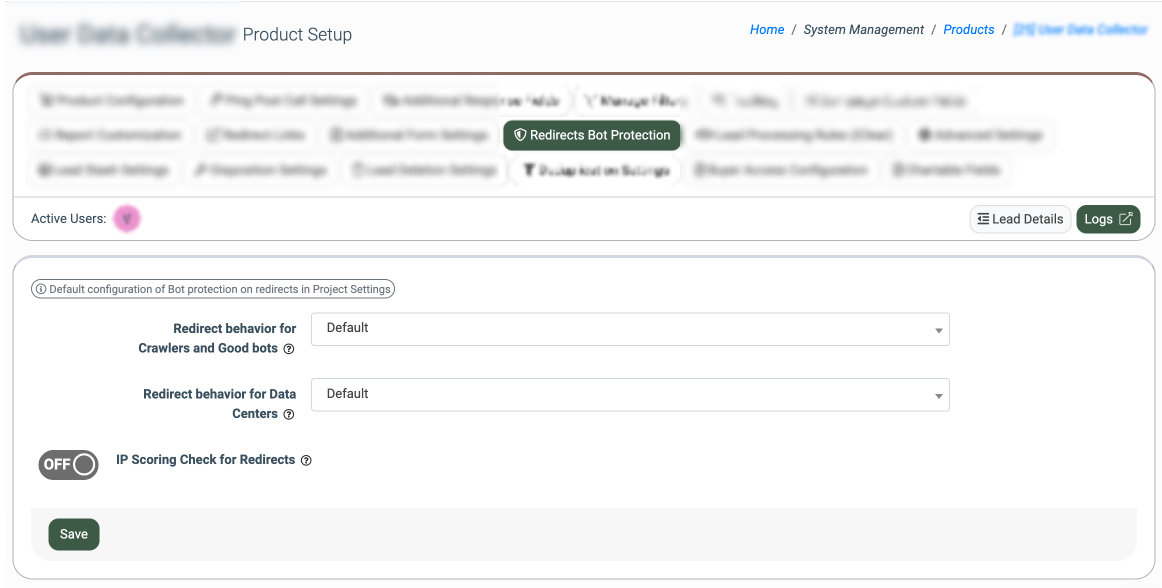
The “Redirects Bot Protection” feature lets you control how the system responds when a redirect link is opened by non-human or high-risk traffic, such as search engine crawlers, good bots, data center IP addresses, and devices with a high fraud score. Such redirects can be considered or ignored for display in the reporting system, or considered as expired.
Note: This feature is available only for the LMS component.
Use Case
Redirect links are regularly opened not only by real users but also by automated traffic: search engine crawlers, link-preview and SEO-auditing bots, API integrations, scrapers, and click-fraud bots operating from data center IP addresses. The client wants to control how the system handles each type of automated interaction: block the redirect by returning an "expired" link status, allow the redirect but exclude the click from reporting, or allow the redirect and count the click normally. With IP Scoring enabled, the client can additionally exclude clicks from devices with a high fraud score.
Benefits
- Accurate click statistics: Exclude crawlers, bots, data center traffic, and high-fraud-score devices from click counts so reports reflect real user activity.
- Fraud prevention and cost control: Avoid paying publishers for automated or fraudulent clicks that cannot convert.
- SEO-safe handling of good bots: Keep redirecting legitimate crawlers so link previews and search indexing continue to work, without polluting your data.
The “Redirects Bot Protection” feature can be set on the Project, Product, and Publisher settings levels. The priority of the settings application is as follows: Publisher level has the highest priority, followed by Product level, and Project level has the lowest priority.
To set the settings, go to the System Management > General > Project Settings section, select the “LMS & Call Logic” tab, and then the “Redirects Bot Protection” subtab.
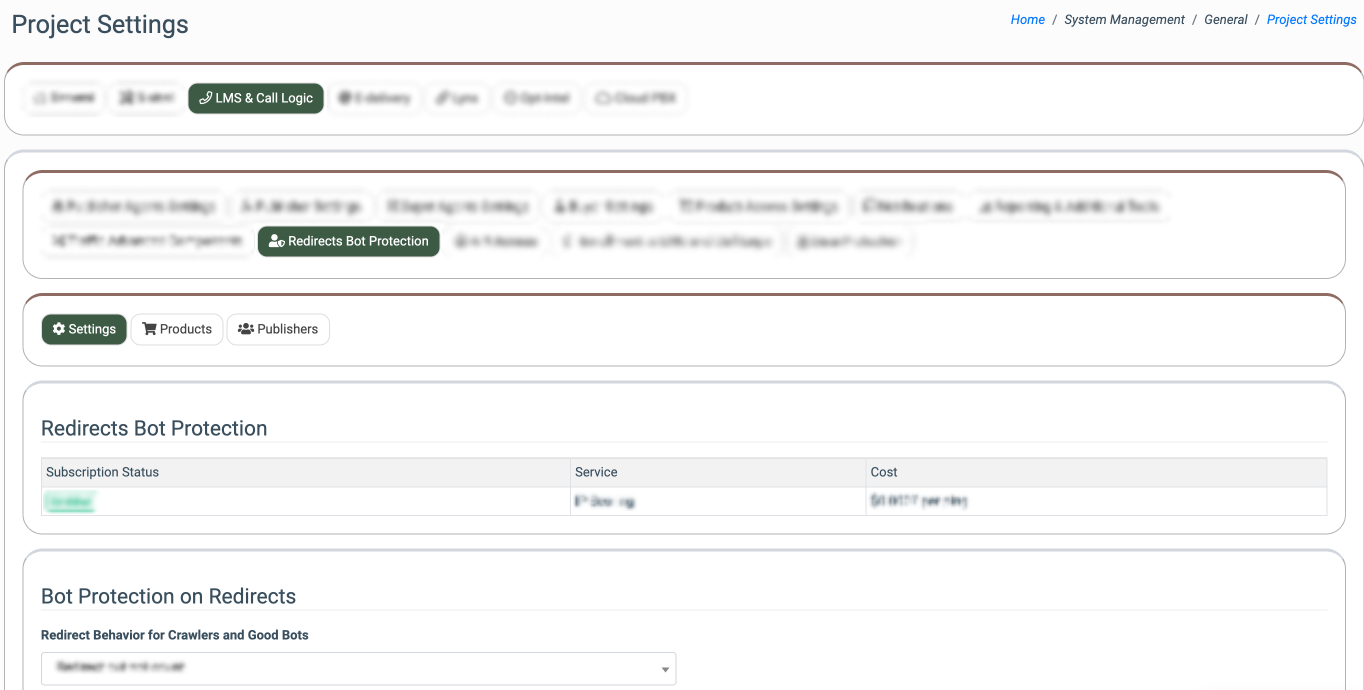
The settings for the bot protection management can be viewed and managed in the “Bot Protection On Redirects” block.
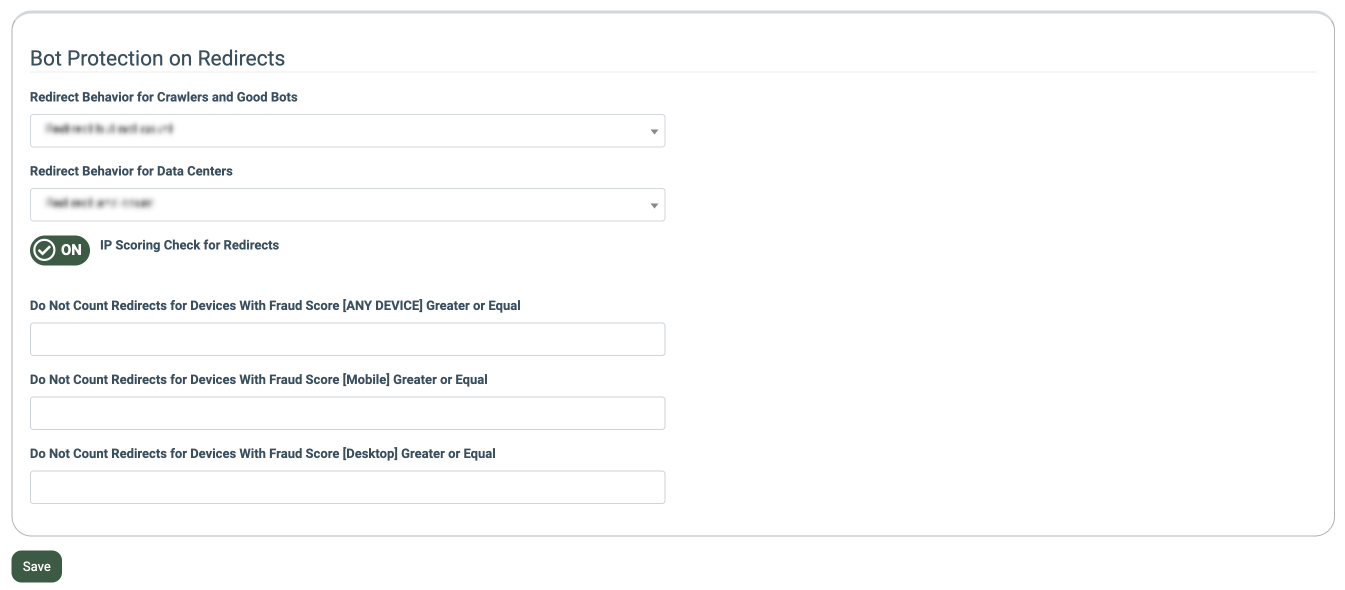
The following settings are available:
- Redirect behavior for Crawlers and Good bots: Select how the system should respond when a crawler or a known good bot opens a redirect link: (Redirect and count -the visitor is redirected to the target URL, and the click is counted in reports; Redirect but not count - the visitor is redirected to the target URL, but the click is excluded from reports, Response with "Expired" -the visitor is not redirected and receives the "Redirect Url Has Expired" response; the click is not counted).
Crawler - an automated program that systematically visits URLs to index or analyze their content. The most common examples are search engine crawlers (Googlebot, Bingbot) that scan links for search indexing.
Good bots - legitimate, non-malicious automated agents that open links as part of a useful service: link-preview generators (Slack, WhatsApp, social networks), SEO and uptime monitoring tools, and email security scanners that pre-check links. They identify themselves honestly (via user agent) and don't imitate human traffic, but every visit still triggers the redirect link, which can inflate click counts if not filtered.
- Redirect behavior for Data Centers: Select how the system should respond when the visitor’s IP address belongs to a data center (Redirect and count -the visitor is redirected to the target URL, and the click is counted in reports;, Redirect but not count - the visitor is redirected to the target URL, but the click is excluded from reports, Response with "Expired" -the visitor is not redirected and receives the "Redirect Url Has Expired" response; the click is not counted).
Data Center - a facility hosting servers and cloud infrastructure from which automated traffic typically originates. The most common examples are cloud and hosting providers (AWS, Google Cloud) whose IP ranges are used by bots, scrapers, and proxies rather than real users, since genuine visitors browse from residential or mobile networks.
- IP Scoring Check for Redirects: Set the toggle to ON to evaluate the visitor’s IP address in real time on every redirect. This option allows you to manage whether a redirect is counted in reports based on the fraud score of the user’s IP address and the type of device used.
- Do not count redirects for devices with Fraud Score [ANY DEVICE] greater or equal: Enter the maximum score value to qualify the redirect to be filtered out and not be considered in reports for all devices that can be used by the user. If a redirect's fraud score meets or exceeds this value, it will be filtered out and not considered in reports, as it is considered potentially risky or fraudulent. Note: This value must be higher than the Fraud Score [Mobile/Desktop] if either is greater than 0.
- Do not count redirects for devices with Fraud Score [Mobile] greater or equal: Enter the maximum score value to qualify the redirect to be filtered out and not be considered in reports for mobile devices that can be used by the user. If a redirect's fraud score meets or exceeds this value, it will be filtered out and not considered in reports, as it is considered potentially risky or fraudulent. Note: This setting has a higher priority for mobile devices than the one set in the setting applied to any device option.
- Do not count redirects for devices with Fraud Score [Desktop] greater or equal: Enter the maximum score value to qualify the redirect to be filtered out and not be considered in reports for desktop devices that can be used by the user. If a redirect's fraud score meets or exceeds this value, it will be filtered out and not considered in reports, as it is considered potentially risky or fraudulent. Note: This setting has a higher priority for desktop devices than the one set in the setting applied to any device option.
Note: When a redirect matches more than one condition (for example, it qualifies as a crawler and exceeds the fraud score threshold), the most restrictive outcome applies.
The same settings can also be configured at the Product and Publisher levels, allowing you to override the project-wide behavior for specific Products or Publishers.
To view the bot protection settings for the Product or Publisher level, along with their current statuses, click the “Bot protection and redirects can be configured at the product and publisher level” button.
To apply the IP Scoring Check for Redirects settings, you should ensure that the “IP Scoring” service is enabled in the “System Subscription” section. You can check the current status of the option in the “Subscription Status” field of the “Redirects Bot Protection” block. It should have the “Enabled” value set. To enable or disable the “IP Scoring” service, hover the status value and click the redirect-arrow button. You will be redirected to the “System Subscription” section, where the “IP Scoring” service should be enabled. To enable the feature, click the “Activate” button in the “Action” column.

You can view the settings of the bot protection that is applied for the particular Product or Publisher in the “Product Settings” and “Publisher Settings” tabs, respectively. The current status of the bot protection is displayed in the “Settings” column. The “Default” value means that the settings on the Project level are applied for the particular Product or Publisher.
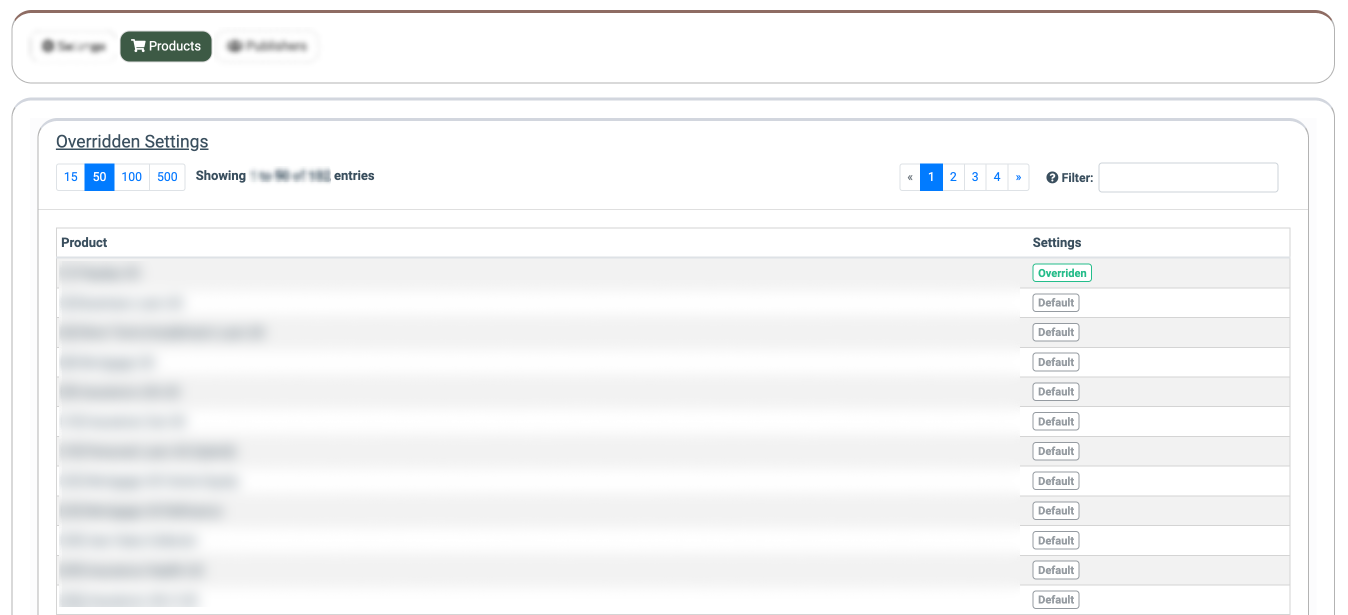
To view the bot protection settings for the particular Product or Publisher, select the corresponding option from the list, hover over the corresponding name, and click the redirect arrow button near the Product or Publisher name. You will be redirected to the “Product Setup” or “Publisher View” section, the “Redirects Bot Protection” tab, where you can manage the settings of the bot protection that will be applied for the particular Product/Publisher and will have a higher priority of the application than the Project level.
The “Default” option in the respective settings means that the Project-level settings will be applied. To view the settings applied at the Project level, click the “Default configuration of Bot protection on redirects in Project Settings” button.