---
title: Cloud PBX Operator Dashboard Shift Settings
description: Enable Operator Shift Timeout in Cloud PBX to automatically log out inactive operators, improve security, and maintain accurate operator availability and call routing.
---
[Skip to content](https://support.phonexa.com/cloud-pbx-operator-dashboard-shift-settings#main-content)
[](https://support.phonexa.com/?hsLang=en)
Open main navigation
Close main navigation
- [➜\]](https://phonexa.com/)
[➜\]](https://phonexa.com/?hsLang=en)
Phonexa Support Center
- There are no suggestions because the search field is empty.
1. [Knowledge Base](https://support.phonexa.com/?hsLang=en)
2. [Cloud PBX](https://support.phonexa.com/cloud-pbx?hsLang=en)
# Cloud PBX Operator Dashboard Shift Settings
## Enable Operator Shift Timeout in Cloud PBX to automatically log out inactive operators, improve security, and maintain accurate operator availability and call routing.
#### The Operator shift timeout settings allow you to set the time limitation for the operators' inactivity during the ongoing shift. As soon as the set time limit is reached, the ongoing operator's session will be terminated automatically. Administrators can configure separate timeout values for operators in Available status and those in Other statuses, ensuring accurate availability tracking and efficient call distribution.
This feature helps prevent inactive or unattended operator sessions from remaining logged in, which could otherwise lead to missed calls, abandoned calls, incorrect reporting, or security risks.
Benefits of Using This Report
- Accurate real-time operator availability
- Reduced missed calls and abandoned calls
- Improved queue performance and call answer rates
- Improved system security and compliance
- Less manual oversight for supervisors
- Better operational insights and reporting accuracy
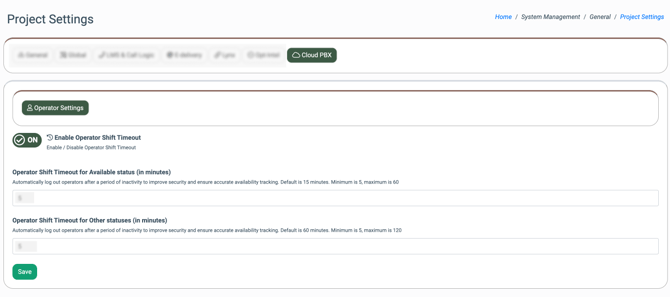
To enable and set the shift timeout settings, go to the **System Management \> Project Settings** section, and select the **“Cloud PBX”** tab.
Set the **“Enable Operator Shift Timeout”** toggle to the **“ON”** position.
The following timeout settings for the operator’s shift are available:
- **Operator Shift Timeout for Available status (in minutes):** Enter the time limit (in minutes) after which the operator’s ongoing shift will be terminated due to the operator’s inactivity, when the operator is in the **“Available”** status.
- **Operator Shift Timeout for Other statuses (in minutes):** Enter the time limit (in minutes) after which the operator’s ongoing shift will be terminated due to the operator’s inactivity, when the operator is in other statuses, except the **“Available”** status.
Click the **“Save”** button to complete the settings.
[](https://support.phonexa.com/hubfs/Cloud%20PBX%20Project%20Settings%20Operator%20Dashboard%20Shift%20Settings%201.png?hsLang=en)
The session termination will be performed according to the following workflow: when the time limit of the operator’s inactivity is less than 1 minute away from the one that is set, the warning message about the involuntary session termination will be displayed to the Operator. The operator should confirm the session activity by clicking the **“Stay Logged In”** button in the pop-up window below; otherwise, the ongoing session will be terminated when the set time limit is reached.
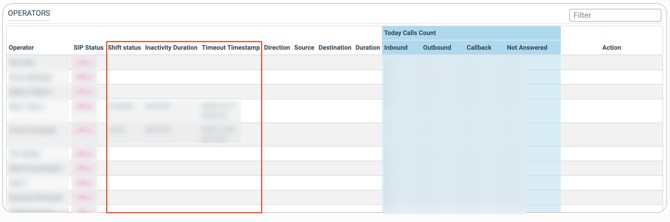
The shift timeout and termination settings log the following data in the **“Operators”** block of the **“My Department”** section:
- **Shift status:** The status of the operator’s shift within which the session was terminated.
- **Inactivity Duration:** The time duration of the operator’s inactivity.
- **Timeout Timestamp:** The date and time when the session timeout occurs.
*Note: Those fields will appear in the block only if the corresponding shift expiration settings are enabled and set on the Project Settings level.*
*Read more information about the My Departments section in the following Knowledge Base* [*article*](https://support.phonexa.com/my-department?hsLang=en)*.*
[](https://support.phonexa.com/hubfs/Cloud%20PBX%20Project%20Settings%20Operator%20Dashboard%20Shift%20Settings%202.png?hsLang=en)
- [General information](https://support.phonexa.com/general-information?hsLang=en#main-content)
- [Account Settings](https://support.phonexa.com/general-information?hsLang=en#account-settings)
- [Security Settings](https://support.phonexa.com/general-information?hsLang=en#security-settings)
- [Users](https://support.phonexa.com/general-information?hsLang=en#users)
- [System Customization](https://support.phonexa.com/general-information?hsLang=en#system-customization)
- [Project Customization](https://support.phonexa.com/general-information?hsLang=en#project-customization)
- [Product Customization](https://support.phonexa.com/general-information?hsLang=en#product-customization)
- [System Management](https://support.phonexa.com/general-information?hsLang=en#system-management)
- [Support](https://support.phonexa.com/general-information?hsLang=en#support)
- [LMS Sync & Call Logic](https://support.phonexa.com/lms-sync-call-logic?hsLang=en#main-content)
- [Extra Features](https://support.phonexa.com/lms-sync-call-logic?hsLang=en#extra-features)
- [Publisher Configuration](https://support.phonexa.com/lms-sync-call-logic?hsLang=en#publisher-configuration)
- [Client Management](https://support.phonexa.com/lms-sync-call-logic?hsLang=en#client-management)
- [System Logs](https://support.phonexa.com/lms-sync-call-logic?hsLang=en#system-logs)
- [Documents And References](https://support.phonexa.com/lms-sync-call-logic?hsLang=en#documents-and-references)
- [Reports and Analytics](https://support.phonexa.com/lms-sync-call-logic?hsLang=en#reports-and-analytics)
- [Publisher management](https://support.phonexa.com/lms-sync-call-logic?hsLang=en#publisher-management)
- [Call Logic Customization](https://support.phonexa.com/lms-sync-call-logic?hsLang=en#call-logic-customization)
- [Campaign Configuration](https://support.phonexa.com/lms-sync-call-logic?hsLang=en#campaign-configuration)
- [Feed CMS](https://support.phonexa.com/lms-sync-call-logic?hsLang=en#feed-cms)
- [Event Tracking](https://support.phonexa.com/lms-sync-call-logic?hsLang=en#event-tracking)
- [iClear](https://support.phonexa.com/lms-sync-call-logic?hsLang=en#iclear)
- [E-Delivery](https://support.phonexa.com/e-delivery?hsLang=en#main-content)
- [List Management](https://support.phonexa.com/e-delivery?hsLang=en#list-management)
- [Email Campaigns](https://support.phonexa.com/e-delivery?hsLang=en#email-campaigns)
- [SMS Campaigns](https://support.phonexa.com/e-delivery?hsLang=en#sms-campaigns)
- [Reports](https://support.phonexa.com/e-delivery?hsLang=en#reports)
- [Suppression Management](https://support.phonexa.com/e-delivery?hsLang=en#suppression-management)
- [Books360](https://support.phonexa.com/books360?hsLang=en#main-content)
- [Books 360 Integration](https://support.phonexa.com/books360?hsLang=en#books-360-integration)
- [Vendor Management](https://support.phonexa.com/books360?hsLang=en#vendor-management)
- [Account](https://support.phonexa.com/books360?hsLang=en#account)
- [Customer Management](https://support.phonexa.com/books360?hsLang=en#customer-management)
- [Opt-Intel](https://support.phonexa.com/opt-intel?hsLang=en#main-content)
- [List Management](https://support.phonexa.com/opt-intel?hsLang=en#list-management)
- [All Reports](https://support.phonexa.com/opt-intel?hsLang=en#all-reports)
- [Mailers](https://support.phonexa.com/opt-intel?hsLang=en#mailers)
- [Campaigns](https://support.phonexa.com/opt-intel?hsLang=en#campaigns)
- [System Management](https://support.phonexa.com/opt-intel?hsLang=en#system-management)
- [HitMetrix](https://support.phonexa.com/hitmetrix?hsLang=en#main-content)
- [Analytics](https://support.phonexa.com/hitmetrix?hsLang=en#analytics)
- [Heatmaps](https://support.phonexa.com/hitmetrix?hsLang=en#heatmaps)
- [System Management](https://support.phonexa.com/hitmetrix?hsLang=en#system-management)
- [Lynx](https://support.phonexa.com/lynx?hsLang=en#main-content)
- [Offers](https://support.phonexa.com/lynx?hsLang=en#offers)
- [LYNX Reports](https://support.phonexa.com/lynx?hsLang=en#lynx-reports)
- [Advertisers](https://support.phonexa.com/lynx?hsLang=en#advertisers)
- [Affiliates](https://support.phonexa.com/lynx?hsLang=en#affiliates)
- [Account Settings](https://support.phonexa.com/lynx?hsLang=en#account-settings)
- [Cloud PBX](https://support.phonexa.com/cloud-pbx?hsLang=en)
[](https://phonexa.com/?hsLang=en)
Phonexa Knowledge Base
Copyright © 2026, Phonexa