
To view the report, go to the Customer Management > Reports section.
Sales by Period
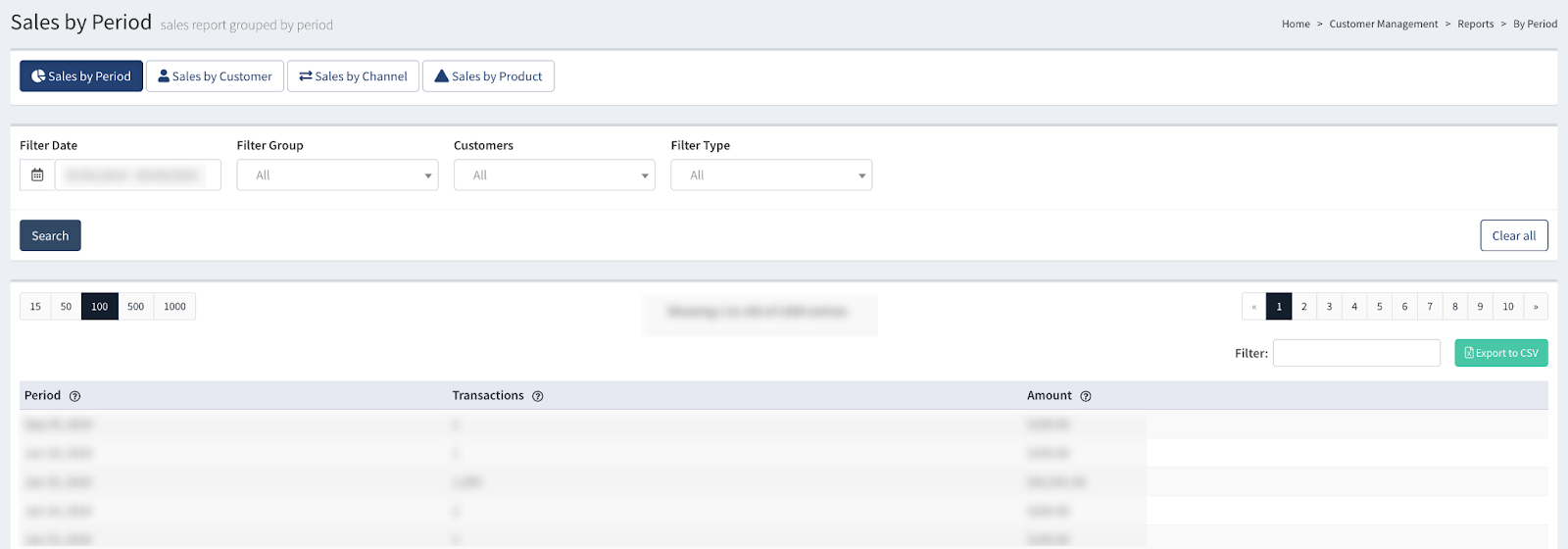
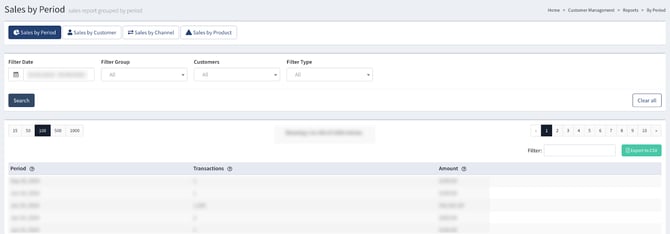
The “Sales by Period” tab allows you to view all the Customers' sales grouped by each date of the selected time range.
You can narrow down the search results by using the following filters:
- Filter Date: Select the date range.
- Filter Group: Select the preferred view of the report (By Day / By Week / By Month).
- Customers: Select a specific Customer.
- Filter Type: Select the “RETURNS” option to display the transactions for which the Customer was credited. Select the “ADJUSTMENTS” option to display the adjustment transactions.
The list contains the following information:
- Period: The date from the chosen time range.
- Transaction: The number of Customer transactions for the displayed date.
- Amount: The total sales amount for the displayed date.
Sales by Customer
The “Sales by Customer” tab allows you to view the sales report grouped by each Customer.
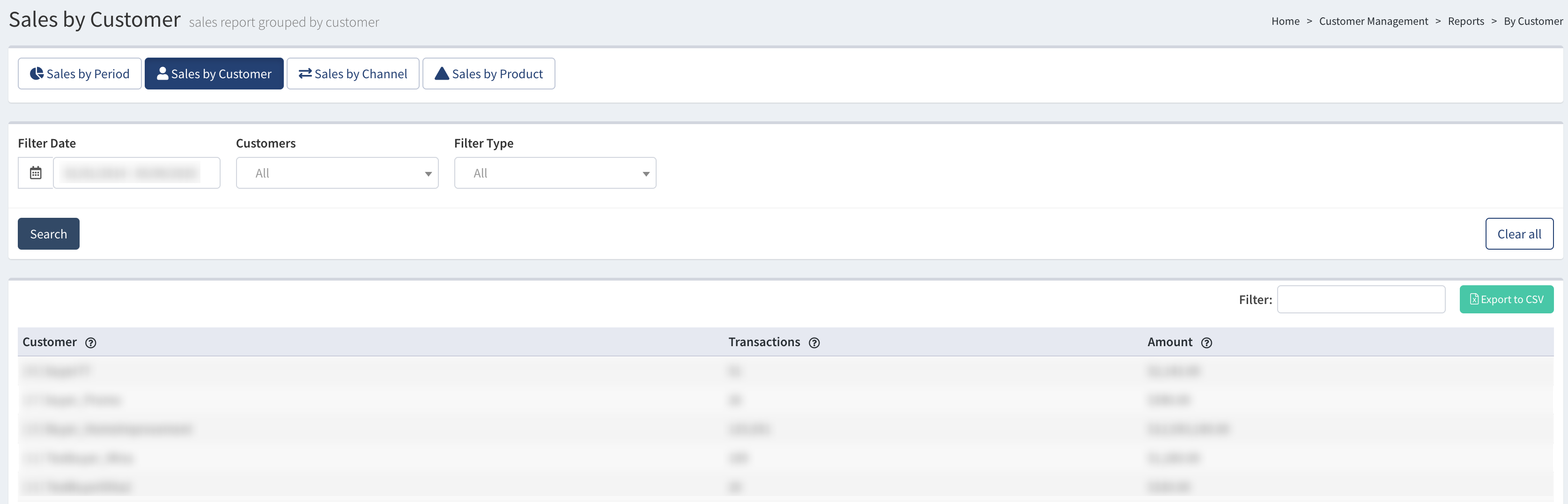
You can narrow down the search results by using the following filters:
- Filter Date: Select the date range.
- Clients: Select a specific Customer.
- Filter Type: Select the “RETURNS” option to display the transactions for which the Customer was credited/. Select the “ADJUSTMENTS” option to display the adjustment transactions.
The list contains the following information:
- Customer: The name of the Customer in the system.
- Transactions: The total number of the Customer’s transactions.
- Amount: The total sales amount for the Customer.
Sales by Channel
The “Sales by Channel” tab allows you to view the sales report grouped by Customer channels.
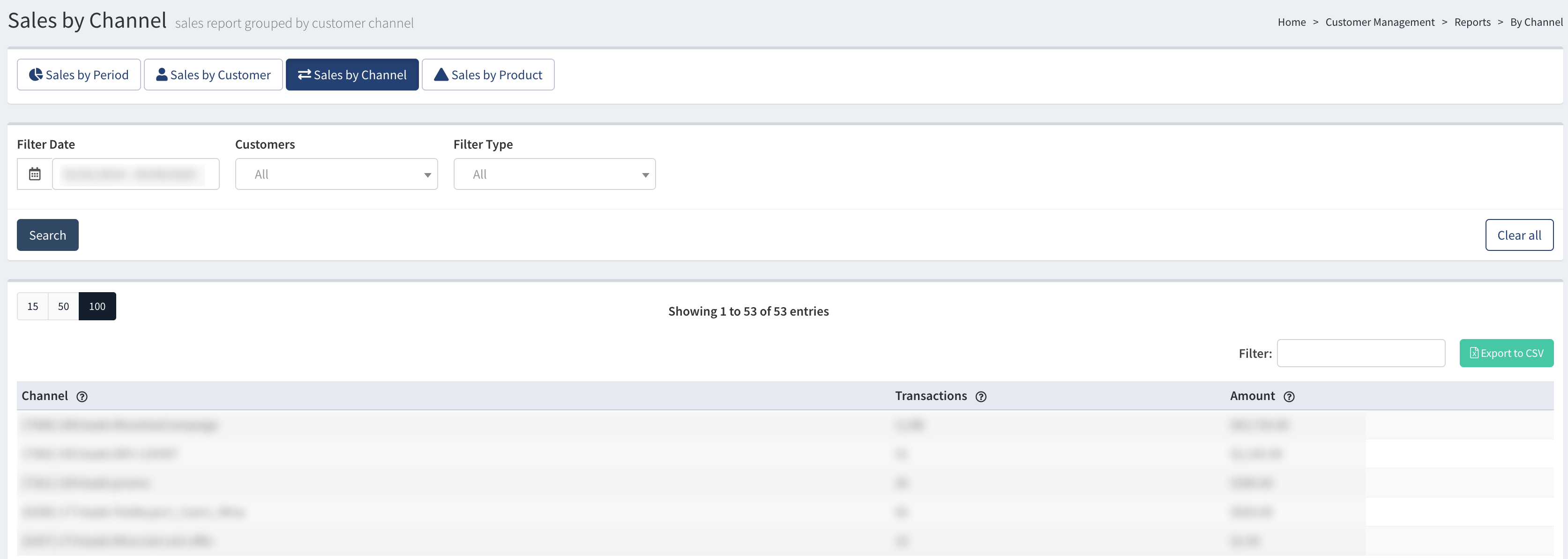
You can narrow down the search results by using the following filters:
- Filter Date: Select the date range for the report.
- Customer: Select a specific Customer.
- Filter Type: Select the “RETURNS” option to display the transactions for which the Customer was credited. Select the “ADJUSTMENTS” option to display the adjustment transactions.
The list contains the following information:
- Channel: The name of the Customer channel (campaign) in the system.
- Transactions: The number of transactions for the selected channel.
- Amount: The total sales amount for the selected channel.
Sales by Product
The “Sales by Product” tab allows you to view the Customer sales report grouped by each Product in the system.
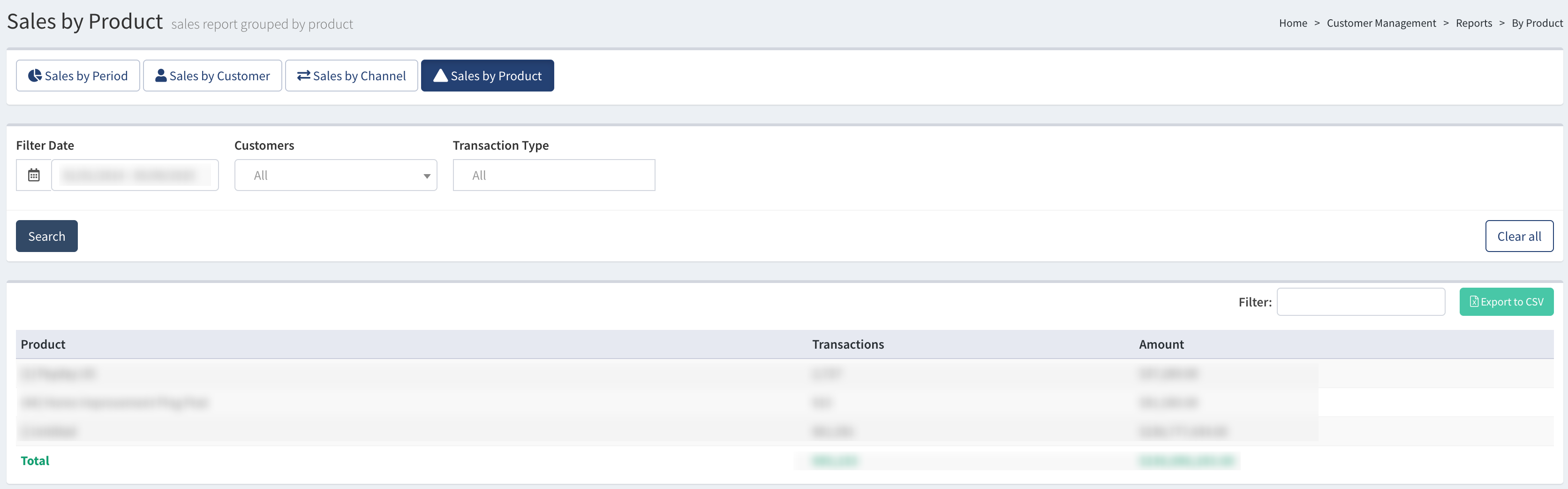
You can narrow down the search results by using the following filters:
- Filter Date: Select the date range for the report.
- Customer: Select a specific Customer.
- Filter Type: Select the “RETURNS” option to display the transactions for which the Customer was credited. Select the “ADJUSTMENTS” option to display the adjustment transactions.
The list contains the following information:
- Product: The name of the Product in the system.
- Transactions: The number of transactions for the selected Product.
- Amount: The total sales amount for the selected Product.
Transaction Summary
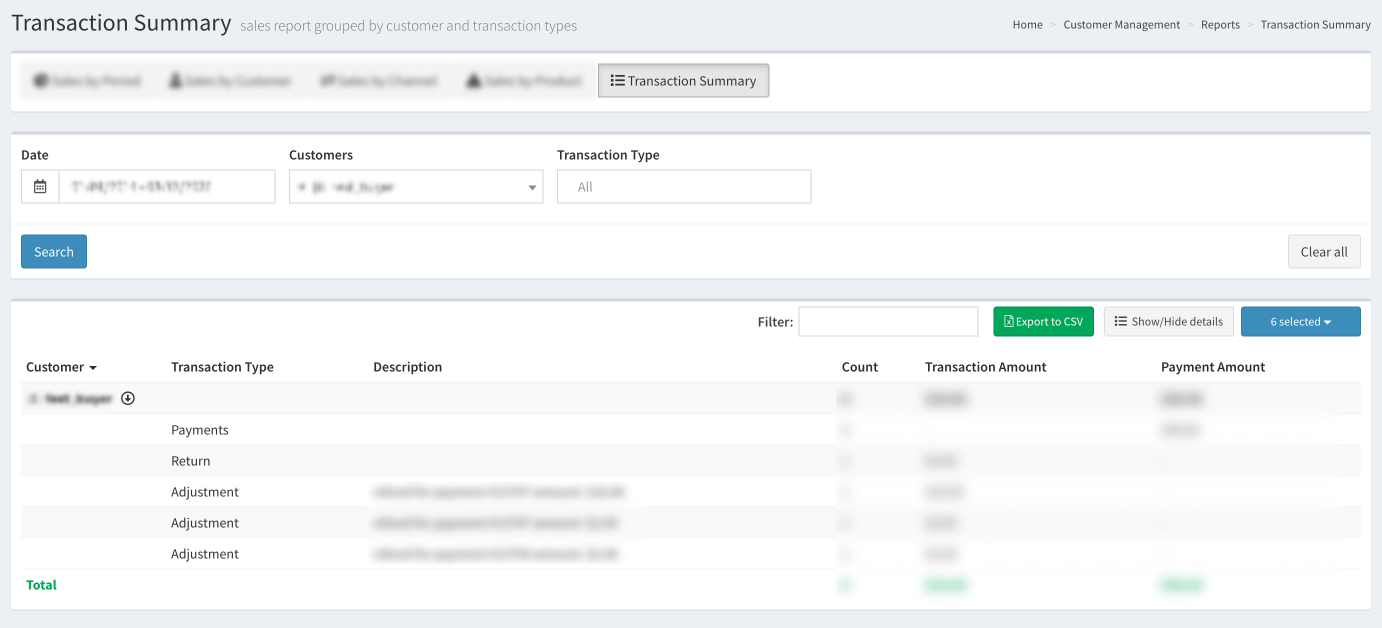
The “Transaction Summary” tab allows you to view detailed information about processed transactions, including returns and adjustments, grouped by type.
-3.png?hsLang=en)
You can narrow down the search results by using the following filters:
- Date: Select the date range for the report.
- Customers: Select a specific Customer.
- Transaction Type: Select the type of the performed transaction (Return, Adjustments, Leads, VAT, Discount, Payments).
The list contains the following information:
- Customer: The name of the particular Customer.
- Transaction Type: The type of the performed transaction.
- Description: The description of the performed transaction.
- Count: The number of transactions for the particular Customer.
- Transaction Amount: The total amount of the processed transactions for the Customer. It includes the total amount of all processed transactions with the Return, Adjustments, Leads, VAT, and Discount transaction types.
- Payment Amount: The total amount of the processed payments for the Customer. It includes the total amount of all processed transactions with the Payments transaction type.
To view a detailed breakdown of the transactions performed by the Customer and grouped by type, click the down-pointed arrow button next to the Customer's name.
To expand the detailed breakdown of the transactions performed by all Customers, click the “Show/Hide details” button.
The particular type of transaction will be displayed in the “Transaction Type” field, and the number of transactions along with the corresponding amounts is displayed in the “Count”, “Transaction Amount”, and “Payment Amount” fields.
To export the data to the CSV file, click the “Export to CSV” button.
Note that the exported data will be displayed with the detailed breakdown for each customer.