---
title: "Event Tracking Type: [Call Logic] Export to Callback Campaign"
description: The Export to Callback Campaign event tracking type allows you to send Callback Requests to a selected Call Logic Callback Campaign when the selected trigger event occurs.
---
[Skip to content](https://support.phonexa.com/event-tracking-type-call-logic-export-to-callback-campaign#main-content)
[](https://support.phonexa.com/?hsLang=en)
Open main navigation
Close main navigation
- [➜\]](https://phonexa.com/)
[➜\]](https://phonexa.com/?hsLang=en)
Phonexa Support Center
- There are no suggestions because the search field is empty.
1. [Knowledge Base](https://support.phonexa.com/?hsLang=en)
2. [LMS Sync & Call Logic](https://support.phonexa.com/lms-sync-call-logic?hsLang=en)
3. [Event Tracking](https://support.phonexa.com/lms-sync-call-logic?hsLang=en#event-tracking)
# Event Tracking Type: \[Call Logic\] Export to Callback Campaign
## The Export to Callback Campaign event tracking type allows you to send Callback Requests to a selected Call Logic Callback Campaign when the selected trigger event occurs.
When the trigger events occur, the data from the lead fields that are configured in the tracking rule will be used to create a new Callback Request for the related Callback Campaign in the Call Logic.
*Read more about the Call Logic Callback feature in the following Knowledge Base* [*article*](https://support.phonexa.com/callback?hsLang=en)*.*
*Read more about the Callback Requests in the following Knowledge Base* [*article*](https://support.phonexa.com/callback-requests?hsLang=en)*.*
The **\[Call Logic\] Export to Callback Campaign** tracking type can be configured on the Product and Campaign levels.
*Note: This event tracking type is available only for LMS Products.*
*Read more about the Event Tracking Configuration Levels in the Knowledge Base* [*article*](https://support.phonexa.com/event-tracking-lms-/-call-logic?hsLang=en#Product)*.*
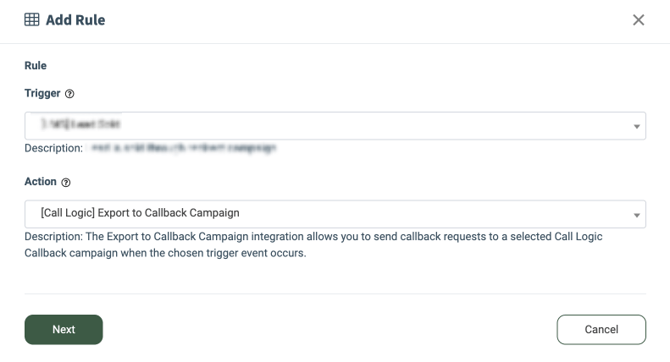
To create this integration rule, fill in the following fields in the **“Add Rule”** pop-up window:
- **Trigger:** Select the event that triggers the action:
- **\[LMS\] Lead Sold:** The lead is sold through the Campaign.
- **\[LMS\] Lead Redirect:** The lead is redirected to the specified URL.
- **\[LMS\] Form Loaded:** The form is loaded.
- **\[LMS\] Lead Rejected:** The lead is not accepted by any Campaign.
- **\[LMS\] Post Rejected:** The post is rejected.
- **\[LMS\] Campaign Sold:** Lead has received "Buyer sold" status.
- **\[LMS\] Campaign Rejected:** The Buyer rejected the lead. No matter the final status of the lead.
- **\[LMS\] Revenue Postback:** Revenue Ping Back sent.
- **\[LMS\] Lead Offer Received:** The lead offer was received on a product ping.
- **\[LMS\] Publisher Earning Received:** The trigger fires every time the Publisher gets earnings (Direct Sold / Revenue Post-back).
- **\[LMS\] Disposition Updated:** The Buyer Disposition has been updated.
- **\[LMS\] Publisher Earning Adjusted:** Lead Adjustment happened.
- **\[LMS\] Lead Return:** Lead Return happened.
- **\[LMS\] Lead Partial Return:** Lead Partial Return happens.
- **\[LMS\] Price Reject Sold:** Lead Price Reject was sold.
- **\[LMS\] Price Reject Rejected:** Lead Price Reject was rejected.
- **\[LMS\] Price Reject Registered:** Lead price reject was registered.
- **Action:** Select the **“\[Call Logic\] Export to Callback Campaign”** option.
[](https://support.phonexa.com/hubfs/Event%20Tracking%20Type%20Export%20to%20Callback%20Campaign%201.png?hsLang=en)
Once you select the preferred event, click the **“Next”** button to proceed with the setup.
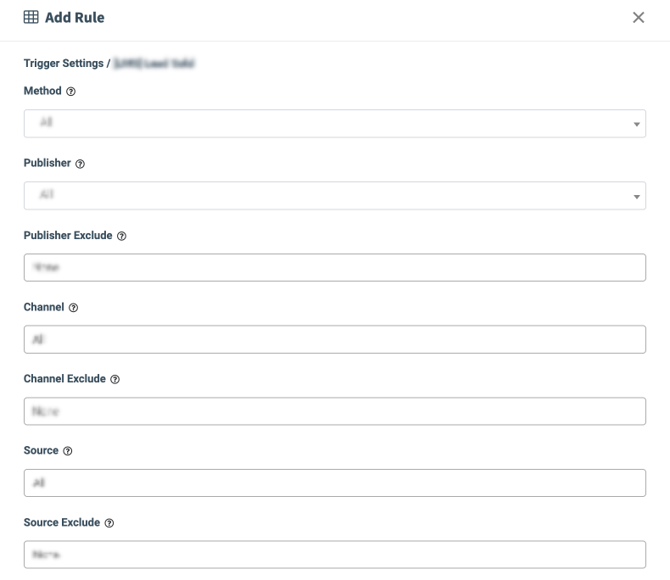
The **“Trigger Settings”** block allows you to set up additional filters for the selected event. The filter fields are optional. If no filters are set up, the action will be triggered for all the leads that fit the event trigger.
Depending on the role and platform, the following filters for trigger settings are available:
- **Method:** Select the posting method *(POST, FORM).*
- **Publisher Exclude:** Select the Publisher(s) to exclude from the rule.
- **Channel:** Select the Publisher Channel.
- **Channel Exclude:** Select the Publisher Channel(s) to exclude from the rule.
- **Source:** Select the Publisher Source.
- **Source Exclude:** Select the Publisher Source to exclude from the rule.
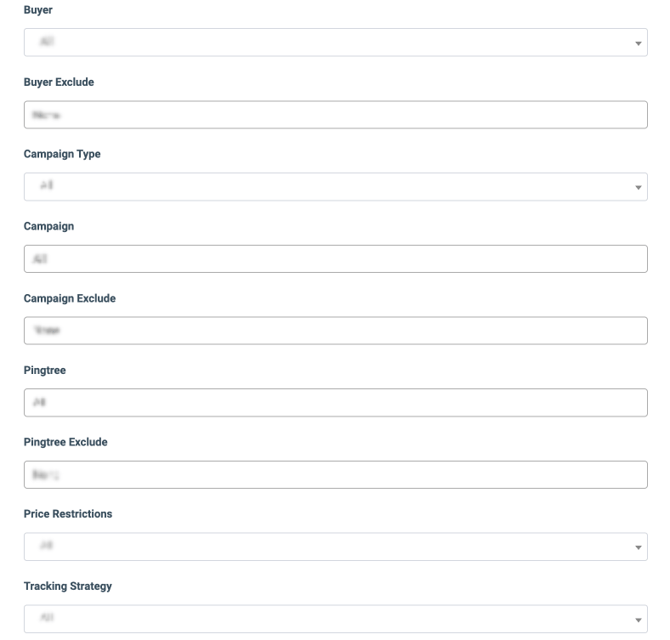
- **Buyer:** Select the Buyer.
- **Buyer Exclude:** Select the Buyer(s) to exclude from the rule.
- **Campaign:** Select the Campaign.
- **Campaign Exclude:** Select the Campaign(s) to exclude from the rule.
- **Pingtree:** Select the Pingtree.
- **Pingtree Exclude:** Select the Pingtree(s) to exclude from the rule.
- **Price Restrictions:** Select the Price restrictions *(Price is greater than 0, Price is greater than a certain value, Price is greater than or equal to a certain value, Price is lower than a certain value, Price is lower than or equal to a certain value, Price range inclusive).*
- **Price Restriction Value:** Enter the value for the price restriction application.
- **Tracking Strategy:** Select the tracking strategy based on how the lead was sold *(All, Direct Sold Only, PingBack Only).*
*[](https://support.phonexa.com/hubfs/Event%20Tracking%20Type%20Export%20to%20Callback%20Campaign%202.png?hsLang=en)*
[](https://support.phonexa.com/hubfs/Event%20Tracking%20Type%20Export%20to%20Callback%20Campaign%203.png?hsLang=en)
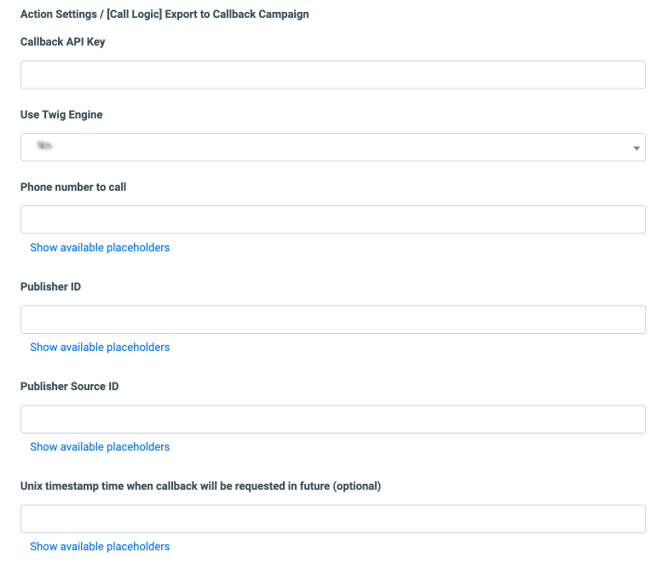
The **“Action Settings/\[Call Logic\] Export to Callback Campaign”** block allows you to configure the action required for the rule setup:
- **Callback API Key:** Enter the API Key for the related Callback Campaign.
- **Use Twig Engine:** Select the **“Yes”** option to enable the Twig Engine usage.
- **Phone number to call:** Enter the name of the field from which the phone number for the Callback Request should be retrieved. To view the list of available placeholders, click the **“Show available placeholders”** link. You can click on the available placeholder, and it will be automatically added to the current field.
- **Publisher ID:** Enter the name of the field from which the unique identification number of the related Publisher should be retrieved for the Callback Request creation. To view the list of available placeholders, click the **“Show available placeholders”** link. You can click on the available placeholder, and it will be automatically added to the current field.
- **Publisher Source ID:** Enter the name of the field from which the unique identification number of the related Publisher Source should be retrieved for the Callback Request creation. To view the list of available placeholders, click the **“Show available placeholders”** link. You can click on the available placeholder, and it will be automatically added to the current field.
- **Unix timestamp time when callback will be requested in future (optional):** Enter the name of the field from which the time for the Callback Request processing should be retrieved. To view the list of available placeholders, click the **“Show available placeholders”** link. *Note: The retrieved date and time values for the callback processing should be converted to a Unix timestamp using Twig before sending.* *Note: This field is optional. If no value is set in this field, the callback request will be processed immediately after its creation.*
*[](https://support.phonexa.com/hubfs/Event%20Tracking%20Type%20Export%20to%20Callback%20Campaign%204.png?hsLang=en)*
The Warning Notifications block allows you to specify the actions for the system to determine as an error.
*Read more about the Warning Notifications settings in the following Knowledge Base* [*article*](https://support.phonexa.com/product-settings-tracking?hsLang=en)*.*
*Click the **“Save Rule”** button to complete the rule creation.*
- [General information](https://support.phonexa.com/general-information?hsLang=en#main-content)
- [Account Settings](https://support.phonexa.com/general-information?hsLang=en#account-settings)
- [Security Settings](https://support.phonexa.com/general-information?hsLang=en#security-settings)
- [Users](https://support.phonexa.com/general-information?hsLang=en#users)
- [System Customization](https://support.phonexa.com/general-information?hsLang=en#system-customization)
- [Project Customization](https://support.phonexa.com/general-information?hsLang=en#project-customization)
- [Product Customization](https://support.phonexa.com/general-information?hsLang=en#product-customization)
- [System Management](https://support.phonexa.com/general-information?hsLang=en#system-management)
- [Support](https://support.phonexa.com/general-information?hsLang=en#support)
- [LMS Sync & Call Logic](https://support.phonexa.com/lms-sync-call-logic?hsLang=en#main-content)
- [Extra Features](https://support.phonexa.com/lms-sync-call-logic?hsLang=en#extra-features)
- [Publisher Configuration](https://support.phonexa.com/lms-sync-call-logic?hsLang=en#publisher-configuration)
- [Client Management](https://support.phonexa.com/lms-sync-call-logic?hsLang=en#client-management)
- [System Logs](https://support.phonexa.com/lms-sync-call-logic?hsLang=en#system-logs)
- [Documents And References](https://support.phonexa.com/lms-sync-call-logic?hsLang=en#documents-and-references)
- [Reports and Analytics](https://support.phonexa.com/lms-sync-call-logic?hsLang=en#reports-and-analytics)
- [Publisher management](https://support.phonexa.com/lms-sync-call-logic?hsLang=en#publisher-management)
- [Call Logic Customization](https://support.phonexa.com/lms-sync-call-logic?hsLang=en#call-logic-customization)
- [Campaign Configuration](https://support.phonexa.com/lms-sync-call-logic?hsLang=en#campaign-configuration)
- [Feed CMS](https://support.phonexa.com/lms-sync-call-logic?hsLang=en#feed-cms)
- [Event Tracking](https://support.phonexa.com/lms-sync-call-logic?hsLang=en#event-tracking)
- [iClear](https://support.phonexa.com/lms-sync-call-logic?hsLang=en#iclear)
- [E-Delivery](https://support.phonexa.com/e-delivery?hsLang=en#main-content)
- [List Management](https://support.phonexa.com/e-delivery?hsLang=en#list-management)
- [Email Campaigns](https://support.phonexa.com/e-delivery?hsLang=en#email-campaigns)
- [SMS Campaigns](https://support.phonexa.com/e-delivery?hsLang=en#sms-campaigns)
- [Reports](https://support.phonexa.com/e-delivery?hsLang=en#reports)
- [Suppression Management](https://support.phonexa.com/e-delivery?hsLang=en#suppression-management)
- [Books360](https://support.phonexa.com/books360?hsLang=en#main-content)
- [Books 360 Integration](https://support.phonexa.com/books360?hsLang=en#books-360-integration)
- [Vendor Management](https://support.phonexa.com/books360?hsLang=en#vendor-management)
- [Account](https://support.phonexa.com/books360?hsLang=en#account)
- [Customer Management](https://support.phonexa.com/books360?hsLang=en#customer-management)
- [Opt-Intel](https://support.phonexa.com/opt-intel?hsLang=en#main-content)
- [List Management](https://support.phonexa.com/opt-intel?hsLang=en#list-management)
- [All Reports](https://support.phonexa.com/opt-intel?hsLang=en#all-reports)
- [Mailers](https://support.phonexa.com/opt-intel?hsLang=en#mailers)
- [Campaigns](https://support.phonexa.com/opt-intel?hsLang=en#campaigns)
- [System Management](https://support.phonexa.com/opt-intel?hsLang=en#system-management)
- [HitMetrix](https://support.phonexa.com/hitmetrix?hsLang=en#main-content)
- [Analytics](https://support.phonexa.com/hitmetrix?hsLang=en#analytics)
- [Heatmaps](https://support.phonexa.com/hitmetrix?hsLang=en#heatmaps)
- [System Management](https://support.phonexa.com/hitmetrix?hsLang=en#system-management)
- [Lynx](https://support.phonexa.com/lynx?hsLang=en#main-content)
- [Offers](https://support.phonexa.com/lynx?hsLang=en#offers)
- [LYNX Reports](https://support.phonexa.com/lynx?hsLang=en#lynx-reports)
- [Advertisers](https://support.phonexa.com/lynx?hsLang=en#advertisers)
- [Affiliates](https://support.phonexa.com/lynx?hsLang=en#affiliates)
- [Account Settings](https://support.phonexa.com/lynx?hsLang=en#account-settings)
- [Cloud PBX](https://support.phonexa.com/cloud-pbx?hsLang=en)
[](https://phonexa.com/?hsLang=en)
Phonexa Knowledge Base
Copyright © 2026, Phonexa