
To enable this service, go to the Fraud and Anomaly > iClear > Lead Processing Rules section and select a Product from the drop-down list. Click the “Select” button to proceed.
-2.png?hsLang=en)
Once you select the Product, you’ll be automatically redirected to the “Lead Processing Rules (iClear)” subtab. You may also navigate here by selecting the System Management > Products section on the left-hand menu and clicking on the “Settings” button for the corresponding product (Lead Processing Rules (iClear) sub-tab).
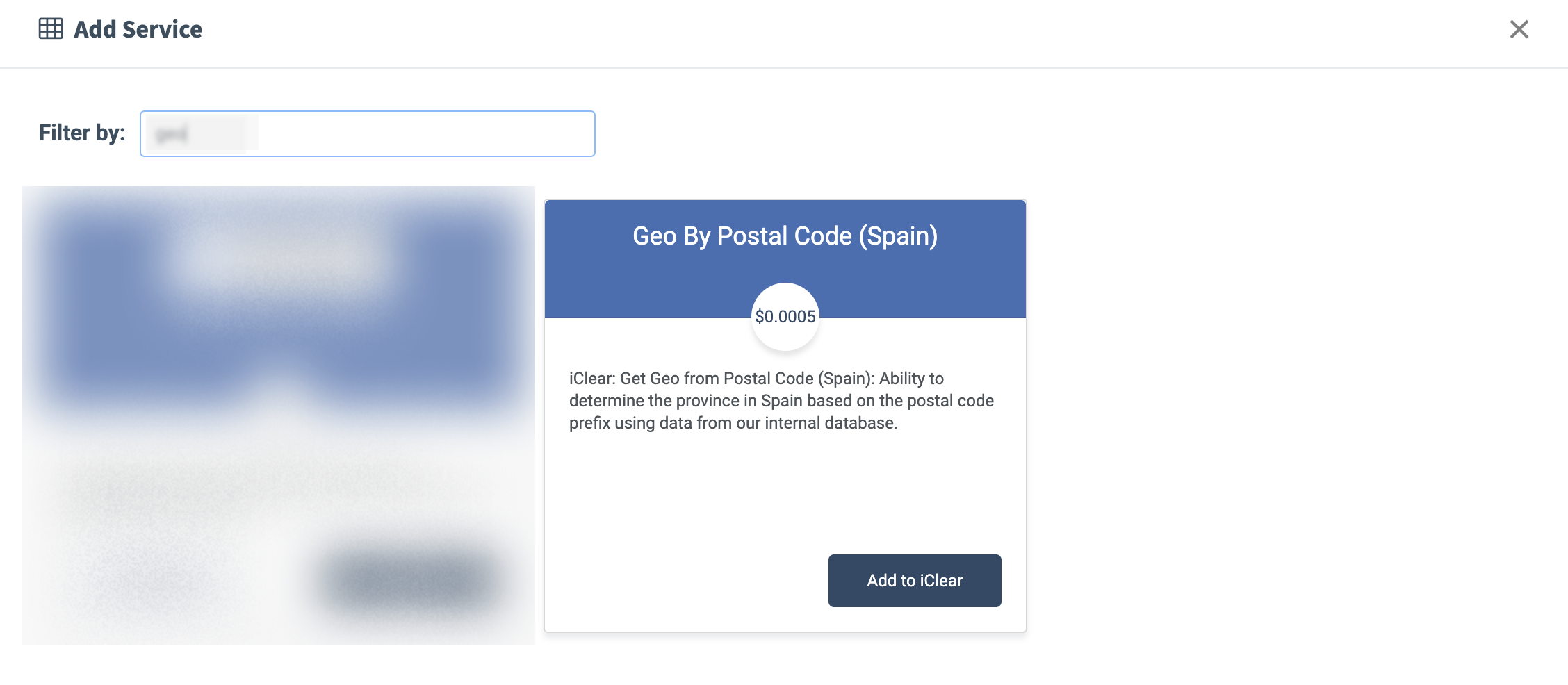
To configure this service, click the “Add Service” button in the Global Rules block. Navigate to the “Geo By Postal Code (Spain) ” block and click the “Add to iClear” button.
Note: This service is available on demand only.
Fill in the following fields in the pop-up window:
- Execution Type:
- Select the "Synchronous" option to wait for the service lookup outcome before processing a lead. This execution type is recommended for real-time filtration of a lead based on the lookup status. Before processing a lead, the system makes a request to the third-party database.
- Select the "Asynchronous" option to make a simultaneous request and process a lead without waiting for the lookup outcome. This execution type is recommended for analytical purposes and not for real-time lead filtration based on the lookup status. While processing a lead, the system makes a request to the third-party database.
- Select the “On-Demand” option to enable lead filtration when the “% of lead to lookup” is set as 0 (null).
- % of leads to lookup: Set the percentage of leads to be checked through this service.
- Select a field to retrieve the postal code: Select the field for the service to retrieve the postal code from.
- Reject the lead if the province was not found: Select the option (Yes / No) to specify the rejection conditions for the service if the province was not found.
-2.png?hsLang=en) The “Additional Run Settings” configuration block allows you to configure more options to determine at which stage you would prefer to run the service.
The “Additional Run Settings” configuration block allows you to configure more options to determine at which stage you would prefer to run the service.
- Service run time: Select whether you would prefer to run the service before or after the leads are filtered out (After filtration / Before filtration).
Note: Please be aware that selecting this option may impact your invoice. Once this option is selected and no campaigns remain for the service to run, there will be no charges incurred. - Run service on (PingPost products only): Select one of the options to determine at which stage you would prefer to run the service for the Ping Post products (Ping / Post / Ping and Post).
- Run service on silent ping: Select “Yes” if you would like to run the service during the silent ping stage. Select “No” to exclude this option.
- No response service action: (The system runs a lookup service. In case the service did not get any response, you can select the preferred action.)
- Select the “Continue Processing” option if you want to continue processing leads when the service does not respond.
- Select the “Reject the Lead” option if you want to reject the lead when the service does not respond.
Click the “Add” button to confirm.
-2.png?hsLang=en)