
The Property Reach third-party service allows you to retrieve lead property data based on a lead's US property address. The service provides property characteristics, estimated value, ownership, mortgage and sales information, property status, and other property insights to support lead research and evaluation.
To enable this service, go to the Fraud and Anomaly > iClear > Lead Processing Rules section and select a Product from the drop-down list. Click the “Select” button to proceed.

Once you select the Product, you’ll be automatically redirected to the “Lead Processing Rules (iClear)” subtab. You may also navigate here by selecting the System Management > Products section on the left-hand menu and clicking on the “Settings” button for the corresponding product (Lead Processing Rules (iClear) subtab).
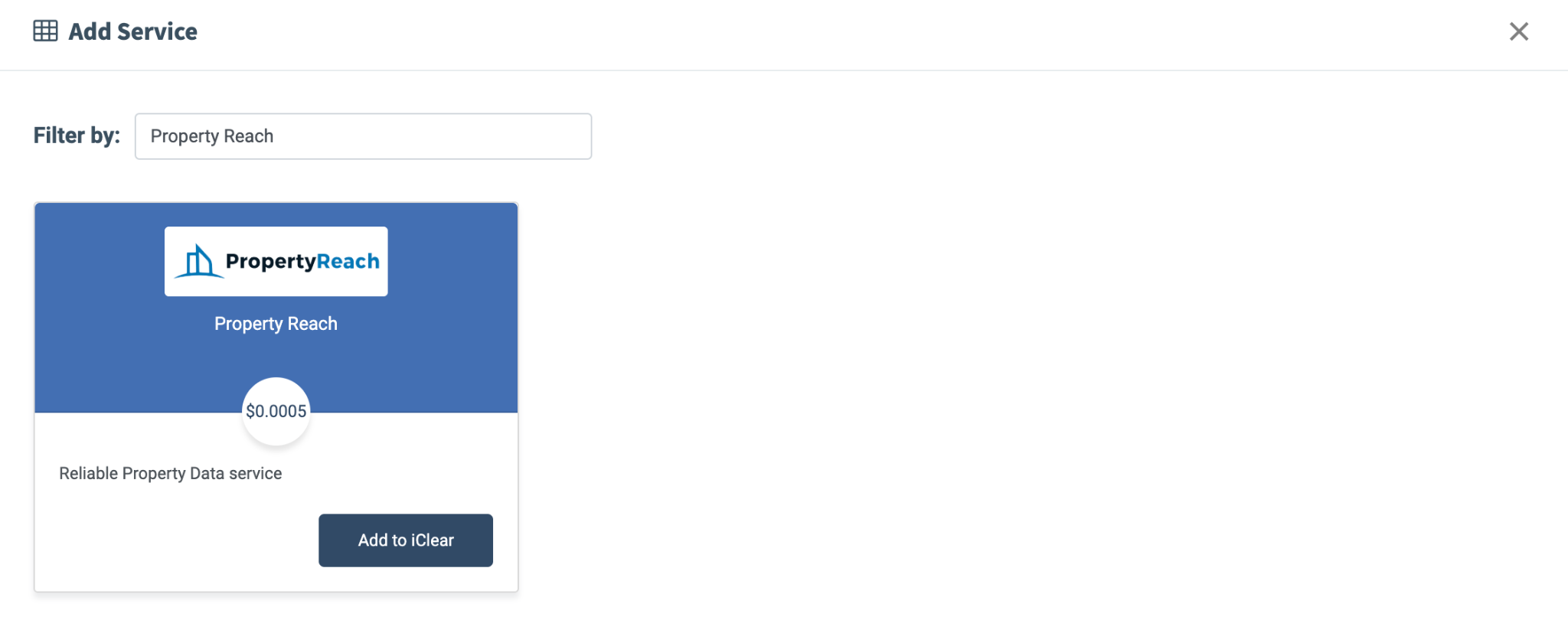
To configure this service, click the “Add Service” button in the Global Rules block. Fill in the following fields:
- Select Third Party Service: Select the “Property Reach” option.
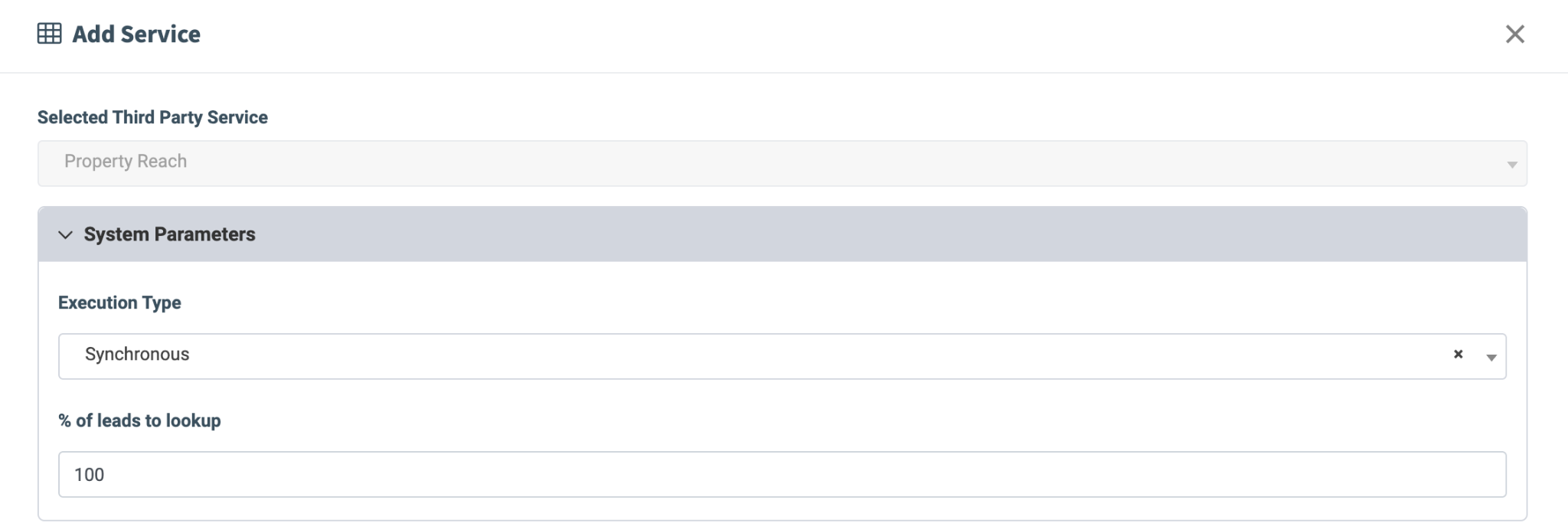
- Execution Type:
- Select the "Synchronous" option to wait for the service lookup outcome before processing a lead. This execution type is recommended for real-time filtration of a lead based on the lookup status. Before processing a lead, the system makes a request to the third-party database.
- Select the "Asynchronous" option to make a simultaneous request and process a lead without waiting for the lookup outcome. This execution type is recommended for analytical purposes and not for real-time lead filtration based on the lookup status. While processing a lead, the system makes a request to the third-party database.
- Select the “On-Demand” option to enable lead filtration when the “% of lead to lookup” is set as 0 (null).
- % of leads to lookup: Set the percentage of leads to be checked through this service.
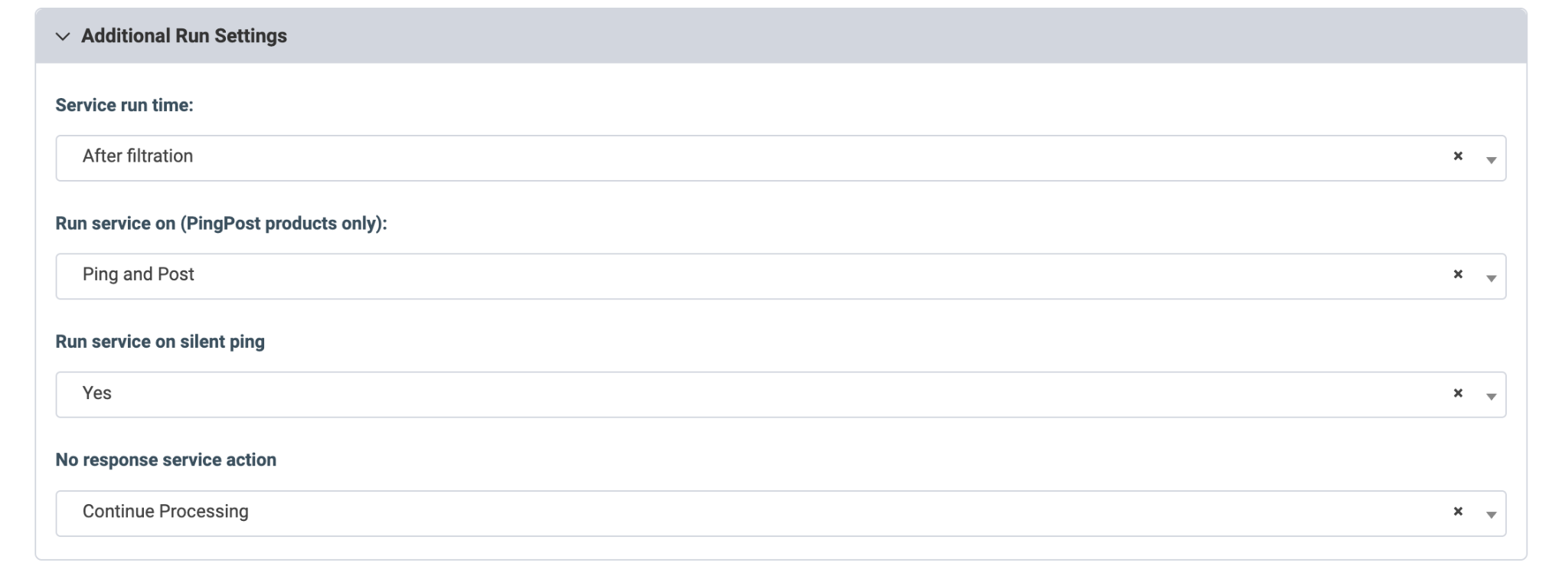
The “Additional Run Settings” configuration block allows you to configure more options to determine at which stage you would prefer to run the service.
- Service run time: Select whether you would prefer to run the service before or after the leads are filtered out (After filtration / Before filtration).
Note: Please be aware that selecting this option may impact your invoice. Once this option is selected and no campaigns remain for the service to run, there will be no charges incurred. - Run service on (PingPost products only): Select one of the options to determine at which stage you would prefer to run the service for the Ping Post products (Ping / Post / Ping and Post).
- Run service on silent ping: Select “Yes” if you would like to run the service during the silent ping stage. Select “No” to exclude this option.
- No response service action: (The system runs a lookup service. In case the service did not get any response, you can select the preferred action.)
- Select the “Continue Processing” option if you want to continue processing leads when the service does not respond.
- Select the “Reject the Lead” option if you want to reject the lead when the service does not respond.
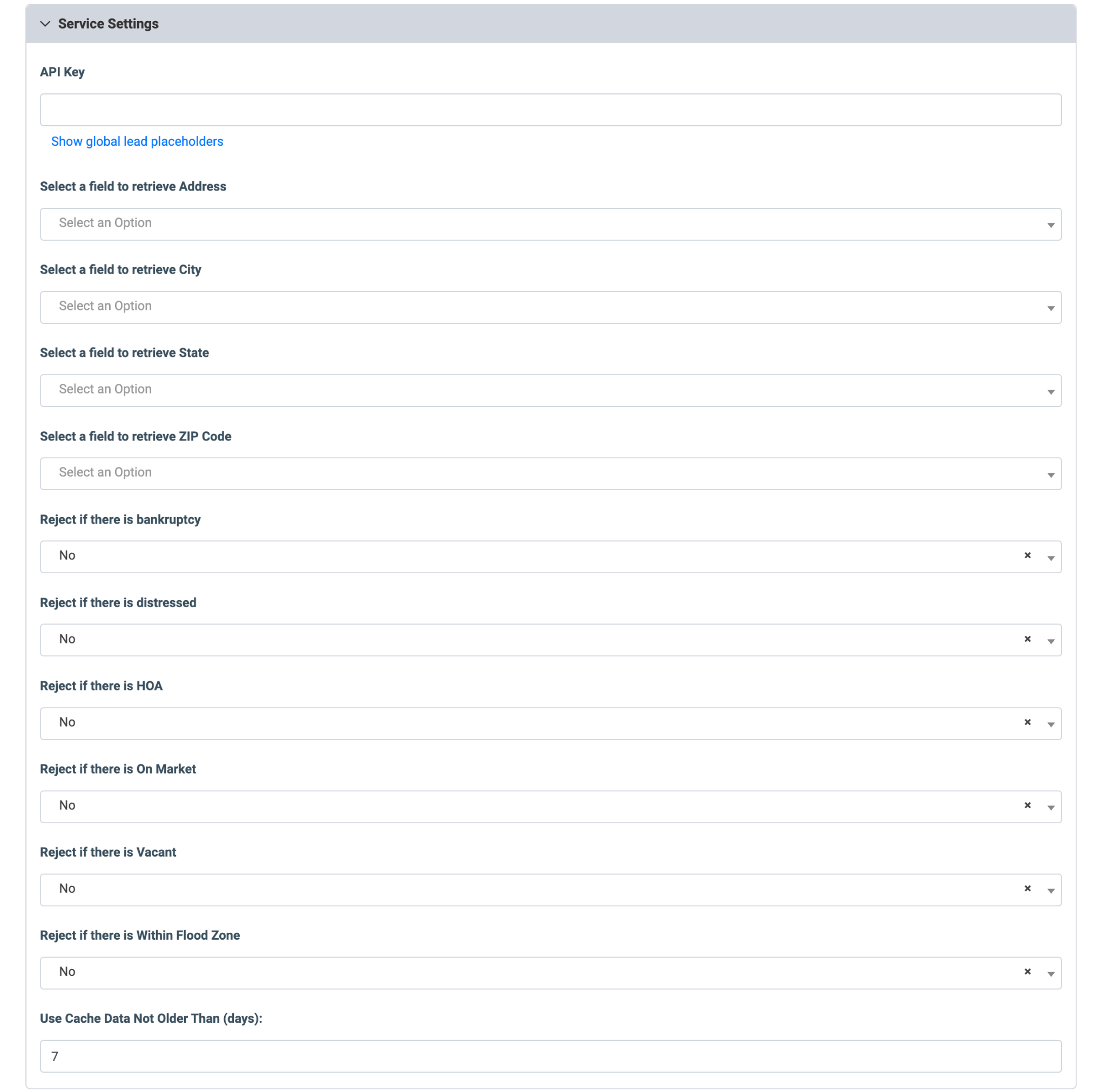
The "Service Settings" block allows you to configure the necessary fields for accessing the service, set up fields for retrieving required data, and manage the leads to be filtered based on the service information.
- API Key: Specify the API key used to authenticate requests to Property Reach.
- Select a field to retrieve Address: Select the lead field containing the street address used for the Property Reach lookup.
- Select a field to retrieve City: Select the lead field containing the city used for the Property Reach lookup.
- Select a field to retrieve State: Select the lead field containing the state used for the Property Reach lookup.
- Select a field to retrieve ZIP Code: Select the lead field containing the ZIP code used for the Property Reach lookup.
- Reject if there is bankruptcy: Select “Yes” to reject the lead if the Property Reach response indicates a bankruptcy-related property status.
- Reject if there is distressed: Select “Yes” to reject the lead if the property is identified as distressed.
- Reject if there is HOA: Select “Yes” to reject the lead if the property is associated with a homeowners association (HOA).
- Reject if there is On Market: Select “Yes” to reject the lead if the property is currently listed on the market.
- Reject if there is Vacant: Select “Yes” to reject the lead if the property is identified as not currently occupied.
- Reject if there is Within Flood Zone: Select “Yes” to reject the lead if the property is located within a flood zone.
- Use Cache Data Not Older Than (days): Enter the maximum period (in days) for cache data usage.
Click the “Add” button to confirm.
Read more about the Global Rules and Advanced Rules configuration in this Knowledge Base article.