
Read more information about the Lead Stash option in the following Knowledge Base article.
To view the report, go to the All Reports > Extras > Lead Stash Data section.
The report contains two tabs:
Lead Stash Data
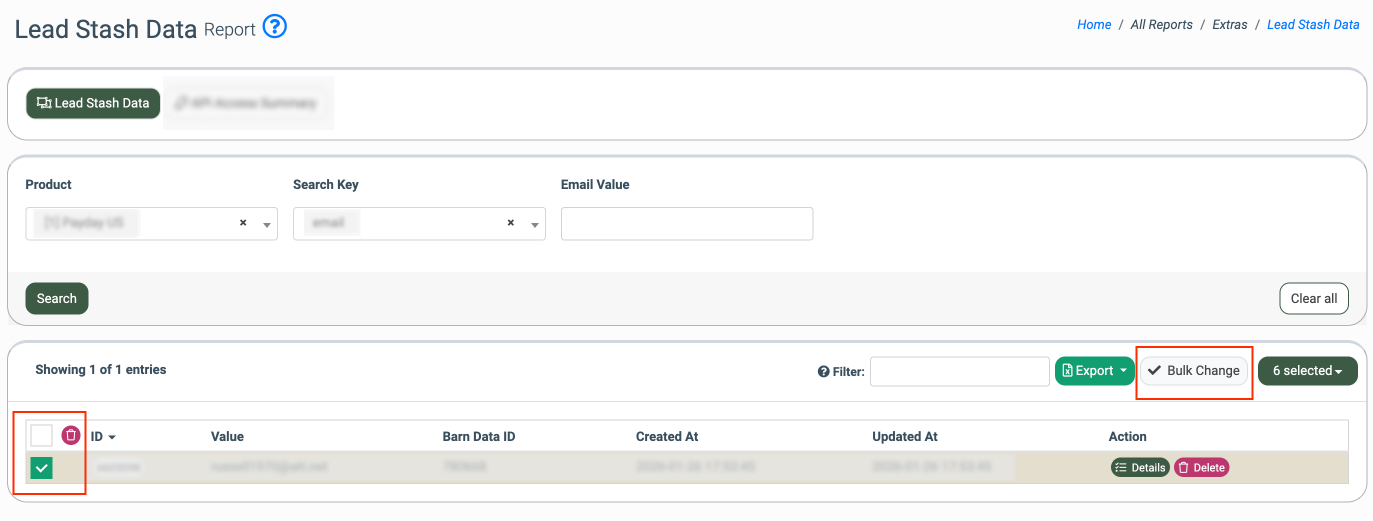
The “Lead Stash Data” tab allows you to pull and view the data available in the Lead Stash according to the selected search criteria and entered search key values. You can view full, detailed data about the Lead Stash record and remove the corresponding data records from the list.
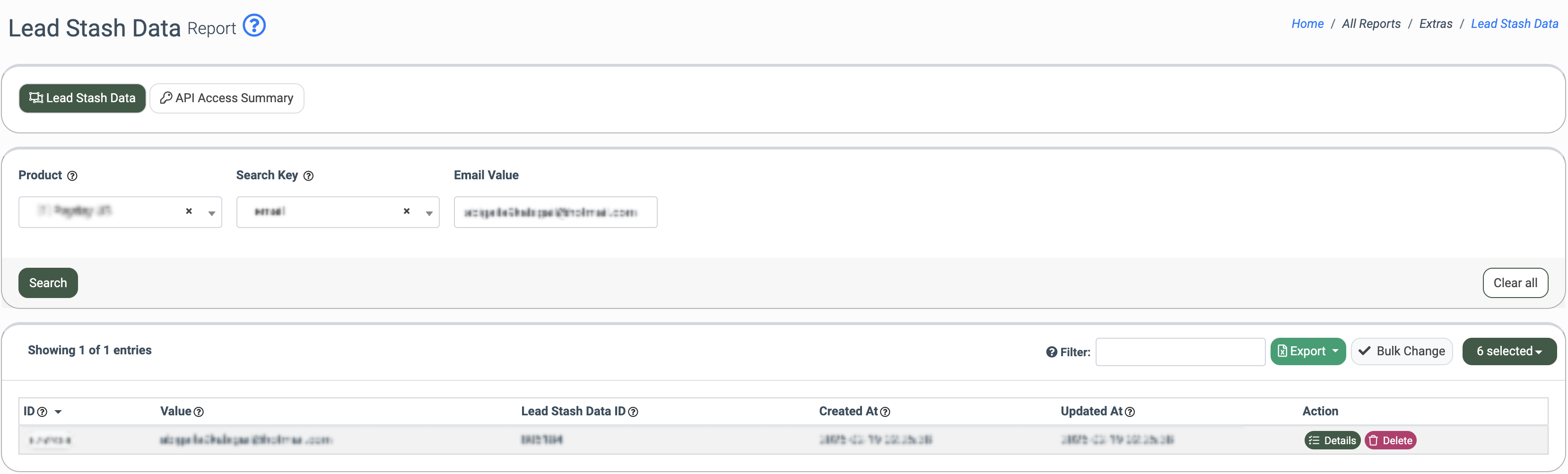
You can narrow down the search results by using the following filters:
- Product: Select the related Product.
- Search Key: Select key(s) that will be considered for the data search. Note that this filter is mandatory for the selection.
The list of available search keys depends on the selected Product. For example, for the particular Product, the list of search keys is the following: short_ssn, zip, yob email, short_ssn, zip, yob, short_ssn, phone, short_ssn, email, emailPhoneHash, email, cellPhone.
Depending on the option selected in the “Search Key” filter field, enter the search criteria data into the corresponding fields. The scope of filter fields corresponds to the selected option.
Note that all filter fields are mandatory for filling out.
For example, if the “email” option is selected in the “Search Key” filter field, enter the email of the Lead in the “Email Value” filter field.
The Lead Stash Data section contains the following information:
- ID: The unique identification number of the Lead Stash data record in the report.
- Value: The data value that is associated with the Lead Stash data record.
- Lead Stash Data ID: The unique identification number of the Lead Stash data record (the Lead data itself) in the Lead Stash.
- Created At: The date and time of the Lead Stash data record creation.
- Updated At: The date and time of the Lead Stash data record's last update.
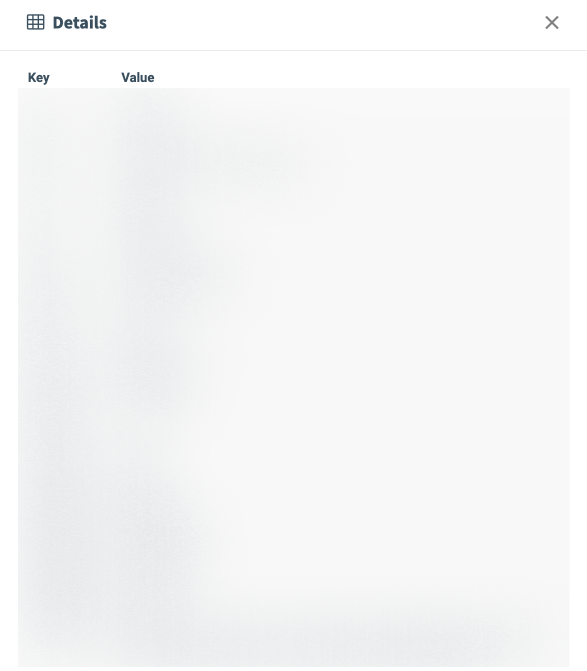
To view the detailed information about the data record stored in the Lead Stash, click the “Details” button in the “Action” column, or the “ID” button in the “ID” column. The full information that is associated with the record and available in the Lead Stash will be displayed in the “Details” pop-up window. The information about the record contains the name of the Lead data field (the “Key” column) and the data value itself (the “Value” column).
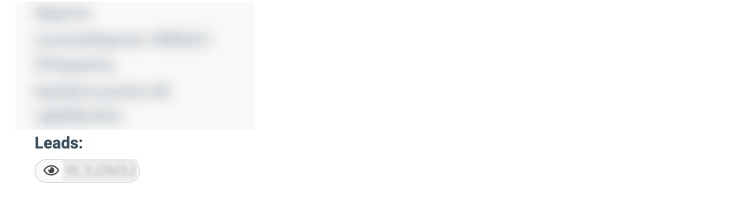
To view the information about the particular Lead(s) that are associated with the Lead Stash data record, scroll down the data in the “Details” pop-up window, and click the “Lead ID” button(s) in the “Leads” field. You will be redirected to the Lead Info section of the corresponding Lead.
Read more information about the Lead Info section in the following Knowledge Base article.
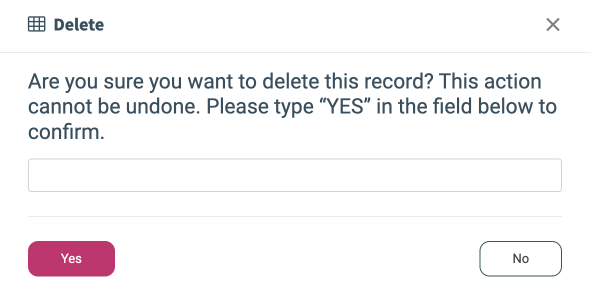
To remove the Lead Stash data record, click the “Delete” button in the “Action” column. Enter the “YES” value in the field and click the “Yes” button in the pop-up window below to complete the deletion.
To remove a couple of Lead Stash data records in one operation, click the “Bulk Change” button, select the corresponding records you would like to remove, and click the “Delete” button at the top of the column with checkboxes.
API Access Summary
The API Access Summary Report provides centralized visibility into how the Lead Stash API is being accessed across products, API keys, and environments. This report helps you understand when, where, and how their API keys are used, making it easier to maintain operational oversight and strengthen data security.
By surfacing detailed read and write activity, IP addresses, and network context, the report enables teams to quickly identify unused API keys, detect abnormal access patterns, and investigate the source of potential data leaks. It is especially useful for reducing long-term exposure by retiring inactive credentials and responding faster when suspicious activity is detected.
Here, you can check the total number of requests for the data reading and writing (get and set requests) with the detailed breakdown according to the request processing outcomes, whether they were processed successfully, with errors, or applied filtration.
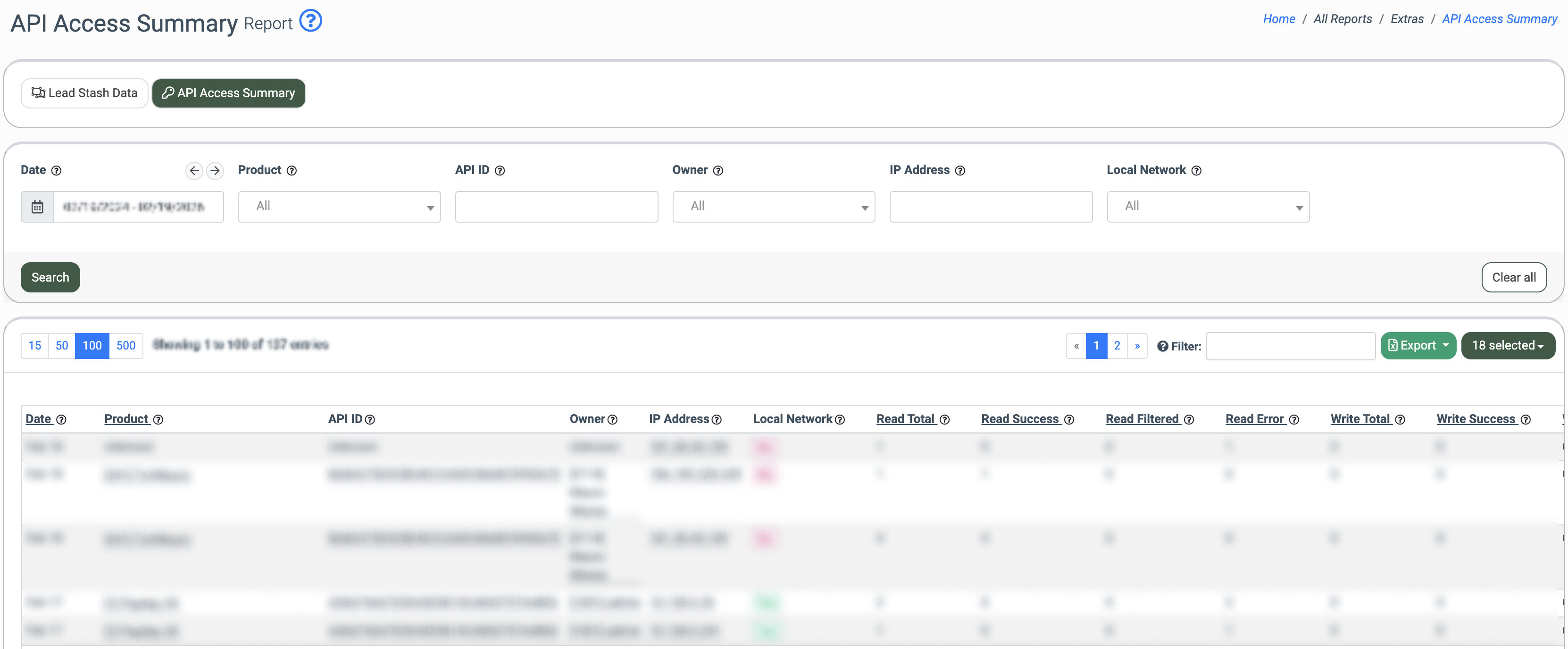
You can narrow down the search results by using the following filters:
- Date: Select the date range for the report.
- Product: Select the related Product.
- API ID: Enter the unique identification number for the API.
- Owner: Select the system user assigned to the particular API Key.
- IP Address: Enter the IP Address from which the API was used.
- Local Network: Select the option to filter out or include the API usage from the internal network. (Yes, No).
The report contains the following information:
- Date: The particular date from the selected date range.
- Product: The name of the related Product.
- API ID: The unique identification number for the API. Note that the “Unknown” value will be mentioned in this field in case of the non-existing API ID usage during the request processing.
- Owner: The system user assigned to the particular API Key.
- IP Address: The IP Address from which the API was used.
- Internal Network: The indicator, whether the APi was used from the IP Address that is associated with the local network.
- Read Total: The total number of get requests (requests to obtain the data from the Lead Stash) that were sent to the Lead Stash via API. The total number is considered as a sum of values from the “Read Success”, “Read Filtered”, and “Read Error” fields.
- Read Success: The total number of get requests (requests to obtain the data from the Lead Stash) that were sent to the Lead Stash via API and processed successfully.
- Read Filtered: The total number of get requests (requests to obtain the data from the Lead Stash) that were sent to the Lead Stash via API and were filtered out according to the Lead Stash filtration settings.
- Read Error: The total number of get requests (requests to obtain the data from the Lead Stash) that were sent to the Lead Stash via API and processed with errors.
- Write Total: The total number of set requests (requests to write the data into the Lead Stash) that were sent to the Lead Stash via API. The total number is considered as a sum of values from the “Write Success” and “Write Error” fields.
- Write Success: The total number of set requests (requests to write the data into the Lead Stash) that were sent to the Lead Stash via API and were processed successfully.
- Write Error: The total number of set requests (requests to write the data into the Lead Stash) that were sent to the Lead Stash via API and were processed with errors.
- Credentials Error: The total number of requests that were processed with the API credentials errors, such as the incorrect API ID, the incorrect API Password, or the user is blocked.
- Settings Error: The total number of requests that were processed with the API settings errors, such as calls from the prohibited IP Address, restriction of the get or set requests usage, or Proxy Settings limitations that are applied on the Product level.
- Rate Limit Error: The total number of requests that were processed with the API but were not completed according to the applied rate limitation settings.
- Validation Error: The total number of requests that were processed with the API but were not completed, according to the validation errors, such as insufficient data for search or data validation for the Lead fields.
- Other Error: The total number of requests that were processed with the API but were not completed because of system errors, such as response code 500, etc.