
To access the report, go to the All Reports > Clicks Report section.
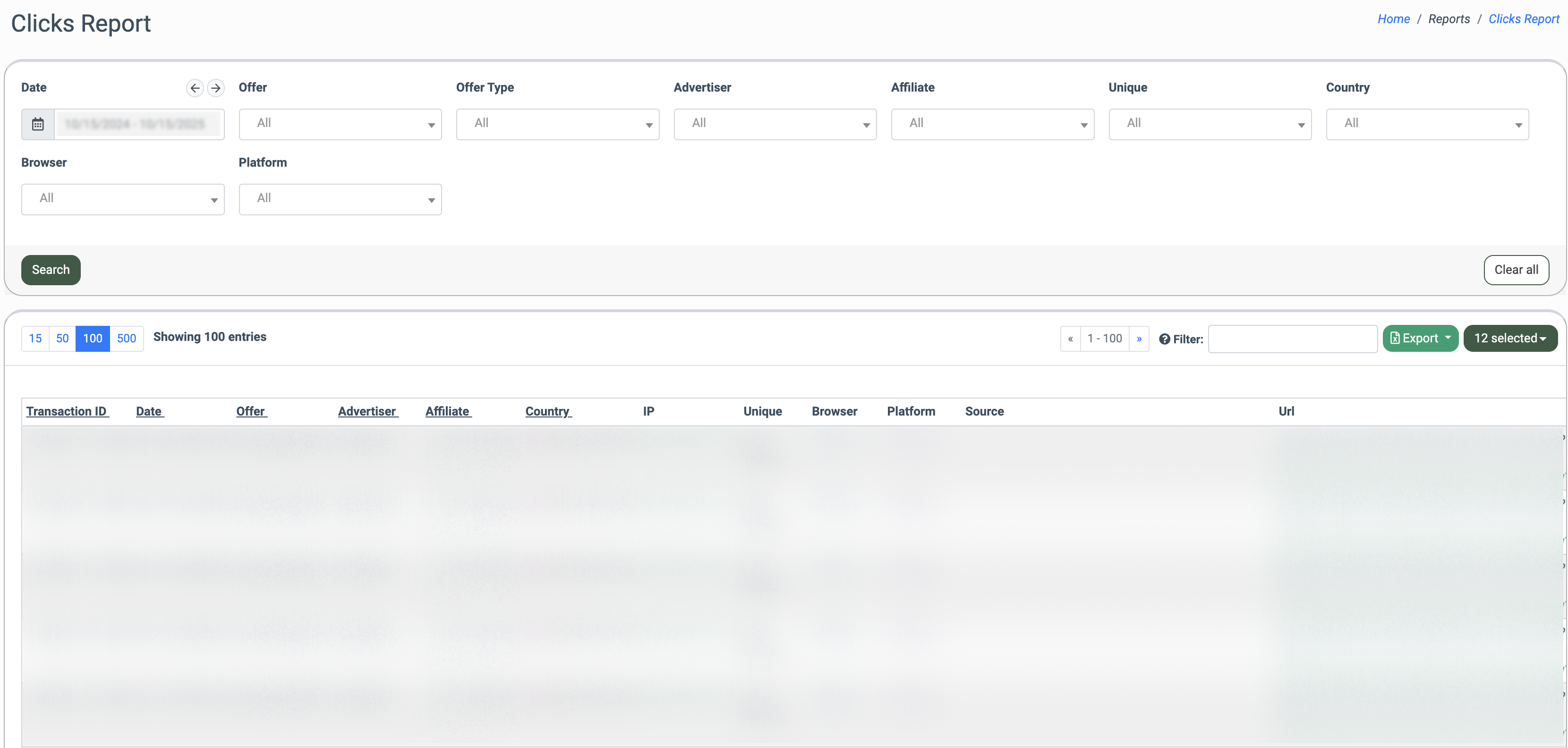
You can narrow down the search results by using the following filters:
- Date: Select the date range for the report.
- Offer: Select the existing offer.
- Offer Type: Select the offer type (Default, LMS + Call Logic, Mobile).
- Advertiser: Select the corresponding Advertiser.
- Affiliate: Select the corresponding Affiliate.
- Unique: Specify if the click is unique or not (True, False).
- Country: Select the country.
- Browser: Select the browser.
- Platform: Select the platform.
The report contains the following information:
- Transaction ID: The ID number of the transaction.
- Date: The date and time of the transaction.
- Offer: The name of the offer.
- Advertiser: The name of the offer’s Advertiser.
- Affiliate: The name of the corresponding Affiliate.
- Country: The country from which this click was made.
- IP: The IP address of the user who made this click.
- Unique: The indication of whether the click is unique or not.
- Browser: The name of the browser.
- Platform: The name of the platform.
- Source: The click source.
- Url: The referring link (where the client originated) is marked in blue, while the destination link (where the client was redirected after clicking) is marked in green.