---
title: "Project Settings: General: Appearance Customization"
description: Looking to customize the system appearance? Here’s what you need to know about appearance customization available in your Project Settings.
---
[Skip to content](https://support.phonexa.com/project-settings-general-appearance-customization#main-content)
[](https://support.phonexa.com/?hsLang=en)
Open main navigation
Close main navigation
- [➜\]](https://phonexa.com/)
[➜\]](https://phonexa.com/?hsLang=en)
Phonexa Support Center
- There are no suggestions because the search field is empty.
1. [Knowledge Base](https://support.phonexa.com/?hsLang=en)
2. [General information](https://support.phonexa.com/general-information?hsLang=en)
3. [System Customization](https://support.phonexa.com/general-information?hsLang=en#system-customization)
# Project Settings: General: Appearance Customization
## Looking to customize the system appearance? Here’s what you need to know about appearance customization available in your Project Settings.
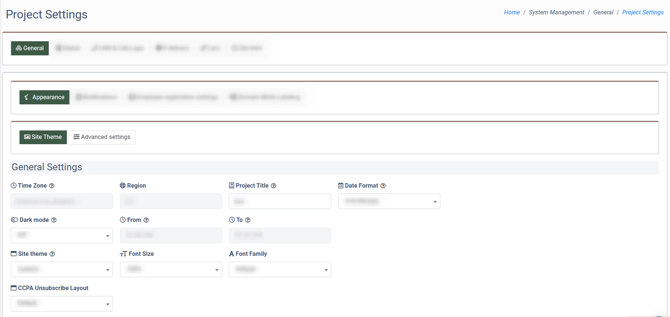
To customize the system appearance, go to the **System Management \> General \> Project Settings** section, select the **“General”** tab, and then select the **“Appearance”** sub-tab.
[Site Theme](https://support.phonexa.com/project-settings-general-appearance-customization#Site_Theme)
[Advanced Settings](https://support.phonexa.com/project-settings-general-appearance-customization#Advanced_Settings)
### Site Theme
The **“Site Theme”** sub-tab contains the following configurations that allow you to customize the system’s interface and preview all the changes before saving them:
- [General Settings](https://support.phonexa.com/project-settings-general-appearance-customization#general-settings)
- [Preview](https://support.phonexa.com/project-settings-general-appearance-customization#preview)
- [Table preview](https://support.phonexa.com/project-settings-general-appearance-customization#table-preview)
- [Charts preview](https://support.phonexa.com/project-settings-general-appearance-customization#chart-preview)
- [Widgets](https://support.phonexa.com/project-settings-general-appearance-customization#wigets)
- [Auth Screen](https://support.phonexa.com/project-settings-general-appearance-customization#auth-screen)
- [Logo](https://support.phonexa.com/project-settings-general-appearance-customization#logo)
[](https://support.phonexa.com/hubfs/appearance1_1.png?hsLang=en)
### **General Settings**
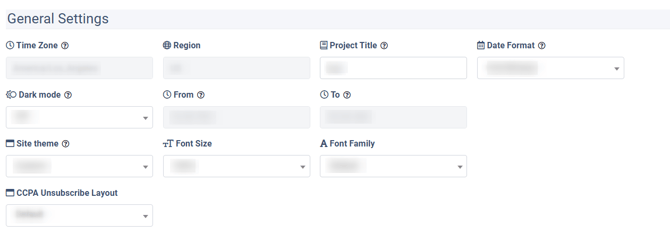
The **"General Settings"** section allows you to manage basic system appearance settings.
[](https://support.phonexa.com/hubfs/appearance2_1.png?hsLang=en)
You can edit the following fields:
- **Time Zone**: The system’s Time Zone. *Note: The time zone is set at the first system installation stage and cannot be changed by the system users.*
- **Project Title**: Enter the name of the Project. This name is used for page titles and text logos.
- **Date Format:** Select the preferred date format (*mm/dd/yyyy,* *dd/mm/yyyy*).
- **Dark mode**: Select the schedule for the system to switch to the dark mode (*Off, Detected by OS, Custom Schedule*).
- **From**: Select the start time for the dark mode.
- **To**: Select the end time for the dark mode.
- **Site Theme:** Select the preferred theme or set the custom one (*Custom/ Default/ Preset 1/ Prese t2/ Preset 3/ Preset 4/ Preset 5/ Preset 6*).
- **Font Size:** Select the font size adjustment percentage ratio for the system texts (*80%, 90%, 100%, 110%, 120%, 130%, 140%, 150%*). The ratio will be calculated based on the system’s font size.
- **Font Family:** Select the font style family that will be applied to the system texts (*Default, Roboto, Tahoma, Helvetica, Georgia*).
- **Data Privacy Unsubscribe Layout:** Select the layout for the Data Privacy Unsubscribe.
### **Preview**
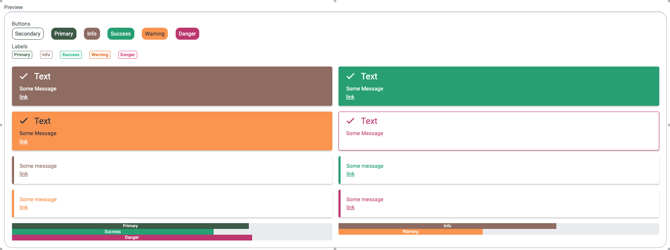
The **"Preview"** section allows you to preview changes in the system’s appearance for the buttons, labels, statuses, and system messages.
[](https://support.phonexa.com/hubfs/appearance_3.png?hsLang=en)
### **Table Preview**
The **"Table Preview"** section allows you to preview the system interface of the report lists and tables after changing the settings.
[](https://support.phonexa.com/hubfs/appearance_4.png?hsLang=en)
### **Chart Preview**
The **"Chart Preview"** section allows you to preview the interface of charts after changing settings.
[](https://support.phonexa.com/hubfs/appearance_5.png?hsLang=en)
### **Widgets**
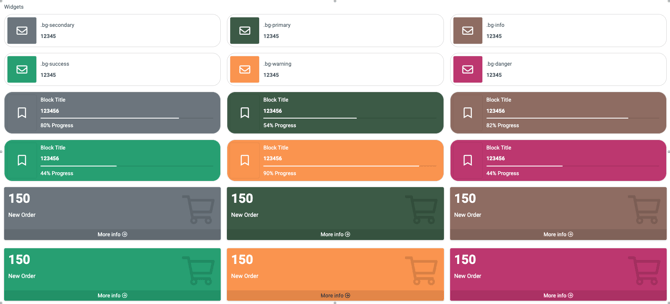
The **"Widgets"** section allows you to preview the interface of widgets after changing settings.
[](https://support.phonexa.com/hubfs/appearance_6.png?hsLang=en)
### **Auth Screen**
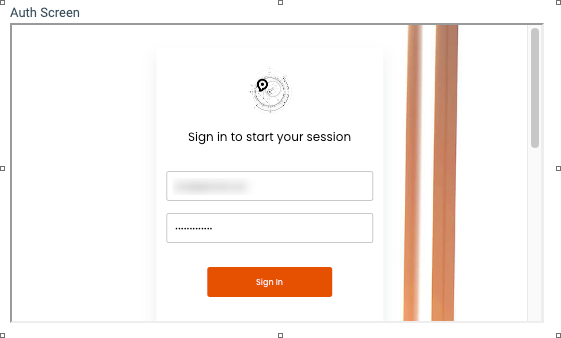
The **"Auth Screen"** section allows you to preview the appearance of the authorization page.
[](https://support.phonexa.com/hubfs/appearance_7.png?hsLang=en)
### **Logo**
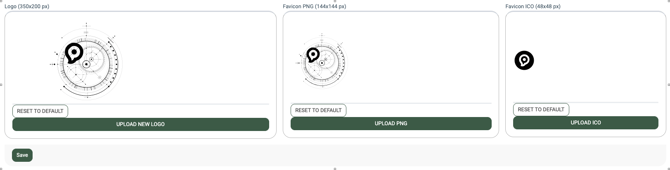
The **"Logo"** section allows you to upload and configure the system’s logo and icon.
[](https://support.phonexa.com/hubfs/appearance_8.png?hsLang=en)
To upload the logo, click the **“+ Upload new logo”** button and select the logo file you want to upload. *Note: The file size resolution should not exceed 350x200 pixels.* To reset the logo settings, click the **“Reset To Default”** button.
To upload the Favicon PNG icon, click the **“+ Upload PNG”** button and select the icon you want to upload. *Note: The file size resolution should not exceed 144x144 pixels.* To reset the logo settings, click the **“Reset To Default”** button.
To upload the Favicon ICO icon that will be reflected in the browser tab, click the **“+ Upload ICO”** button and select the icon file you want to upload. *Note: The file size resolution should not exceed 48x48 pixels.* To reset the logo settings, click the **“Reset To Default”** button.
### Advanced Settings
The **“Advanced Settings”** sub-tab contains the following configurations that allow you to fully customize the system appearance and create your own theme:
- [Look And Feel](https://support.phonexa.com/project-settings-general-appearance-customization#look-and-feel)
- [Boxes And Tables](https://support.phonexa.com/project-settings-general-appearance-customization#boxes-and-tables)
- [Charts](https://support.phonexa.com/project-settings-general-appearance-customization#charts)
- [Menu Customization](https://support.phonexa.com/project-settings-general-appearance-customization#menu-customization)
- [Auth Screen](https://support.phonexa.com/project-settings-general-appearance-customization#auth-screen-1)
- [Dashboard Messages](https://support.phonexa.com/project-settings-general-appearance-customization#dashboard-messages).
- [Additional Settings](https://support.phonexa.com/project-settings-general-appearance-customization#additional-settings)
### **Look And Feel**
The **"Look And Feel"** section allows you to customize the system appearance using the available design options and pick the colors manually.
[](https://support.phonexa.com/hubfs/appearance_9.png?hsLang=en)
The following settings are available for customization:
- **Site Theme:** Select the site theme from the list to change the visual appearance of the system.
- **Base Font Color:** Select one of the options to change the system font color.
- **Rounded buttons:** Select one of the options to set the radius and corner angle for system buttons.
- **Button Colors:** Select one of the options to change the saturation of color elements of the system (widgets, buttons, and labels).
- **Colors For Table Values**: Select one of the options to change the table values color.
- **Rounded badges:** Select if you would like to have the round shape of the badges.
### **Boxes And Tables**
The **"Boxes And Tables"** section allows you to customize the appearance of the report tables and boxes in the system.
[](https://support.phonexa.com/hubfs/XGbO30mPbq.png?hsLang=en)
The following settings are available for customization:
- **Round Boxes:** Select one of the options to set the radius of the corner angle for active elements of the system (buttons, labels, and other elements).
- **Box Shadows:** Select one of the options to change the shadow border of the active page.
- **Additional Borders:** Select if you would like to enable or disable the additional border in the system that outlines the active page.
- **Additional Separators:** Select if you would like to enable or disable additional separation in the system that outlines the data rows' borders.
- **Add Table Borders**: Select if you would like to enable or disable table borders in the system to outline the report tables with a separator line.
- **Table Sizes:** Select the option for the size appearance for tables.
- **Card Background:** Select the option for the card background.
### **Charts**
The **"Charts"** section allows you to customize the appearance of the charts in the system.
[](https://support.phonexa.com/hubfs/XgxK4Y75rG.png?hsLang=en)
The following settings are available for customization:
- **Chart Line Width:** Select the width of the line in the charts.
- **Chart Dots Size:** Select the size of the dots in the charts.
- **Fill Data Area:** Select whether you would like to fill the empty part of the chart by painting the field to match a certain line color.
### **Menu Customization**
The **"Menu Customization"** section allows you to customize the sidebar menu.
[](https://support.phonexa.com/hubfs/oEQLpBYKQJ.png?hsLang=en)
The following settings are available for customization:
- **Sidebar Shadows:** Select the option to set an additional shadow to the sidebar menu.
- **Highlight Active Item:** Select if you would like to enable or disable highlighting the page you are currently viewing in the menu.
- **Bold Categories:** Select if you would like to enable or disable the main menu's subsections in bold font.
- **Add Separators:** Select if you would like to enable or disable additional separation in the system that outlines the data rows' borders.
- **Sidebar Background:** Select one of the available options for the sidebar background or upload your own by clicking the button provided below.
- **Sidebar Background Opacity:** Enter the value that represents the opacity level for the sidebar background.
### **Auth Screen**
The **"Auth Screen"** section allows you to customize the appearance of the authorization page.
[](https://support.phonexa.com/hubfs/appearance_13.png?hsLang=en)
The following settings are available for customization:
- **Auth Screen Theme:** Select the screen theme for the authorization page.
- **Auth Screen Background**: Select the background image for the authorization page. To upload the image manually, select the **“Custom”** option from the dropdown menu.
### **Dashboard Messages**
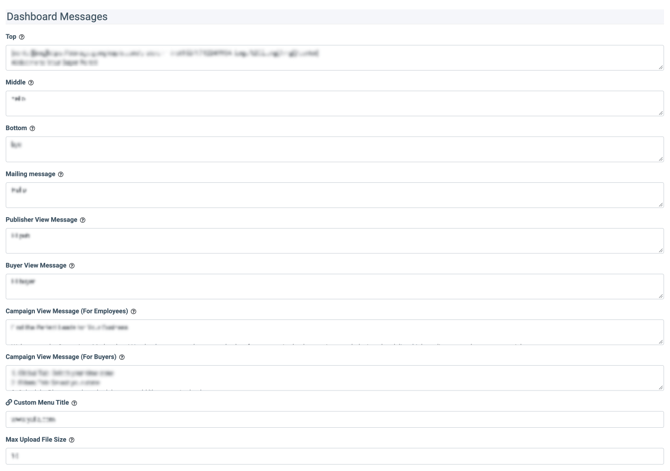
The **“Dashboard Messages”** section allows you to manage messages that will be displayed on the Dashboard page.
[](https://support.phonexa.com/hubfs/apQZgOAKbY.png?hsLang=en)
The following settings are available for customization:
- **Top**: Enter a custom message for the Dashboard that will be displayed at the top of the page.
- **Middle**: Enter a custom message for the Dashboard that will be displayed in the middle of the page.
- **Bottom**: Enter a custom message for the Dashboard that will be displayed at the bottom of the page.
- **Mailing message**: Enter a custom message for the Dashboard page of the E-Delivery platform. It will be displayed at the top of the Dashboard page.
- **Publisher View Message**: Enter a custom message for the Publishers Setup page.
- **Buyer View Message**: Enter a custom message for the Buyer Setup page.
- **Campaign View Message (For Employees)**: Enter a custom message for the Campaign page visible for Employees only.
- **Campaign View Message (For Buyers)**: Enter a custom message for the Campaign page visible for Buyers only.
- **Custom Menu Title**: The option allows you to add a section for the custom menu item to the main system menu. Enter the name for the custom section.
- **Max Upload File Size:** Enter the maximum file size limit for uploads (up to 50 MB).
### **Additional Settings**
The **“Additional Settings”** section allows you to manage additional features to customize the system’s appearance.
- **Enable Header Animation:** Switch the toggle to the **“On”** position to enable the header animation that appears according to the seasonal holidays.
*Note: In the profile settings, each user can disable animations with banners personally.*
[](https://support.phonexa.com/hubfs/WYrnW6o3QN.png?hsLang=en)
- [General information](https://support.phonexa.com/general-information?hsLang=en#main-content)
- [Account Settings](https://support.phonexa.com/general-information?hsLang=en#account-settings)
- [Security Settings](https://support.phonexa.com/general-information?hsLang=en#security-settings)
- [Users](https://support.phonexa.com/general-information?hsLang=en#users)
- [System Customization](https://support.phonexa.com/general-information?hsLang=en#system-customization)
- [Project Customization](https://support.phonexa.com/general-information?hsLang=en#project-customization)
- [Product Customization](https://support.phonexa.com/general-information?hsLang=en#product-customization)
- [System Management](https://support.phonexa.com/general-information?hsLang=en#system-management)
- [Support](https://support.phonexa.com/general-information?hsLang=en#support)
- [LMS Sync & Call Logic](https://support.phonexa.com/lms-sync-call-logic?hsLang=en#main-content)
- [Extra Features](https://support.phonexa.com/lms-sync-call-logic?hsLang=en#extra-features)
- [Publisher Configuration](https://support.phonexa.com/lms-sync-call-logic?hsLang=en#publisher-configuration)
- [Client Management](https://support.phonexa.com/lms-sync-call-logic?hsLang=en#client-management)
- [System Logs](https://support.phonexa.com/lms-sync-call-logic?hsLang=en#system-logs)
- [Documents And References](https://support.phonexa.com/lms-sync-call-logic?hsLang=en#documents-and-references)
- [Reports and Analytics](https://support.phonexa.com/lms-sync-call-logic?hsLang=en#reports-and-analytics)
- [Publisher management](https://support.phonexa.com/lms-sync-call-logic?hsLang=en#publisher-management)
- [Call Logic Customization](https://support.phonexa.com/lms-sync-call-logic?hsLang=en#call-logic-customization)
- [Campaign Configuration](https://support.phonexa.com/lms-sync-call-logic?hsLang=en#campaign-configuration)
- [Feed CMS](https://support.phonexa.com/lms-sync-call-logic?hsLang=en#feed-cms)
- [Event Tracking](https://support.phonexa.com/lms-sync-call-logic?hsLang=en#event-tracking)
- [iClear](https://support.phonexa.com/lms-sync-call-logic?hsLang=en#iclear)
- [E-Delivery](https://support.phonexa.com/e-delivery?hsLang=en#main-content)
- [List Management](https://support.phonexa.com/e-delivery?hsLang=en#list-management)
- [Email Campaigns](https://support.phonexa.com/e-delivery?hsLang=en#email-campaigns)
- [SMS Campaigns](https://support.phonexa.com/e-delivery?hsLang=en#sms-campaigns)
- [Reports](https://support.phonexa.com/e-delivery?hsLang=en#reports)
- [Suppression Management](https://support.phonexa.com/e-delivery?hsLang=en#suppression-management)
- [Books360](https://support.phonexa.com/books360?hsLang=en#main-content)
- [Books 360 Integration](https://support.phonexa.com/books360?hsLang=en#books-360-integration)
- [Vendor Management](https://support.phonexa.com/books360?hsLang=en#vendor-management)
- [Account](https://support.phonexa.com/books360?hsLang=en#account)
- [Customer Management](https://support.phonexa.com/books360?hsLang=en#customer-management)
- [Opt-Intel](https://support.phonexa.com/opt-intel?hsLang=en#main-content)
- [List Management](https://support.phonexa.com/opt-intel?hsLang=en#list-management)
- [All Reports](https://support.phonexa.com/opt-intel?hsLang=en#all-reports)
- [Mailers](https://support.phonexa.com/opt-intel?hsLang=en#mailers)
- [Campaigns](https://support.phonexa.com/opt-intel?hsLang=en#campaigns)
- [System Management](https://support.phonexa.com/opt-intel?hsLang=en#system-management)
- [HitMetrix](https://support.phonexa.com/hitmetrix?hsLang=en#main-content)
- [Analytics](https://support.phonexa.com/hitmetrix?hsLang=en#analytics)
- [Heatmaps](https://support.phonexa.com/hitmetrix?hsLang=en#heatmaps)
- [System Management](https://support.phonexa.com/hitmetrix?hsLang=en#system-management)
- [Lynx](https://support.phonexa.com/lynx?hsLang=en#main-content)
- [Offers](https://support.phonexa.com/lynx?hsLang=en#offers)
- [LYNX Reports](https://support.phonexa.com/lynx?hsLang=en#lynx-reports)
- [Advertisers](https://support.phonexa.com/lynx?hsLang=en#advertisers)
- [Affiliates](https://support.phonexa.com/lynx?hsLang=en#affiliates)
- [Account Settings](https://support.phonexa.com/lynx?hsLang=en#account-settings)
- [Cloud PBX](https://support.phonexa.com/cloud-pbx?hsLang=en)
[](https://phonexa.com/?hsLang=en)
Phonexa Knowledge Base
Copyright © 2026, Phonexa