---
title: "Project Settings: General: Security"
description: As a system owner, you can enhance security by setting an additional password for specific functionality or pages. This ensures that sensitive data is only accessible after an extra layer of authentic
---
[Skip to content](https://support.phonexa.com/project-settings-general-security#main-content)
[](https://support.phonexa.com/?hsLang=en)
Open main navigation
Close main navigation
- [➜\]](https://phonexa.com/)
[➜\]](https://phonexa.com/?hsLang=en)
Phonexa Support Center
- There are no suggestions because the search field is empty.
1. [Knowledge Base](https://support.phonexa.com/?hsLang=en)
2. [General information](https://support.phonexa.com/general-information?hsLang=en)
3. [Project Customization](https://support.phonexa.com/general-information?hsLang=en#project-customization)
# Project Settings: General: Security
#### The **“Security”** tab of the Project Settings section allows system owners to manage the general security and access settings, such as protecting data and section access via password setup, managing registration verification, setting the duration of the active user session, managing two-factor authentication, etc.
#### *Note: These settings are available for the system owner only.*
As a system owner, you can enhance security by setting an additional password for specific functionality or pages. This ensures that sensitive data is only accessible after an extra layer of authentication. For example, when a user attempts to access the protected page, the system will prompt them to enter the additional password. Only after entering the correct password will the page become accessible.
To view these settings, go to the **System Management \> General \> Project Settings** section, select the **“General”** tab, and navigate to the **“Security**” sub-tab.
[](https://support.phonexa.com/hubfs/Project%20Settings%20Security%201.png?hsLang=en)
The section contains two blocks.
The **“Protected Access and Session Duration”** block allows you to set the data access protection via the password and the time of the active user session duration.
The following settings are available:
- **Super Passwords**: The settings allow you to set the data protection via password entry. You can protect the data viewing and its modification for the following data types:
- **Product Password:** Enter the password for the ongoing Product status and name modifications in the Products List section. The password will be required for the name change in the **“Edit”** pop-up window, and disabling the Product by clicking the **“Disable”** button in the **“Actions”** column. *Read more information about the Products List section in the following Knowledge Base* [*article*](https://support.phonexa.com/products-list?hsLang=en)*.*
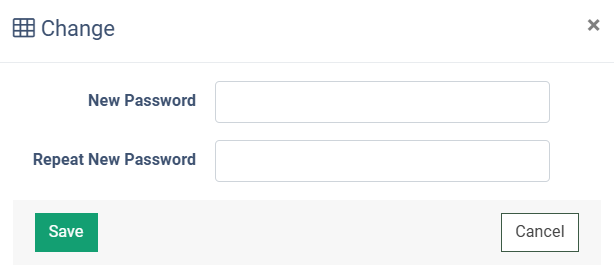
To set the password protection for the particular data or section viewing, click the **“Change”** button, enter the corresponding password in the **“New Password”** field, confirm the entered password in the **“Repeat New Password”** field of the **“Change”** pop-up window, and click the **“Save”** button to complete the settings.
[](https://support.phonexa.com/hubfs/Project%20Settings%20Security%202.png?hsLang=en)
- - **Session Duration:** Select the time for the session duration in the system for all users (*0.5 hour, 1 hour, 2 hours, 4 hours, 8 hours, 10 hours, 24 hours*).
[](https://support.phonexa.com/hubfs/Project%20Settings%20Security%203.png?hsLang=en)
The **“Registration Verification”** block applies anti-fraud checks to every registration point in the platform: publisher, buyer, advertiser, affiliate, and employee registrations. That includes sign-up forms and publisher registration requests that previously had no protection, as well as the API.
The following registration processes can be covered by this verification process:
- **Publisher Registration via the registration form**
- **Publisher Registration via API**
- **Buyer Registration**
- **LYNX Advertiser**
- **LYNX Affiliate**
- **Employee Registration**
The following settings are available:
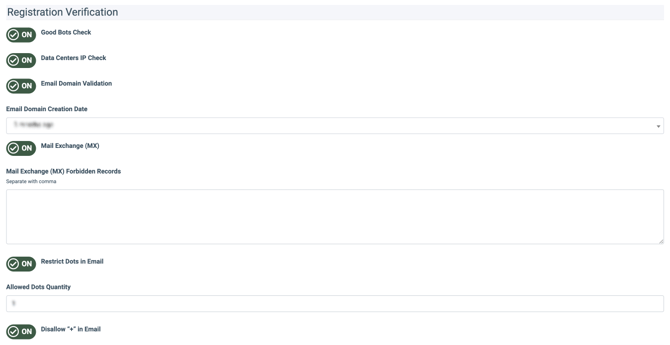
- **Good Bots Check:** Set the toggle to the **“ON”** position to enable the checking of the user agent relation to the known good bots or crawlers during the registration process. If a good bot or crawler is detected, the registration attempt will be blocked. **Crawler** - an automated program that systematically visits URLs to index or analyze their content. The most common examples are search engine crawlers (Googlebot, Bingbot) that scan links for search indexing. **Good bots** - legitimate, non-malicious automated agents that open links as part of a useful service: link-preview generators (Slack, WhatsApp, social networks), SEO and uptime monitoring tools, and email security scanners that pre-check links. They identify themselves honestly (via user agent) and don't imitate human traffic, but every visit still triggers the redirect link, which can inflate click counts if not filtered.
- **Data Centers IP Check:** Set the toggle to the **“ON”** position to enable the checking of the registrant IP Address relation to the known data centers. If the data center IP address is detected, the registration attempt will be blocked. **Data Center** - a facility hosting servers and cloud infrastructure from which automated traffic typically originates. The most common examples are cloud and hosting providers (AWS, Google Cloud) whose IP ranges are used by bots, scrapers, and proxies rather than real users, since genuine visitors browse from residential or mobile networks.
- **Email Domain Validation:** Set the toggle to the **“ON”** position to enable the validation of the email address domain that is used for registration.
- **Email Domain Creation Date:** Select the minimum age of the domain (how long ago the email address domain was created). If the domain was created later (is younger) than the set threshold, the registration attempt will be blocked *(1 month ago, 3 months ago, 6 months ago, 1 year ago, 2 years ago, 3 years ago, 4 years ago, 5 years ago).* **Email Domain** - The part of an email address that comes after the @ symbol (e.g., gmail.com, yahoo.com). It identifies the domain associated with the email address and can help determine whether the address belongs to a common email provider, a business, or a potentially suspicious domain.
- **Mail Exchange (MX):** Set the toggle to the **“ON”** position to enable the checking of the email address domain (MX domains and substrings) used for registration via the Mail Exchange (MX) service.
- **Mail Exchange (MX) Forbidden Records:** Enter the name(s) of the email domain (MX domains and substrings) that should be checked via the Mail Exchange (MX) service and blocked from registration. If a match with the mentioned email domain (MX domains and substrings) is found, the registration attempt with this email address will be blocked. **Mail Exchange (MX) -** A mail server responsible for receiving emails on behalf of a domain. MX records indicate which servers handle incoming emails and can help determine whether a domain is configured to receive emails, providing an additional signal when evaluating email validity and reliability.
- **Restrict Dots in Email:** Set the toggle to the **“ON”** position to specify the maximum number of dots (.) permitted in an email address during registration. If the number of dots in the email used for registration exceeds the number limitation set in the **“Allowed Dots Quantity”**, the registration attempt will be blocked.
- **Allowed Dots Quantity:** Enter the number of dots allowed in the email address used for the registration.
- **Disallow “+” in Email:** Set the toggle to the **“ON”** position to enable the limitation of the *“+”* symbol in the email address for the registration, commonly used for email aliases (e.g., user+test@gmail.com). If the *“+”* symbol is present in the email address, the registration attempt will be blocked.
[](https://support.phonexa.com/hubfs/BnbpPv8Zbz.png?hsLang=en)
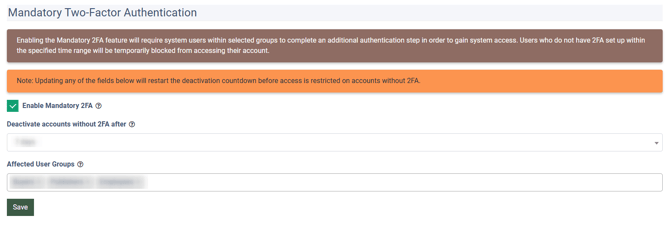
The **“Mandatory Two-Factor Authentication”** block contains settings for the Two-Factor Authentication (2FA) appliance, such as the mandatory use of 2FA, account deactivation after the defined time period without the 2FA set, and the groups of users that must have the 2FA set.
The following settings are available:
- **Enable Mandatory 2FA:** Check the box to enable the mandatory two-factor authentication.
- **Deactivate accounts without 2FA after:** Select the amount of time given for 2FA set up before account deactivation (*7 days, 14 days, 30 days, 90 days*).
- **Affected User Groups:** Select the user groups to require the setup of 2FA (Buyer, Publisher, Employees, Buyer Accountant). Default selections can be removed, and additional user groups can be added by clicking on the search box.
[](https://support.phonexa.com/hubfs/Project%20Settings%20Security%204.png?hsLang=en)
Click the **“Save”** button to complete the settings.
- [General information](https://support.phonexa.com/general-information?hsLang=en#main-content)
- [Account Settings](https://support.phonexa.com/general-information?hsLang=en#account-settings)
- [Security Settings](https://support.phonexa.com/general-information?hsLang=en#security-settings)
- [Users](https://support.phonexa.com/general-information?hsLang=en#users)
- [System Customization](https://support.phonexa.com/general-information?hsLang=en#system-customization)
- [Project Customization](https://support.phonexa.com/general-information?hsLang=en#project-customization)
- [Product Customization](https://support.phonexa.com/general-information?hsLang=en#product-customization)
- [System Management](https://support.phonexa.com/general-information?hsLang=en#system-management)
- [Support](https://support.phonexa.com/general-information?hsLang=en#support)
- [LMS Sync & Call Logic](https://support.phonexa.com/lms-sync-call-logic?hsLang=en#main-content)
- [Extra Features](https://support.phonexa.com/lms-sync-call-logic?hsLang=en#extra-features)
- [Publisher Configuration](https://support.phonexa.com/lms-sync-call-logic?hsLang=en#publisher-configuration)
- [Client Management](https://support.phonexa.com/lms-sync-call-logic?hsLang=en#client-management)
- [System Logs](https://support.phonexa.com/lms-sync-call-logic?hsLang=en#system-logs)
- [Documents And References](https://support.phonexa.com/lms-sync-call-logic?hsLang=en#documents-and-references)
- [Reports and Analytics](https://support.phonexa.com/lms-sync-call-logic?hsLang=en#reports-and-analytics)
- [Publisher management](https://support.phonexa.com/lms-sync-call-logic?hsLang=en#publisher-management)
- [Call Logic Customization](https://support.phonexa.com/lms-sync-call-logic?hsLang=en#call-logic-customization)
- [Campaign Configuration](https://support.phonexa.com/lms-sync-call-logic?hsLang=en#campaign-configuration)
- [Feed CMS](https://support.phonexa.com/lms-sync-call-logic?hsLang=en#feed-cms)
- [Event Tracking](https://support.phonexa.com/lms-sync-call-logic?hsLang=en#event-tracking)
- [iClear](https://support.phonexa.com/lms-sync-call-logic?hsLang=en#iclear)
- [E-Delivery](https://support.phonexa.com/e-delivery?hsLang=en#main-content)
- [List Management](https://support.phonexa.com/e-delivery?hsLang=en#list-management)
- [Email Campaigns](https://support.phonexa.com/e-delivery?hsLang=en#email-campaigns)
- [SMS Campaigns](https://support.phonexa.com/e-delivery?hsLang=en#sms-campaigns)
- [Reports](https://support.phonexa.com/e-delivery?hsLang=en#reports)
- [Suppression Management](https://support.phonexa.com/e-delivery?hsLang=en#suppression-management)
- [Books360](https://support.phonexa.com/books360?hsLang=en#main-content)
- [Books 360 Integration](https://support.phonexa.com/books360?hsLang=en#books-360-integration)
- [Vendor Management](https://support.phonexa.com/books360?hsLang=en#vendor-management)
- [Account](https://support.phonexa.com/books360?hsLang=en#account)
- [Customer Management](https://support.phonexa.com/books360?hsLang=en#customer-management)
- [Opt-Intel](https://support.phonexa.com/opt-intel?hsLang=en#main-content)
- [List Management](https://support.phonexa.com/opt-intel?hsLang=en#list-management)
- [All Reports](https://support.phonexa.com/opt-intel?hsLang=en#all-reports)
- [Mailers](https://support.phonexa.com/opt-intel?hsLang=en#mailers)
- [Campaigns](https://support.phonexa.com/opt-intel?hsLang=en#campaigns)
- [System Management](https://support.phonexa.com/opt-intel?hsLang=en#system-management)
- [HitMetrix](https://support.phonexa.com/hitmetrix?hsLang=en#main-content)
- [Analytics](https://support.phonexa.com/hitmetrix?hsLang=en#analytics)
- [Heatmaps](https://support.phonexa.com/hitmetrix?hsLang=en#heatmaps)
- [System Management](https://support.phonexa.com/hitmetrix?hsLang=en#system-management)
- [Lynx](https://support.phonexa.com/lynx?hsLang=en#main-content)
- [Offers](https://support.phonexa.com/lynx?hsLang=en#offers)
- [LYNX Reports](https://support.phonexa.com/lynx?hsLang=en#lynx-reports)
- [Advertisers](https://support.phonexa.com/lynx?hsLang=en#advertisers)
- [Affiliates](https://support.phonexa.com/lynx?hsLang=en#affiliates)
- [Account Settings](https://support.phonexa.com/lynx?hsLang=en#account-settings)
- [Cloud PBX](https://support.phonexa.com/cloud-pbx?hsLang=en)
[](https://phonexa.com/?hsLang=en)
Phonexa Knowledge Base
Copyright © 2026, Phonexa