
The Data Protection section allows you to hide sensitive lead data in reports, such as email addresses and phone numbers, from all system users. You can set the approach for data hiding, such as different types of protections with signs, or data type transformation via protectors.
To customize the data protection settings, go to the System Management > General > Project Settings section, select the “LMS & Call Logic” tab, and the “Data Protection” subtab.
Note: Only users with the Global Admin, LMS Admin, Call Logic Admin, and Data Manager system roles have access to view Data Protection settings.
The users with the Global Admin, LMS Admin, and Call Logic Admin system roles have view-only access without the option to edit or modify the Data Protection settings.
Only the system owner and the user with the Data Manager system role are allowed to modify the Data Protection settings.
Benefits:
- Control data protection at report levels
- Get notified when sensitive fields are accessed
- Track and monitor access to sensitive data for compliance and security purposes
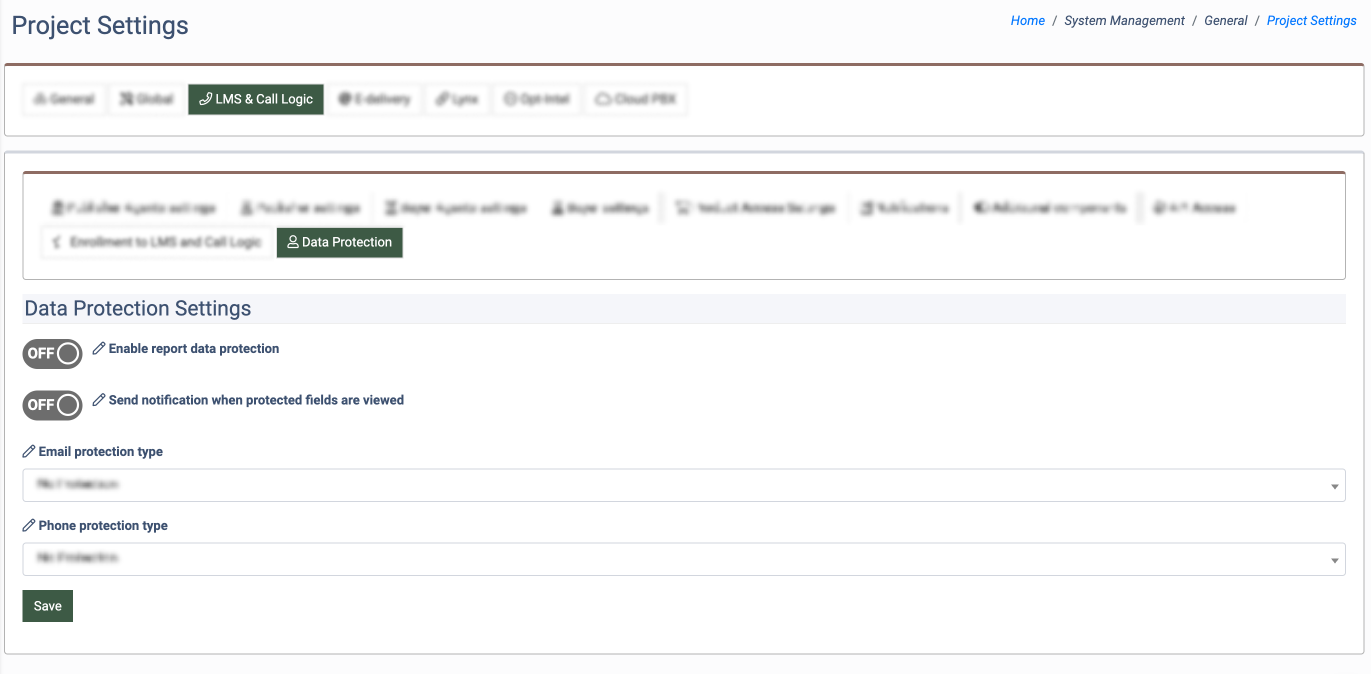
The following settings are available:
- Enable report data protection: Enable or disable data protection for sections and reports (Yes / No).
- Send notification when protected fields are viewed: Enable or disable the option to send notifications when protected fields are disclosed (Yes / No). Note: Only users with the System Owner role can configure this option and get the notification.
- Email protection type: Select the email protection type from the drop-down list (No Protection, Replace data with '--protected--', Replace data with 'x' sign, Replace data with '*' sign, Replace data with zero sign, Protector v1 (ex: myemail@gmail.com => myemail@), Protector v2 (ex: myemail@gmail.com => m******@gmail.com))
- Phone protection type: Select the phone protection type from the drop-down list (No Protection, Replace data with '--protected--', Replace data with 'x' sign, Replace data with '*' sign, Replace data with zero sign, Display First Half (123456 => 123***), Display Last Half (123456 => ***456), First 4 symbols (123456 => 1234**), Last 4 symbols (123456 => **3456)).
Click the “Save” button to complete the settings.
When the Data Protection feature is enabled, the sensitive data, such as email addresses and phone numbers (Email, Phone Number, Home Phone, Work Phone, Cell Phone fields), is hidden with the approach set for each data type.
This data can still be viewed by clicking the “Show Protected Data“ button, but in this case, the corresponding notification with the information of which user and when the particular data was viewed will be sent to the system owner.
The data can be protected for the Buyer Lead Details report and Publisher Lead Details report.
Read more information about the Buyer Lead Details report in the following Knowledge Base article.
Read more information about the Publisher Lead Details report in the following Knowledge Base article.