---
title: "Project Settings: LMS & Call Logic: Overview"
description: "Manage system settings, users, and features for LMS & Call Logic within Project Settings.\nThe LMS & Call Logic tab within the Project Settings allows you to manage general settings for the respective component users, such as for Publishers, Buyers, and their agents, notifications management, enabling or disabling additional features, reports, API access, and more.\nThe settings configured in this section will be applied on the system level across all LMS & Call Logic components."
---
[Skip to content](https://support.phonexa.com/project-settings-lms-call-logic-overview#main-content)
[](https://support.phonexa.com/?hsLang=en)
Open main navigation
Close main navigation
- [➜\]](https://phonexa.com/)
[➜\]](https://phonexa.com/?hsLang=en)
Phonexa Support Center
- There are no suggestions because the search field is empty.
1. [Knowledge Base](https://support.phonexa.com/?hsLang=en)
2. [General information](https://support.phonexa.com/general-information?hsLang=en)
3. [Project Customization](https://support.phonexa.com/general-information?hsLang=en#project-customization)
# Project Settings: LMS & Call Logic: Overview
## Manage system settings, users, and features for LMS & Call Logic within Project Settings.
The LMS & Call Logic tab within the Project Settings allows you to manage general settings for the respective component users, such as Publishers, Buyers, and their agents, notifications management, enabling or disabling additional features, reports, API access, and more.
The settings configured in this section will be applied at the system level across all LMS & Call Logic components.
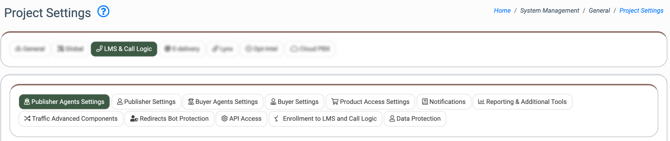
To access the settings, go to the **System Management \> General \> Project Settings** section and select the **“LMS & Call Logic”** tab.
[](https://support.phonexa.com/hubfs/LDrG351drB.png?hsLang=en)
The LMS & Call Logic section is divided into multiple tabs, each responsible for a specific configuration area:
- **Publisher Agents Settings:** Allows you to manage settings applied to the Publisher Agents at the system level, such as the default earning percentage ratio, assignment approach during the Publisher’s registration process, availability of the Publisher Agent selection on the registration page, etc. A Publisher Agent is a contact person on the instance owner’s side who manages and supports a publisher account and coordinates communication and operations. The Publisher Agent can browse through the LMS and Call Logic components sections that are related to the Publisher activity. He can view the Publisher Reports data and manage the Publisher settings of the attached Publishers.
*Read more about the Publisher Agents settings tab in the following Knowledge Base* [*article*](https://support.phonexa.com/project-settings-lms-call-logic-publisher-agents-settings?hsLang=en)*.*
- **Publisher Settings:** Allows you to manage settings applied to the Publisher on the system level, such as general settings, registration customization, permissions for the viewing data it reports, phone number management, source and channel approval processes, etc.
*Read more about the Publisher settings tab in the following Knowledge Base* [*article*](https://support.phonexa.com/project-settings-lms-call-logic-publisher-settings?hsLang=en)*.*
- **Buyer Agents Settings:** Allows you to configure general Buyer Agent settings on the system level, such as the default earning percentage ratio, assignment approach during the Buyer’s registration process, availability of the Buyer Agent selection on the registration page, etc. A Buyer Agent is a contact person on the instance owner’s side who manages and supports a buyer account and coordinates communication and operations. The Buyer Agent can browse through the LMS and Call Logic components sections that are related to the Buyer activity. He can view the Buyer Reports data and manage the Buyers’ and campaigns’ settings of the attached Buyers.
*Read more about the Buyer Agents settings tab in the following Knowledge Base* [*article*](https://support.phonexa.com/project-settings-lms-call-logic-buyer-agent-settings?hsLang=en)*.*
- **Buyer Settings:** Allows you to configure the general buyer registration settings on the system level, such as prepaid auto charge settings, payment settings, transaction management, lead deals, and settings for the lead details report.
*Read more about the Buyer settings tab in the following Knowledge Base* [article](https://support.phonexa.com/project-settings-lms-call-logic-buyer-settings?hsLang=en)*.*
- **Product Access Settings:** Allows you to customize Product permissions. You can set up access to a Product on the project level for specific system roles and customize it for selected users, Buyers, or Publishers. Use case: The system administrator needs to define and manage product-level permissions across the system so that specific roles and users only have access to the appropriate Products. The administrator can customize these access settings for each system role by using the Product Access Settings tab. Additionally, the administrator can configure restrictions for specific accounts that require custom access. These specific user-level settings will automatically override their base role settings.
*Read more about the Product Access Settings tab in the following Knowledge Base* [*article*](https://support.phonexa.com/project-settings-lms-call-logic-product-access-settings?hsLang=en)*.*
- **Notifications:** Allows you to set up notifications for specific events in the system, such as user registration completion, status changes, or deletion, and create the notification templates for questionnaires.
*Read more about the Notifications tab in the following Knowledge Base* [*article*](https://support.phonexa.com/project-settings-lms-call-logic-notifications?hsLang=en)*.*
- **Reporting & Additional Tools:** Allows the user to enable, disable, and configure supplemental LMS and Call Logic features related to customizable reporting capabilities, pricing analysis, lead rejection tracking, campaign capacity visibility, ZIP data summaries, lead quality transparency, multi-user account access, and business document management.
*Read more about the Reporting & Additional Tools tab in the following Knowledge Base* [*article*](https://support.phonexa.com/project-settings-lms-call-logic-reporting-additional-tools?hsLang=en)*.*
- **Traffic Advanced Components:** Allows you to enable, disable, and configure supplemental LMS and Call Logic features related to traffic distribution via Ping Trees, redirect URL masking, cap and lead limitations, campaign and lead behavior management, advanced call tracking, website widgets, system notification frequency, and Contact Us module usage.
*Read more about the Traffic Advanced Components tab in the following Knowledge Base* [*article*](https://support.phonexa.com/project-settings-lms-call-logic-traffic-advanced-components?hsLang=en)*.*
- **Redirects Bot Protection:** Allows you to control how the system responds when a redirect link is opened by non-human or high-risk traffic, such as search engine crawlers, good bots, data center IP addresses, and devices with a high fraud score. Such redirects can be considered or ignored for display in the reporting system, or considered as expired.
*Read more about the Redirects Bot Protection tab and feature in the following Knowledge Base [article](https://support.phonexa.com/bot-protection-on-redirects?hsLang=en).*
- **API Access:** Allows you to create and manage settings for accessing the API system. Through this tab, you can securely provide and configure API access to specific system modules, granting access to categories such as: Detailed Reports, Summary Reports, Publisher List, Buyer List, Campaign List, and Phone Number List. The category list may vary depending on the system role of the user for whom the API access record is created. Additionally, you can view the available API functionality in the detailed API Documentation within this tab. Use Case: A system administrator needs to provide API access to the reporting system for specific users. To do this, the administrator creates a unique API Key record by selecting the user's nickname and choosing the corresponding access categories, such as Detailed Reports and Summary Reports. Once generated, the assigned user can access the specified modules and view the detailed API Documentation, which contains the available options for their API usage.
*Read more about the API Access tab in the following Knowledge Base* [*article*](https://support.phonexa.com/project-settings-lms-call-logic-api-access?hsLang=en)*.*
- **Enrollment to LMS and Call Logic:** Allows automatic registration of the Lynx Affiliate user as a Publisher in the LMS/Call Logic components.
*Read more about the Enrollment to LMS and Call Logic tab in the following Knowledge Base* [*article.*](https://support.phonexa.com/project-settings-lmscall-logic-enrollment-to-lms-and-call-logic-lynx-affiliate-registration-as-publishers?hsLang=en)
- **Data Protection:** Allows you to hide sensitive lead data in reports, such as email addresses and phone numbers, from all system users. You can set the approach for data hiding, such as different types of protections with signs, or data type transformation via protectors.
*Read more about the Data Protection tab in the following Knowledge Base* [*article*](https://support.phonexa.com/project-settings-lms-call-logic-data-protection?hsLang=en)*.*
- [General information](https://support.phonexa.com/general-information?hsLang=en#main-content)
- [Account Settings](https://support.phonexa.com/general-information?hsLang=en#account-settings)
- [Security Settings](https://support.phonexa.com/general-information?hsLang=en#security-settings)
- [Users](https://support.phonexa.com/general-information?hsLang=en#users)
- [System Customization](https://support.phonexa.com/general-information?hsLang=en#system-customization)
- [Project Customization](https://support.phonexa.com/general-information?hsLang=en#project-customization)
- [Product Customization](https://support.phonexa.com/general-information?hsLang=en#product-customization)
- [System Management](https://support.phonexa.com/general-information?hsLang=en#system-management)
- [Support](https://support.phonexa.com/general-information?hsLang=en#support)
- [LMS Sync & Call Logic](https://support.phonexa.com/lms-sync-call-logic?hsLang=en#main-content)
- [Extra Features](https://support.phonexa.com/lms-sync-call-logic?hsLang=en#extra-features)
- [Publisher Configuration](https://support.phonexa.com/lms-sync-call-logic?hsLang=en#publisher-configuration)
- [Client Management](https://support.phonexa.com/lms-sync-call-logic?hsLang=en#client-management)
- [System Logs](https://support.phonexa.com/lms-sync-call-logic?hsLang=en#system-logs)
- [Documents And References](https://support.phonexa.com/lms-sync-call-logic?hsLang=en#documents-and-references)
- [Reports and Analytics](https://support.phonexa.com/lms-sync-call-logic?hsLang=en#reports-and-analytics)
- [Publisher management](https://support.phonexa.com/lms-sync-call-logic?hsLang=en#publisher-management)
- [Call Logic Customization](https://support.phonexa.com/lms-sync-call-logic?hsLang=en#call-logic-customization)
- [Campaign Configuration](https://support.phonexa.com/lms-sync-call-logic?hsLang=en#campaign-configuration)
- [Feed CMS](https://support.phonexa.com/lms-sync-call-logic?hsLang=en#feed-cms)
- [Event Tracking](https://support.phonexa.com/lms-sync-call-logic?hsLang=en#event-tracking)
- [iClear](https://support.phonexa.com/lms-sync-call-logic?hsLang=en#iclear)
- [E-Delivery](https://support.phonexa.com/e-delivery?hsLang=en#main-content)
- [List Management](https://support.phonexa.com/e-delivery?hsLang=en#list-management)
- [Email Campaigns](https://support.phonexa.com/e-delivery?hsLang=en#email-campaigns)
- [SMS Campaigns](https://support.phonexa.com/e-delivery?hsLang=en#sms-campaigns)
- [Reports](https://support.phonexa.com/e-delivery?hsLang=en#reports)
- [Suppression Management](https://support.phonexa.com/e-delivery?hsLang=en#suppression-management)
- [Books360](https://support.phonexa.com/books360?hsLang=en#main-content)
- [Books 360 Integration](https://support.phonexa.com/books360?hsLang=en#books-360-integration)
- [Vendor Management](https://support.phonexa.com/books360?hsLang=en#vendor-management)
- [Account](https://support.phonexa.com/books360?hsLang=en#account)
- [Customer Management](https://support.phonexa.com/books360?hsLang=en#customer-management)
- [Opt-Intel](https://support.phonexa.com/opt-intel?hsLang=en#main-content)
- [List Management](https://support.phonexa.com/opt-intel?hsLang=en#list-management)
- [All Reports](https://support.phonexa.com/opt-intel?hsLang=en#all-reports)
- [Mailers](https://support.phonexa.com/opt-intel?hsLang=en#mailers)
- [Campaigns](https://support.phonexa.com/opt-intel?hsLang=en#campaigns)
- [System Management](https://support.phonexa.com/opt-intel?hsLang=en#system-management)
- [HitMetrix](https://support.phonexa.com/hitmetrix?hsLang=en#main-content)
- [Analytics](https://support.phonexa.com/hitmetrix?hsLang=en#analytics)
- [Heatmaps](https://support.phonexa.com/hitmetrix?hsLang=en#heatmaps)
- [System Management](https://support.phonexa.com/hitmetrix?hsLang=en#system-management)
- [Lynx](https://support.phonexa.com/lynx?hsLang=en#main-content)
- [Offers](https://support.phonexa.com/lynx?hsLang=en#offers)
- [LYNX Reports](https://support.phonexa.com/lynx?hsLang=en#lynx-reports)
- [Advertisers](https://support.phonexa.com/lynx?hsLang=en#advertisers)
- [Affiliates](https://support.phonexa.com/lynx?hsLang=en#affiliates)
- [Account Settings](https://support.phonexa.com/lynx?hsLang=en#account-settings)
- [Cloud PBX](https://support.phonexa.com/cloud-pbx?hsLang=en)
[](https://phonexa.com/?hsLang=en)
Phonexa Knowledge Base
Copyright © 2026, Phonexa