---
title: "Project Settings: LMS & Call Logic: Reporting & Additional Tools"
description: Configure LMS and Call Logic system-wide analytics and operational settings, including default products for reporting, hidden data configurations, advanced performance and customized reporting metrics, and document management features.
---
[Skip to content](https://support.phonexa.com/project-settings-lms-call-logic-reporting-additional-tools#main-content)
[](https://support.phonexa.com/?hsLang=en)
Open main navigation
Close main navigation
- [➜\]](https://phonexa.com/)
[➜\]](https://phonexa.com/?hsLang=en)
Phonexa Support Center
- There are no suggestions because the search field is empty.
1. [Knowledge Base](https://support.phonexa.com/?hsLang=en)
2. [General information](https://support.phonexa.com/general-information?hsLang=en)
3. [Project Customization](https://support.phonexa.com/general-information?hsLang=en#project-customization)
# Project Settings: LMS & Call Logic: Reporting & Additional Tools
## Configure LMS and Call Logic system-wide analytics and operational settings, including default products for reporting, hidden data configurations, advanced performance and customized reporting metrics, and document management features.
The Reporting & Additional Tools subtab allows the user to enable, disable, and configure supplemental LMS and Call Logic features related to customizable reporting capabilities, pricing analysis, lead rejection tracking, campaign capacity visibility, ZIP data summaries, lead quality transparency, multi-user account access, and business document management.
To view this tab, go to the **System Management \> General \> Project Settings** section, then select the **“LMS & Call Logic”** tab and the **“Reporting & Additional Tools”** subtab.
The settings are split into the following blocks:
- [**System Defaults**](https://support.phonexa.com/project-settings-lms-call-logic-reporting-additional-tools#System_Defaults)
- [**Hidden Products in Reports**](https://support.phonexa.com/project-settings-lms-call-logic-reporting-additional-tools#Hidden_Products_in_Reports)
- [**Reports & Analytics**](https://support.phonexa.com/project-settings-lms-call-logic-reporting-additional-tools#Reports_Analytics)
- [**Document Management**](https://support.phonexa.com/project-settings-lms-call-logic-reporting-additional-tools#Document_Management)
- [**Hold Music**](https://support.phonexa.com/project-settings-lms-call-logic-reporting-additional-tools#Hold_Music)
**[](https://support.phonexa.com/hubfs/Lnb8GoXGQM.png?hsLang=en)**
### System Defaults
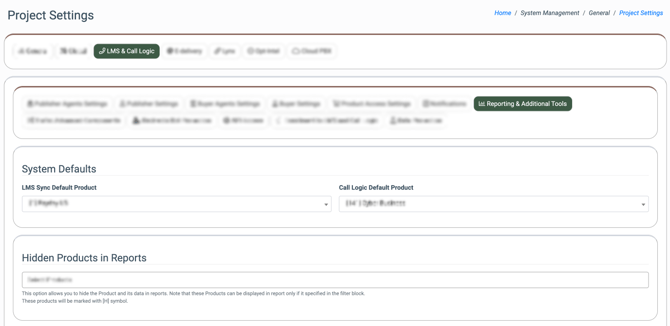
The **“System Defaults”** block allows you to set up the default products for LMS & Call Logic components. The default Products are used for reports where the **“Product”** filter field is mandatory for selection, so the client can set the default selection for the specific Product that requires additional attention and focus.
The **“System Defaults”** block contains the following fields:
- **LMS Sync Default Product:** Select the default Product to be used when running reports in the LMS Sync component.
- **Call Logic Default Product:** Select the default Product to be used when running reports in the Call Logic component.
[](https://support.phonexa.com/hubfs/6nr9ZGzVQ1.png?hsLang=en)
### Hidden Products in Reports
The **“Hidden Products in Reports”** block allows you to hide the Product and its data from being displayed in reports.
Use case: The client has some Product(s) that were used for testing traffic generation or any other internal purpose. The statistical and financial information related to these Product(s) should not be taken into consideration while collecting the summary data about all Products through the reporting system and corresponding dashboards. In this case, the client can hide the corresponding Product(s).
*Note: Hidden Products can be displayed in the reports only if it’s specified in the filter block. These products will be marked with the \[H\] symbol.*
*[](https://support.phonexa.com/hubfs/jNbvV29ybW.png?hsLang=en)*
### Reports & Analytics
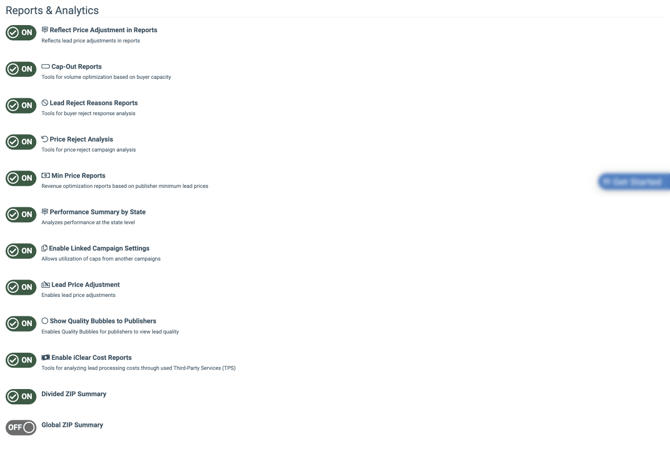
The **“Reports & Analytics”** block allows you to enable or disable specific data in the reports:
- **Reflect Price Adjustment in Reports:** Switch the toggle to the “On” position to reflect lead price adjustments in reports.
- **Cap-Out Reports:** Switch the toggle to the “On” position to enable the Cap-Out Reports.
*Note: All reports under this feature will provide a look at a campaign’s caps by date, and whether the caps were met.*
- **Lead Reject Reasons Reports:** Switch the toggle to the “On” position to enable the Lead Reject Reasons reports.
*Note: This report captures the reject responses provided by the buyer and a count for each response. If you click on numbers with underlines, the lead details will be presented.*
- **Price Reject Analysis:** Switch the toggle to the “On” position to enable the Price Reject Analysis.
*Note: Price Reject is a function that allows the buyer to reject the offer at a higher point tier and offer their price for it.*
- **Min Price Reports:** Switch the toggle to the “On” position to enable the Min Price Reports. The min price in this report is considered the price that the Publisher sends to the system with the lead. If there are no offers with a price higher than the one mentioned by the Publisher, the lead purchase cannot be made.
*Note: The* ***“Min Price Report”*** *displays information about min prices for sold leads based on the Publisher’s min prices (the lowest amount the publisher is willing to accept for a lead. If the system cannot meet or exceed this price, the lead will not be purchased.), sorted by tier values.*
- **Performance Summary by State:** Switch the toggle to the “On” position to enable the **“Performance Summary by State”** report.
*Note: The* ***“Group by State”*** *tab of the* ***Performance Summary Report*** *allows you to review the summary data by state affiliation.*
- **Enable Linked Campaign Settings:** Switch the toggle to the “On” position to enable linked Campaign settings.
*Note: The linked Campaign option allows you to apply and use the schedule and cap settings of another Campaign.*
- **Lead Price Adjustment:** Switch the toggle to the “On” position to enable the lead price adjustment.
*Note: The Lead Price Adjustment feature allows you to adjust the lead price. You may increase or decrease the lead price without changing the lead status.*
- **Show Quality Bubbles to Publishers:** Switch the toggle to the “On” position to display quality bubbles so Publishers can view lead quality.
- **Enable iClear Cost Reports:** Switch the toggle to the “On” position to enable the iClear Cost Report. *Read more about the iClear Cost Report in this Knowledge Base* [*article*](https://support.phonexa.com/iclear-cost-report?hsLang=en)*.*
- **Divided ZIP Summary:** Select the option to specify how data is collected and displayed in Publisher and Buyer ZIP reports:
- **Enabled:** Select this option to enable the ZIP reports feature for both Publishers and Buyers.
- **Disabled:** Select to disable the ZIP reports feature for both Publishers and Buyers.
- **Global ZIP Summary:** Select the option to specify how data will be displayed in the Buyer ZIP Report:
- **Enabled:** Select this option to display the **“Publisher”** filter for the Buyer ZIP report. *Note: This option is available only if the* ***Divided ZIP Summary*** *option is set to* ***“Enabled”****.*
- **Disabled:** Select this option to disable the **“Publisher”** filter for the Buyer ZIP report.
[](https://support.phonexa.com/hubfs/Deb5BJWLx1.png?hsLang=en)
### Document Management
The **“Document Management”** block allows you to manage your documents regarding the compliance policies. The **“Document Management”** block contains the following field:
- **Company Policies Editor:** Switch the toggle to the “On” position to enable the Company Policies editor feature. The **Your Compliance Policies** section allows the client to view and configure the list of uploaded policies that may be reflected on their websites. *Read more about the Compliance Policies section in the following Knowledge Base* [*article*](https://support.phonexa.com/your-compliance-policies?hsLang=en)*.*
*Note: The document editor helps you manage and integrate your company's policies with external sites by using a URL. Read more information about linking the documents with the external sites in the following Knowledge Base* [*article*](https://support.phonexa.com/public-documents?hsLang=en)*.*
- **Multiple Users Account:** Switch the toggle to the “On” position to enable the multiple users account feature. This feature allows a single business account to be used concurrently by multiple individual users, each with their own login and permissions. Instead of one person being the “owner” of an account, you can attach several employees or external stakeholders, all working under the same commercial and operational profile. The existing user’s account can be transformed into an agency that accumulates accounts of agents or into an agent that is attached to the agency. This feature can work for the accounts of users with the following system roles: Global Admin, LMS Admin, Call Logic Admin, Lynx Admin, E-Delivery Admin, Opt-Intel Admin, Buyer Agent, and Publisher Agent.
[](https://support.phonexa.com/hubfs/jXr6o4gAQ9.png?hsLang=en)
### Hold Music
The **“Hold Music”** block allows you to configure the audio played for leads waiting on hold for a Buyer connection by selecting a default audio or uploading a new file, specifically for use within the Call Logic component.
The following settings are available:
- **Hold Music- By Default:** Select the audio file that will be played while the lead is waiting on hold for the connection with the selected Buyer. *Note: This feature is available only for the Call Logic component.*
- **Hold Music - Audio File:** Upload the audio file that will be played while the lead is waiting on hold for the connection with the selected Buyer. *Note: This feature is available only for the Call Logic component.*
[](https://support.phonexa.com/hubfs/zYra0gpJx3.png?hsLang=en)
- [General information](https://support.phonexa.com/general-information?hsLang=en#main-content)
- [Account Settings](https://support.phonexa.com/general-information?hsLang=en#account-settings)
- [Security Settings](https://support.phonexa.com/general-information?hsLang=en#security-settings)
- [Users](https://support.phonexa.com/general-information?hsLang=en#users)
- [System Customization](https://support.phonexa.com/general-information?hsLang=en#system-customization)
- [Project Customization](https://support.phonexa.com/general-information?hsLang=en#project-customization)
- [Product Customization](https://support.phonexa.com/general-information?hsLang=en#product-customization)
- [System Management](https://support.phonexa.com/general-information?hsLang=en#system-management)
- [Support](https://support.phonexa.com/general-information?hsLang=en#support)
- [LMS Sync & Call Logic](https://support.phonexa.com/lms-sync-call-logic?hsLang=en#main-content)
- [Extra Features](https://support.phonexa.com/lms-sync-call-logic?hsLang=en#extra-features)
- [Publisher Configuration](https://support.phonexa.com/lms-sync-call-logic?hsLang=en#publisher-configuration)
- [Client Management](https://support.phonexa.com/lms-sync-call-logic?hsLang=en#client-management)
- [System Logs](https://support.phonexa.com/lms-sync-call-logic?hsLang=en#system-logs)
- [Documents And References](https://support.phonexa.com/lms-sync-call-logic?hsLang=en#documents-and-references)
- [Reports and Analytics](https://support.phonexa.com/lms-sync-call-logic?hsLang=en#reports-and-analytics)
- [Publisher management](https://support.phonexa.com/lms-sync-call-logic?hsLang=en#publisher-management)
- [Call Logic Customization](https://support.phonexa.com/lms-sync-call-logic?hsLang=en#call-logic-customization)
- [Campaign Configuration](https://support.phonexa.com/lms-sync-call-logic?hsLang=en#campaign-configuration)
- [Feed CMS](https://support.phonexa.com/lms-sync-call-logic?hsLang=en#feed-cms)
- [Event Tracking](https://support.phonexa.com/lms-sync-call-logic?hsLang=en#event-tracking)
- [iClear](https://support.phonexa.com/lms-sync-call-logic?hsLang=en#iclear)
- [E-Delivery](https://support.phonexa.com/e-delivery?hsLang=en#main-content)
- [List Management](https://support.phonexa.com/e-delivery?hsLang=en#list-management)
- [Email Campaigns](https://support.phonexa.com/e-delivery?hsLang=en#email-campaigns)
- [SMS Campaigns](https://support.phonexa.com/e-delivery?hsLang=en#sms-campaigns)
- [Reports](https://support.phonexa.com/e-delivery?hsLang=en#reports)
- [Suppression Management](https://support.phonexa.com/e-delivery?hsLang=en#suppression-management)
- [Books360](https://support.phonexa.com/books360?hsLang=en#main-content)
- [Books 360 Integration](https://support.phonexa.com/books360?hsLang=en#books-360-integration)
- [Vendor Management](https://support.phonexa.com/books360?hsLang=en#vendor-management)
- [Account](https://support.phonexa.com/books360?hsLang=en#account)
- [Customer Management](https://support.phonexa.com/books360?hsLang=en#customer-management)
- [Opt-Intel](https://support.phonexa.com/opt-intel?hsLang=en#main-content)
- [List Management](https://support.phonexa.com/opt-intel?hsLang=en#list-management)
- [All Reports](https://support.phonexa.com/opt-intel?hsLang=en#all-reports)
- [Mailers](https://support.phonexa.com/opt-intel?hsLang=en#mailers)
- [Campaigns](https://support.phonexa.com/opt-intel?hsLang=en#campaigns)
- [System Management](https://support.phonexa.com/opt-intel?hsLang=en#system-management)
- [HitMetrix](https://support.phonexa.com/hitmetrix?hsLang=en#main-content)
- [Analytics](https://support.phonexa.com/hitmetrix?hsLang=en#analytics)
- [Heatmaps](https://support.phonexa.com/hitmetrix?hsLang=en#heatmaps)
- [System Management](https://support.phonexa.com/hitmetrix?hsLang=en#system-management)
- [Lynx](https://support.phonexa.com/lynx?hsLang=en#main-content)
- [Offers](https://support.phonexa.com/lynx?hsLang=en#offers)
- [LYNX Reports](https://support.phonexa.com/lynx?hsLang=en#lynx-reports)
- [Advertisers](https://support.phonexa.com/lynx?hsLang=en#advertisers)
- [Affiliates](https://support.phonexa.com/lynx?hsLang=en#affiliates)
- [Account Settings](https://support.phonexa.com/lynx?hsLang=en#account-settings)
- [Cloud PBX](https://support.phonexa.com/cloud-pbx?hsLang=en)
[](https://phonexa.com/?hsLang=en)
Phonexa Knowledge Base
Copyright © 2026, Phonexa