
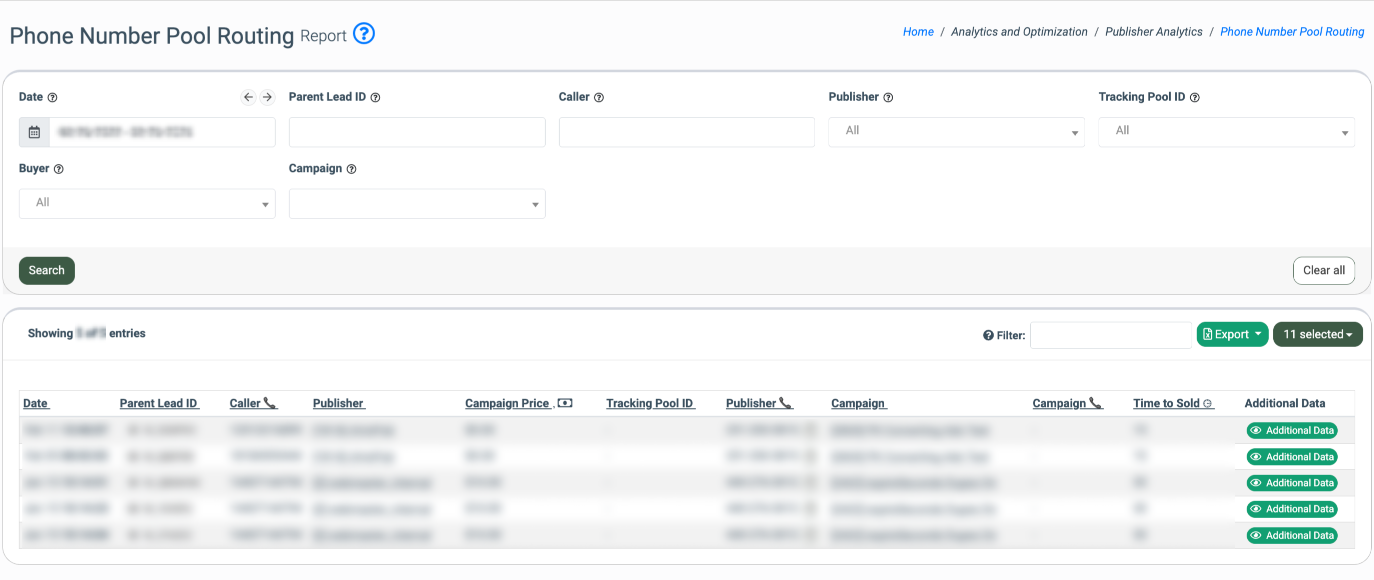
To view the Phone Number Pool Routing report, go to the Analytics and Optimization > Publisher Analytics > Phone Number Pool Routing section.
Note: To access this data, enable and set up the ”Use Tracking Pool” feature in the LMS campaign and create the Tracking Pool on the Call Logic platform.
Read more about how to set up the Tracking Pool integration in this Knowledge Base article.
Read more about the Call Tracking feature and how to create the Tracking Pool in this Knowledge Base article.
The Phone Number Pool Routing report contains the following information:
-
Date: The date and time when the phone number from the tracking pool was issued.
- Parent Lead ID: The unique identification number of the parent lead (the Lead ID on the LMS side). To view the detailed information about the lead, click on the Lead ID in the “Parent Lead ID” column.
- Caller: The caller`s phone number.
- Publisher: The unique identification number and the name of the Publisher. To access the Publisher`s settings, click the “Redirect” button in the “Publisher” column.
- Campaign Price: The lead’s selling price.
- Tracking Pool ID: The unique identification number of the tracking pool. To view the Tracking Pool Phone Numbers, click the “Redirect” button in the “Tracking Pool ID” column.
- Publisher: The Publisher's phone number from the tracking pool that is displayed to the lead after being processed through the LMS platform. To copy the number, click the “Copy” button next to the phone number.
- Campaign: The unique identification number and the name of the Call Logic Campaign. To access the Campaign settings, click the “Redirect” button in the “Campaign” column.
- Campaign: The Buyer's phone number to which the caller will be forwarded. Note: The Buyer’s phone number is specified in the “Phone Number to Transfer” field of the LMS Tracking Pool integration. Read more about how to set up a Tracking Pool integration in this Knowledge Base article.
- Time to Sold: The duration to sell (dynamic/static). Note: The “Time to Sold” value is specified in the “Time To Sold” field of the LMS Tracking Pool integration. Read more about the “Pool Phone Numbers” tab in this Knowledge Base article.
You can narrow down the search results by using the following filters:
-
Date: Select the date range.
-
Parent Lead ID: Enter the unique identification number of the parent lead (the Lead ID on the LMS side).
-
Caller: Enter the caller’s phone number.
-
Publisher: Select the Publisher.
-
Tracking Pool ID: Select the Tracking Pool.
-
Buyer: Select the Buyer.
-
Campaign: Select the Сampaign.
To view the details about the entry, click the “Additional Data” button in the “Additional Data” column.
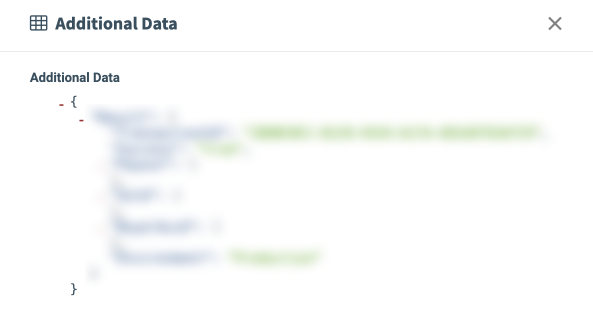
Note: The additional data is available only to the Global Admin and Support roles.