---
title: "Product Setup: Chartable Fields"
description: The Chartable Fields tab allows you to configure the parameters used to collect statistics for the Data Mismatch Summary, Data Mismatch Details, Lead Uniqueness, Lead Parameter Comparison, and Waves reports.
---
[Skip to content](https://support.phonexa.com/product-setup-chartable-fields#main-content)
[](https://support.phonexa.com/?hsLang=en)
Open main navigation
Close main navigation
- [➜\]](https://phonexa.com/)
[➜\]](https://phonexa.com/?hsLang=en)
Phonexa Support Center
- There are no suggestions because the search field is empty.
1. [Knowledge Base](https://support.phonexa.com/?hsLang=en)
2. [General information](https://support.phonexa.com/general-information?hsLang=en)
3. [Product Customization](https://support.phonexa.com/general-information?hsLang=en#product-customization)
# Product Setup: Chartable Fields
## The Chartable Fields tab allows you to configure the parameters used to collect statistics for the Data Mismatch Summary, Data Mismatch Details, Lead Uniqueness, Lead Parameter Comparison, and Waves reports.
Chartable fields determine which Product fields can be used as dimensions in analytics reports. Once a field is added and enabled in the Product Fields Map, the system begins collecting statistics for that parameter.
After data collection starts, the field becomes available in reports where you can build charts, filter results, and analyze trends based on that parameter.
This mechanism allows you to control which Product parameters are included in analytics and ensures that only relevant data points are used for reporting.
For example, a company distributes leads from multiple traffic sources and wants to monitor potential fraud patterns.
You can add fields such as:
- City
- Active Military
- State
- Loan Amount
After these parameters are added to the Selected Fields list and saved, the system starts collecting data for them.
Later, in reports such as Waves, Lead Uniqueness, or Data Mismatch, you can build charts showing how lead behavior changes depending on these parameters. For instance, you can detect if a specific Publisher generates an unusually high number of duplicate leads or if certain states produce abnormal traffic spikes.
To manage the settings, go to the **System Management \> Products** section, select the Product from the list, click the **“Settings”** button in the **“Actions”** column, and select the **“Chartable Fields”** tab.
*Read more about the Products List section in the Knowledge Base* [*article*](https://support.phonexa.com/products-list?hsLang=en)*.*
[](https://support.phonexa.com/hubfs/undefined-Apr-07-2026-09-21-01-7007-AM.png?hsLang=en)
### Product Fields Map
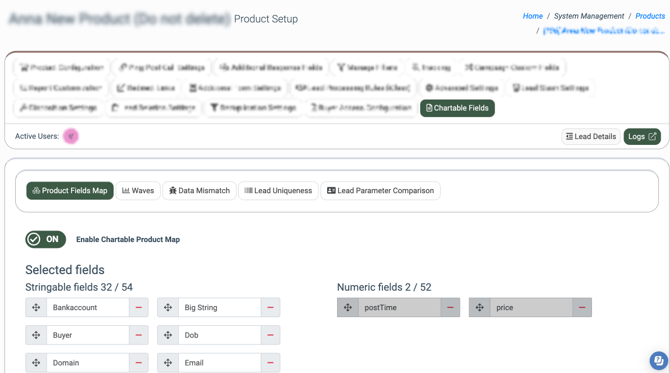
The **“Product Fields Map”** tab allows you to configure the parameters that determine how data is collected for the Data Mismatch Summary, Data Mismatch Details, Lead Uniqueness, Lead Parameter Comparison, and Waves reports.
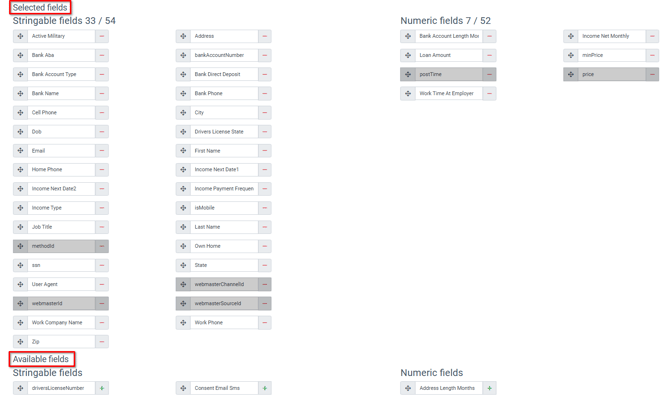
To enable fields mapping, switch the toggle **“Enable Chartable Product Map”.** There are two field types: string and numeric. To start collecting data for a specific parameter, move the field from the **“Available Fields”** block to the **“Selected Fields”** block.
[](https://support.phonexa.com/hubfs/undefined-Mar-06-2026-10-27-33-3841-AM.png?hsLang=en)
Click the **“Save”** button below to apply changes.
From that point, the field becomes available for building the list of fields used in charts in the Data Mismatch Summary, Data Mismatch Details, Lead Uniqueness, Lead Parameter Comparison, and Waves reports.
Field editing is available on the next tabs when the **“Enable Chartable Product Map”** setting is enabled.
*Note: You can add all standard Product fields, including the Advanced Fields. If the Product is custom, all fields are also available, including both active and inactive ones.*
### Reporting
The rest of the tabs provide you with the same number of settings and allow you to configure the fields that will be available for charting in the corresponding reports.
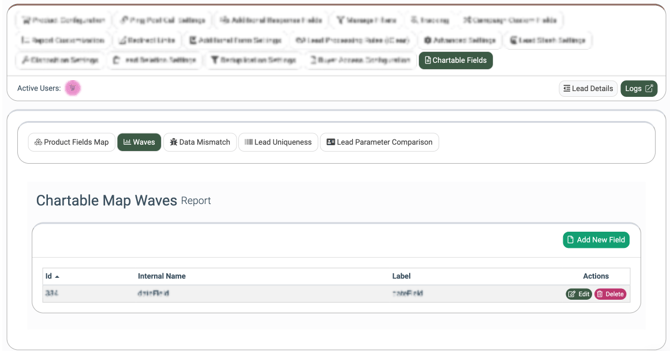
The **“Waves”** tab allows you to configure the fields that will be available for charting in the **Waves** report. *Read more about the Waves report in the Knowledge Base* [*article*](https://support.phonexa.com/waves-report?hsLang=en)*.*
[](https://support.phonexa.com/hubfs/undefined-Apr-07-2026-09-22-24-6093-AM.png?hsLang=en)
For the **“divisionField”** internal name, there are two additional fields:
- **Numerator Params:** Select the field for the numerator. Click the **“Add”** button to add another numerator.
- **Denominator:** Select the field for the denominator.
This field allows you to implement more complex logic using the division of numeric fields:
- **Numerator Params:** The fields are subtracted from each other (if several parameters are added).
- **Denominator:** The field by which the division will be made (when divided by 0, division by 1 occurs).
*Note: The divisionField is available only for the* ***“Waves”*** *report.*
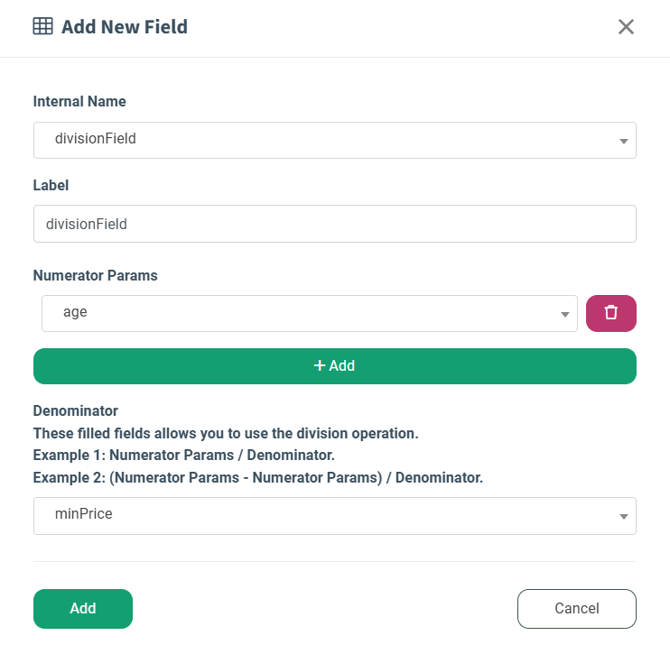
Click the **“Add”** button to finish.
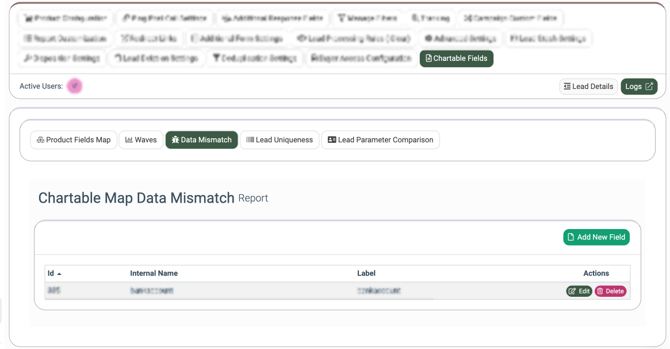
The **“Data Mismatch”** tab allows you to configure the fields that will be available for charting in the **Fraud and Anomaly \> Data Insights \>** **Data Mismatch Summary** and **Data Mismatch Details** reports. Read more in the Knowledge Base [article](https://support.phonexa.com/data-insights?hsLang=en).
[](https://support.phonexa.com/hubfs/undefined-Apr-07-2026-09-23-19-3661-AM.png?hsLang=en)
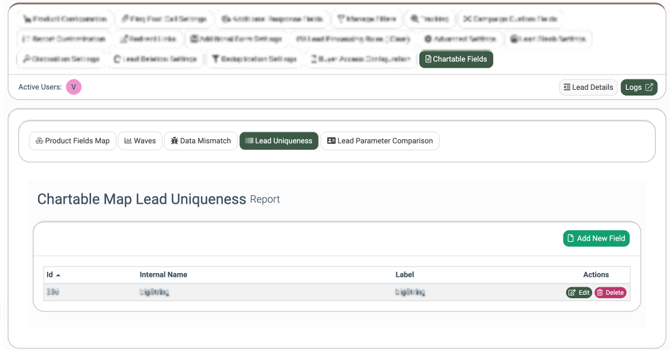
The **“Lead Uniqueness”** tab allows you to configure the fields that will be available for charting in the **Fraud and Anomaly \> Data Insights \> Lead Uniqueness** report. *Read more about the Lead Uniqueness Report in the Knowledge Base* [*article*](https://support.phonexa.com/data-insights?hsLang=en)*.*
[](https://support.phonexa.com/hubfs/undefined-Apr-07-2026-09-24-03-8090-AM.png?hsLang=en)
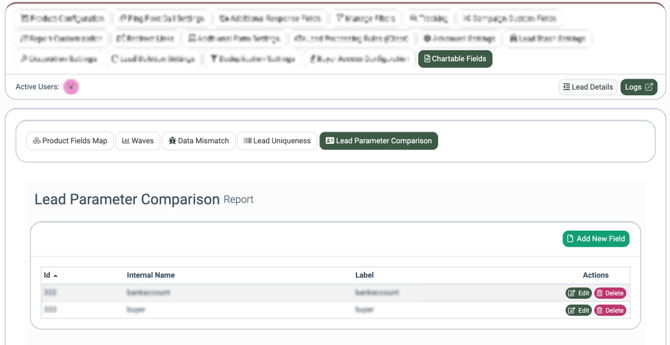
The **“Lead Parameter Comparison”** tab allows you to configure the fields that will be available for charting in the **Fraud and Anomaly \> Data Insights \> Lead Parameter Comparison** report. Read more in the Knowledge Base [article](https://support.phonexa.com/data-insights?hsLang=en).
[](https://support.phonexa.com/hubfs/undefined-Apr-07-2026-09-24-58-2380-AM.png?hsLang=en)
These tabs contain the following information:
- **Id:** The identification number of the field.
- **Internal Name:** The internal name of the field.
- **Label:** The label of the field.
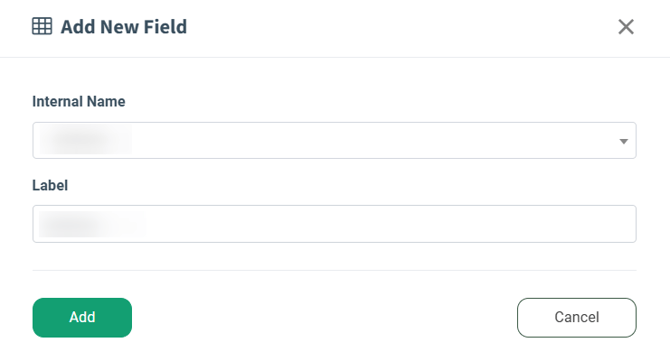
To add a new field, click the **“Add New Field”** button and fill in the required fields:
- **Internal Name:** Select the internal name of the field.
- **Label:** Enter the label of the field.
- [General information](https://support.phonexa.com/general-information?hsLang=en#main-content)
- [Account Settings](https://support.phonexa.com/general-information?hsLang=en#account-settings)
- [Security Settings](https://support.phonexa.com/general-information?hsLang=en#security-settings)
- [Users](https://support.phonexa.com/general-information?hsLang=en#users)
- [System Customization](https://support.phonexa.com/general-information?hsLang=en#system-customization)
- [Project Customization](https://support.phonexa.com/general-information?hsLang=en#project-customization)
- [Product Customization](https://support.phonexa.com/general-information?hsLang=en#product-customization)
- [System Management](https://support.phonexa.com/general-information?hsLang=en#system-management)
- [Support](https://support.phonexa.com/general-information?hsLang=en#support)
- [LMS Sync & Call Logic](https://support.phonexa.com/lms-sync-call-logic?hsLang=en#main-content)
- [Extra Features](https://support.phonexa.com/lms-sync-call-logic?hsLang=en#extra-features)
- [Publisher Configuration](https://support.phonexa.com/lms-sync-call-logic?hsLang=en#publisher-configuration)
- [Client Management](https://support.phonexa.com/lms-sync-call-logic?hsLang=en#client-management)
- [System Logs](https://support.phonexa.com/lms-sync-call-logic?hsLang=en#system-logs)
- [Documents And References](https://support.phonexa.com/lms-sync-call-logic?hsLang=en#documents-and-references)
- [Reports and Analytics](https://support.phonexa.com/lms-sync-call-logic?hsLang=en#reports-and-analytics)
- [Publisher management](https://support.phonexa.com/lms-sync-call-logic?hsLang=en#publisher-management)
- [Call Logic Customization](https://support.phonexa.com/lms-sync-call-logic?hsLang=en#call-logic-customization)
- [Campaign Configuration](https://support.phonexa.com/lms-sync-call-logic?hsLang=en#campaign-configuration)
- [Feed CMS](https://support.phonexa.com/lms-sync-call-logic?hsLang=en#feed-cms)
- [Event Tracking](https://support.phonexa.com/lms-sync-call-logic?hsLang=en#event-tracking)
- [iClear](https://support.phonexa.com/lms-sync-call-logic?hsLang=en#iclear)
- [E-Delivery](https://support.phonexa.com/e-delivery?hsLang=en#main-content)
- [List Management](https://support.phonexa.com/e-delivery?hsLang=en#list-management)
- [Email Campaigns](https://support.phonexa.com/e-delivery?hsLang=en#email-campaigns)
- [SMS Campaigns](https://support.phonexa.com/e-delivery?hsLang=en#sms-campaigns)
- [Reports](https://support.phonexa.com/e-delivery?hsLang=en#reports)
- [Suppression Management](https://support.phonexa.com/e-delivery?hsLang=en#suppression-management)
- [Books360](https://support.phonexa.com/books360?hsLang=en#main-content)
- [Books 360 Integration](https://support.phonexa.com/books360?hsLang=en#books-360-integration)
- [Vendor Management](https://support.phonexa.com/books360?hsLang=en#vendor-management)
- [Account](https://support.phonexa.com/books360?hsLang=en#account)
- [Customer Management](https://support.phonexa.com/books360?hsLang=en#customer-management)
- [Opt-Intel](https://support.phonexa.com/opt-intel?hsLang=en#main-content)
- [List Management](https://support.phonexa.com/opt-intel?hsLang=en#list-management)
- [All Reports](https://support.phonexa.com/opt-intel?hsLang=en#all-reports)
- [Mailers](https://support.phonexa.com/opt-intel?hsLang=en#mailers)
- [Campaigns](https://support.phonexa.com/opt-intel?hsLang=en#campaigns)
- [System Management](https://support.phonexa.com/opt-intel?hsLang=en#system-management)
- [HitMetrix](https://support.phonexa.com/hitmetrix?hsLang=en#main-content)
- [Analytics](https://support.phonexa.com/hitmetrix?hsLang=en#analytics)
- [Heatmaps](https://support.phonexa.com/hitmetrix?hsLang=en#heatmaps)
- [System Management](https://support.phonexa.com/hitmetrix?hsLang=en#system-management)
- [Lynx](https://support.phonexa.com/lynx?hsLang=en#main-content)
- [Offers](https://support.phonexa.com/lynx?hsLang=en#offers)
- [LYNX Reports](https://support.phonexa.com/lynx?hsLang=en#lynx-reports)
- [Advertisers](https://support.phonexa.com/lynx?hsLang=en#advertisers)
- [Affiliates](https://support.phonexa.com/lynx?hsLang=en#affiliates)
- [Account Settings](https://support.phonexa.com/lynx?hsLang=en#account-settings)
- [Cloud PBX](https://support.phonexa.com/cloud-pbx?hsLang=en)
[](https://phonexa.com/?hsLang=en)
Phonexa Knowledge Base
Copyright © 2026, Phonexa