
To configure, go to the System Management > General > Project Settings section and select the Global tab.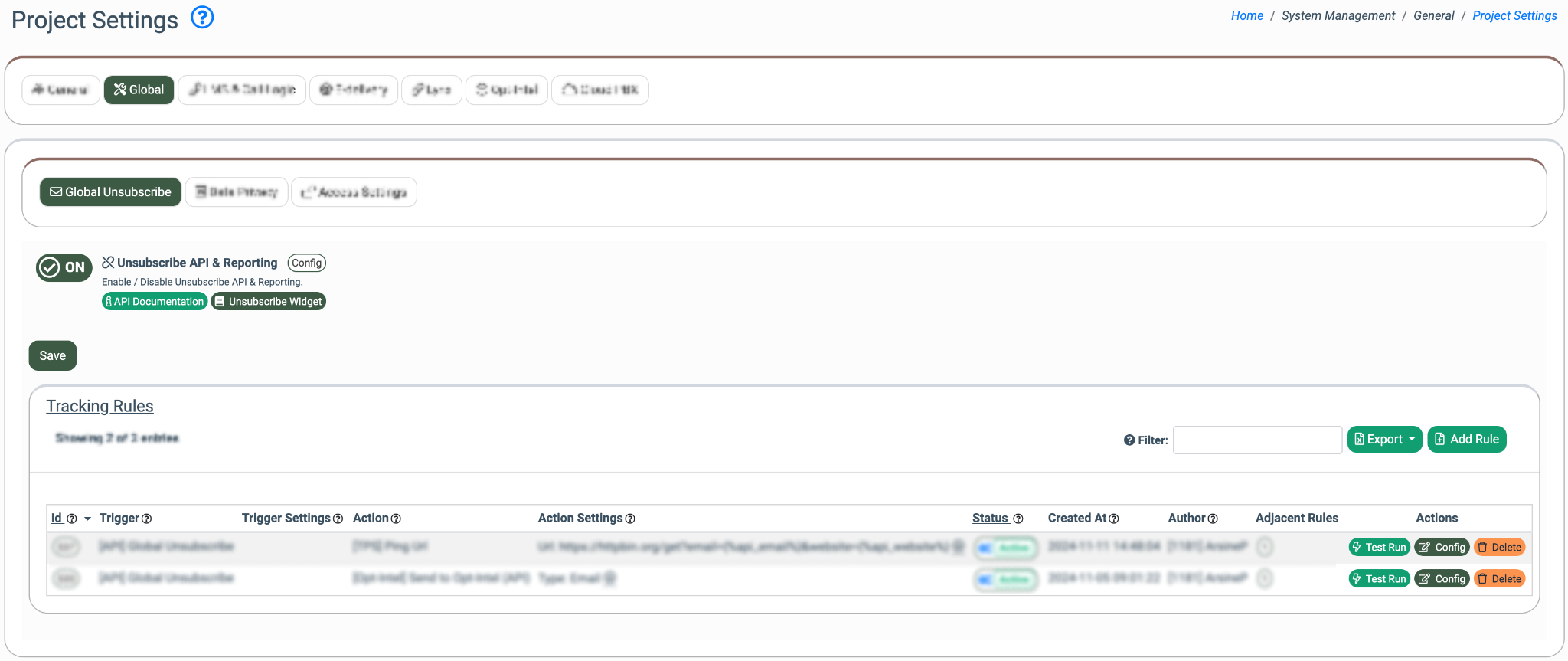
The Global tab contains the following subtabs:
Global Unsubscribe
The Global Unsubscribe feature allows you to collect and manage unsubscribe requests in your instance. It allows users to opt out of receiving communications from a company across all marketing channels or platforms. This feature can be integrated through the API or the built-in unsubscribe form.
Switch the “Unsubscribe API & Reporting” toggle to the “ON” position to enable the Unsubscribe API & Reporting.
Read more about the Global Unsubscribe feature in the following Knowledge Base article.
Data Privacy
The Data Privacy feature allows you to collect and manage requests for unsubscribing and consumer data in your system. It is specifically designed to comply with privacy regulations such as GDPR, CCPA/CPRA, and other relevant state privacy laws and global standards. This ensures that organizations respect user preferences while complying with legal requirements. You can integrate this feature either through the API or by using the built-in unsubscribe form.
Switch the “Data Privacy API & Reporting” toggle to the “ON” position to enable the feature.
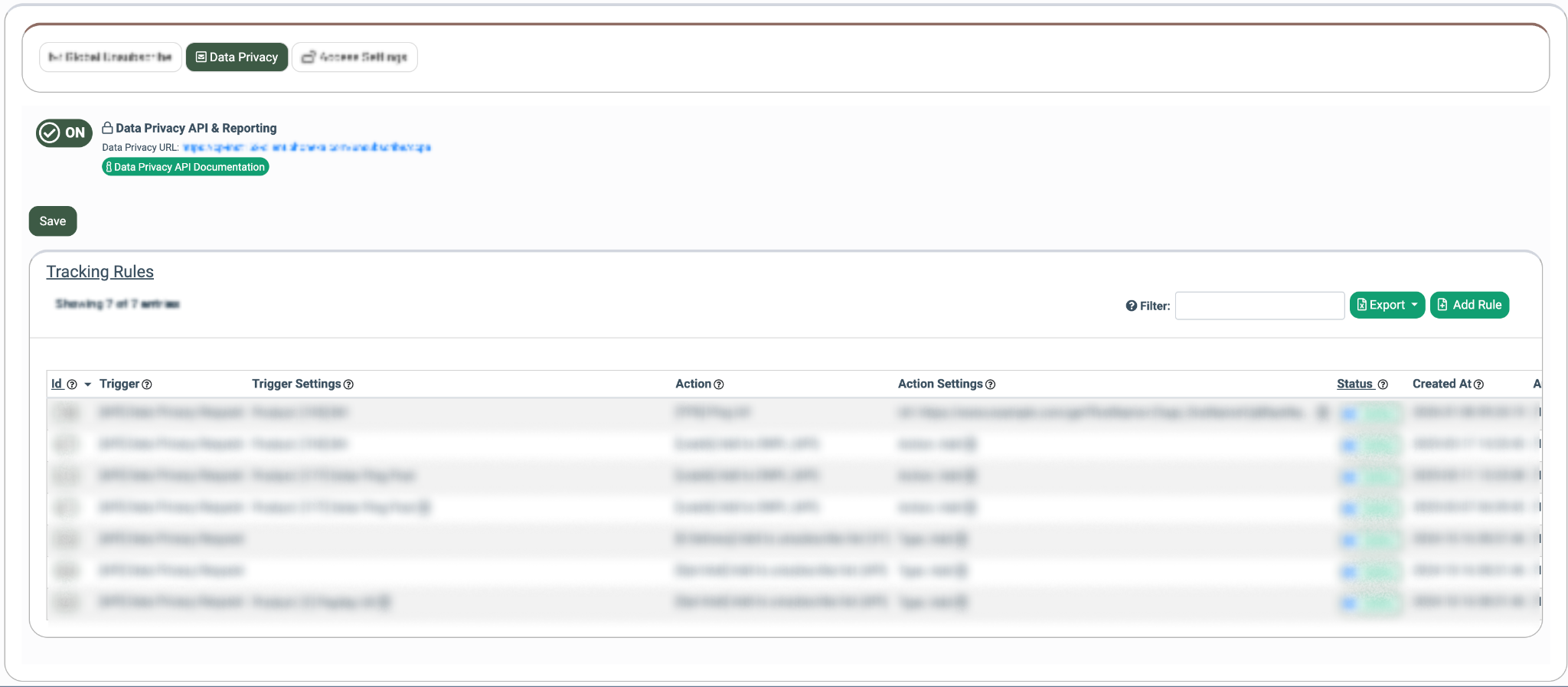
Read more about the Data Privacy feature in the following Knowledge Base article.
Mandatory Two-Factor Authentication
The Mandatory Two-Factor Authentication feature will require system users within selected groups to complete an additional authentication step to access the system and temporarily block users without 2FA from account access.
The Mandatory Two-Factor Authentication subtab allows you to enable the feature and set the deactivation time for user groups. It is available for the instance owner role.
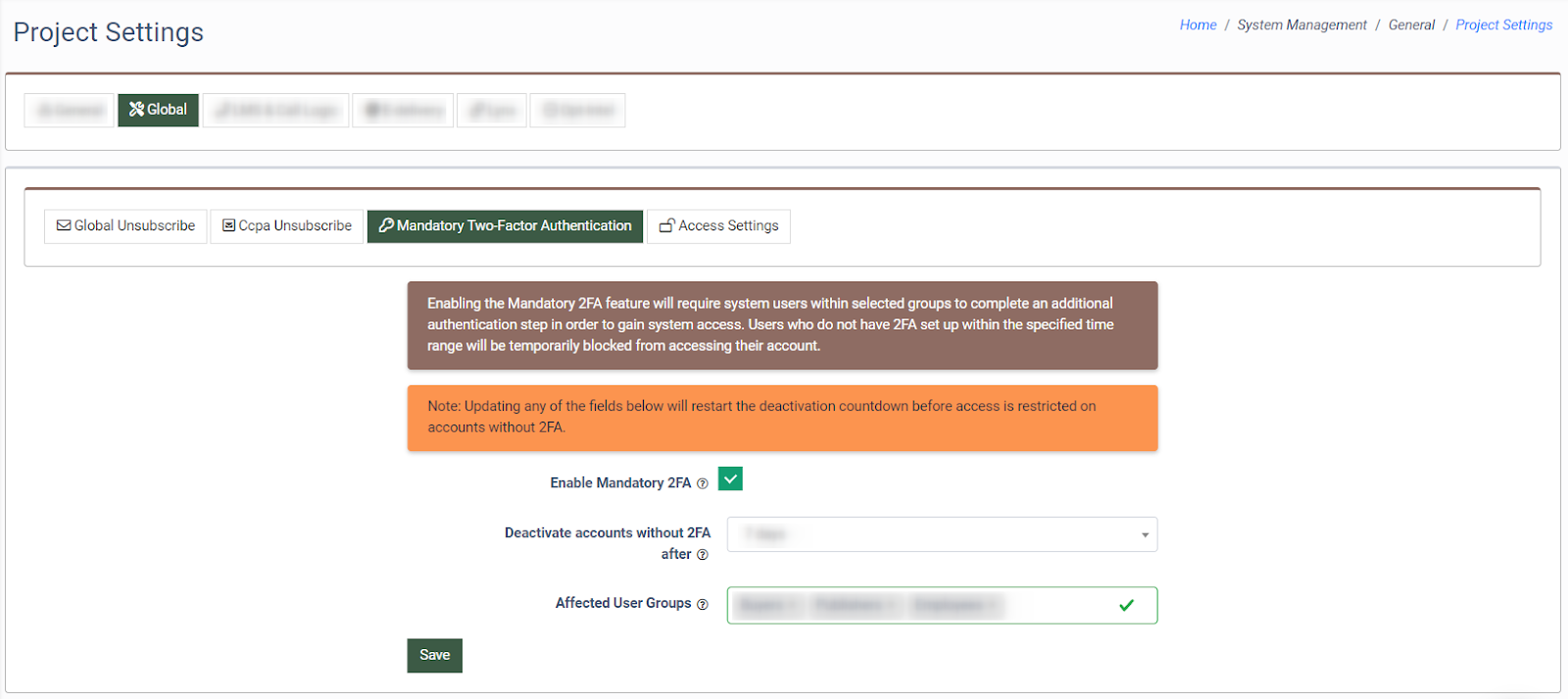 Check the “Enable Mandatory 2FA” box to enable the mandatory two-factor authentication and fill in the following fields:
- Deactivate accounts without 2FA after: Select the amount of time given for 2FA set up before account deactivation (7 days, 14 days, 30 days, 90 days).
- Affected User Groups: Select the user groups to require the setup of 2FA (Buyer, Publisher, Employees, Buyer Accountant).
Click the “Save” button to apply the mandatory 2FA.
Access Settings
The Access Settings subtab allows you to restrict access to system components for specific system roles.
Note: The Component Access Settings at the user level override the Project settings.
The sections contain two tabs.
The “Component Access Settings” tab allows you to manage the access settings for the corresponding system roles.
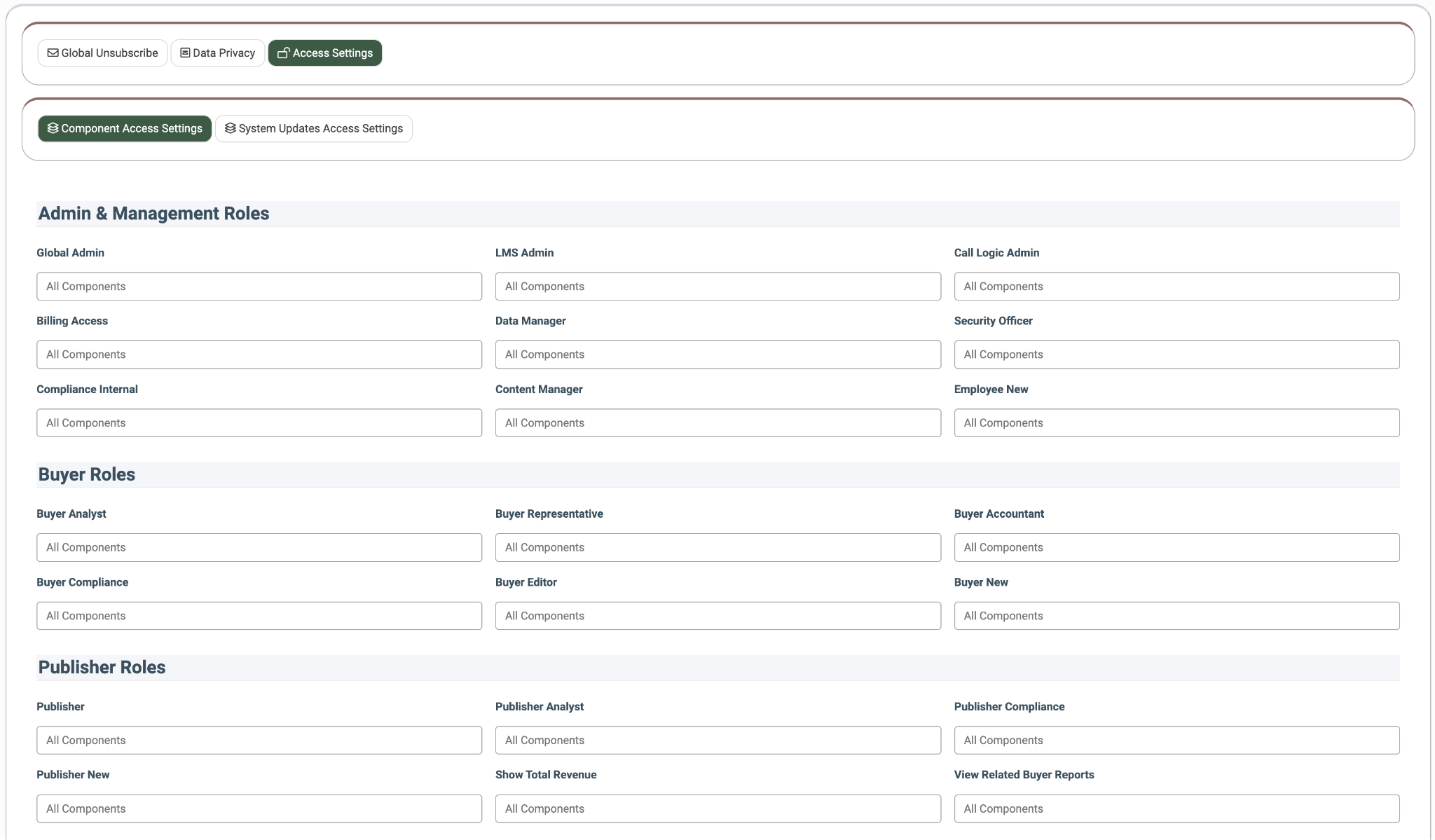
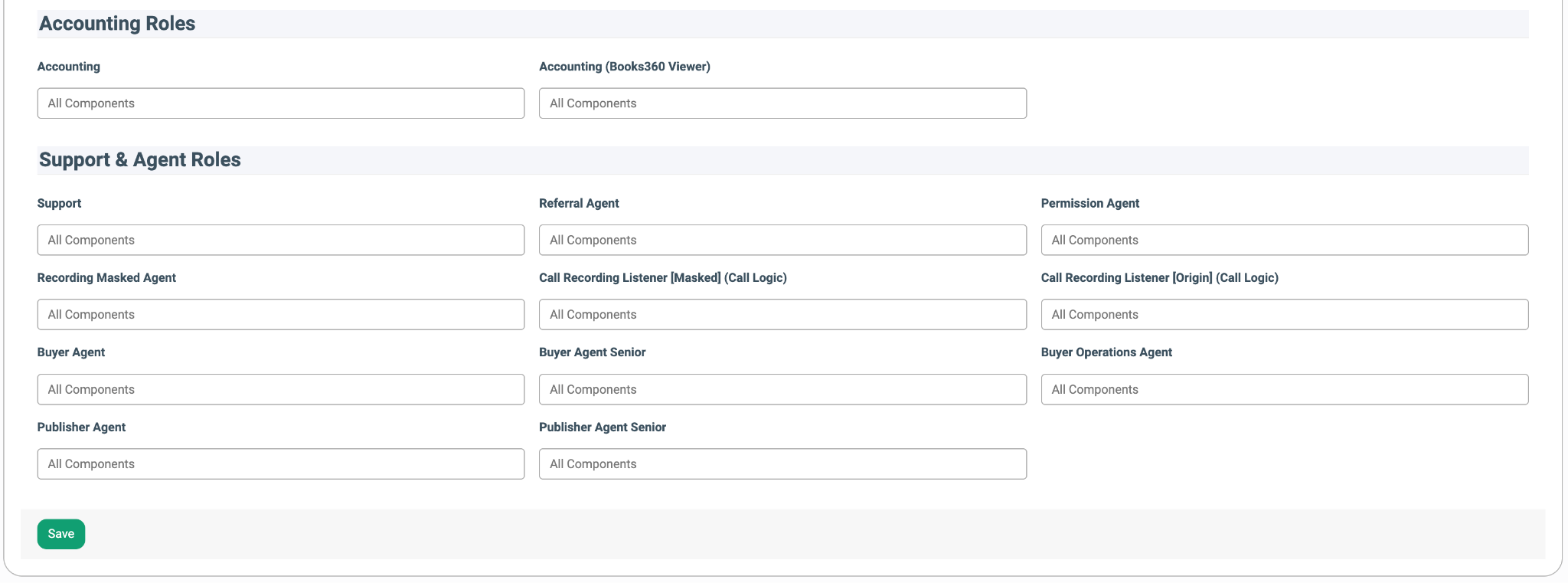
Depending on the component, the following roles could have access:
- Call Logic: Available for selection for Global Admin, Billing Access, Security Officer, LMS Sync, Buyer Agent, Publisher Agent, Support, Buyer Representative, Buyer New, Buyer Accountant, Publisher, Publisher New, Accounting, Buyer Agent Senior, Buyer Operations Agent, Publisher Agent Senior, Content Manager, Blank, Employee New, Buyer Compliance, Publisher Compliance, Compliance Internal, Buyer Editor, Publisher Limited, Permission Agent, Sub-user, Call Logic Admin, Recording Origin Listener, Recording Masked Listener, and Recording Masked Agent.
- LMS Sync: Available for selection for Global Admin, Billing Access, Security Officer, LMS Admin, LMS Sync, Buyer Agent, Publisher Agent, Support, Buyer Representative, Buyer New, Buyer Accountant, Publisher, Publisher New, Accounting, Buyer Agent Senior, Buyer Operations Agent, Publisher Agent Senior, Content Manager, Blank, Employee New, Buyer Compliance, Publisher Compliance, Compliance Internal, Buyer Editor, Publisher Limited, Permission Agent, and Sub-user.
- E-Delivery: Available for selection for Global Admin, Billing Access, Security Officer, Support, Accounting, Blank, Employee New, and Permission Agent.
- Cloud PBX: Available for selection for Global Admin, Billing Access, Security Officer, Support, Accounting, Blank, Employee New, Permission Agent, Recording Origin Listener, Recording Masked Listener, and Recording Masked Agent.
- Opt-Intel: Available for selection for Global Admin, Billing Access, Security Officer, Support, Blank, Employee New, and Permission Agent.
- LYNX: Available for selection for Global Admin, Billing Access, Security Officer, Support, Accounting, Blank, Employee New, Lynx Affiliate, Lynx Affiliate Senior, and Permission Agent.
- Books 360: Available for selection for Global Admin, Billing Access, Security Officer, Support, Accounting, Blank, Employee New, and Permission Agent.
The “System Updates Access Settings” tab allows you to manage the access level to the system updates section for the corresponding system roles.
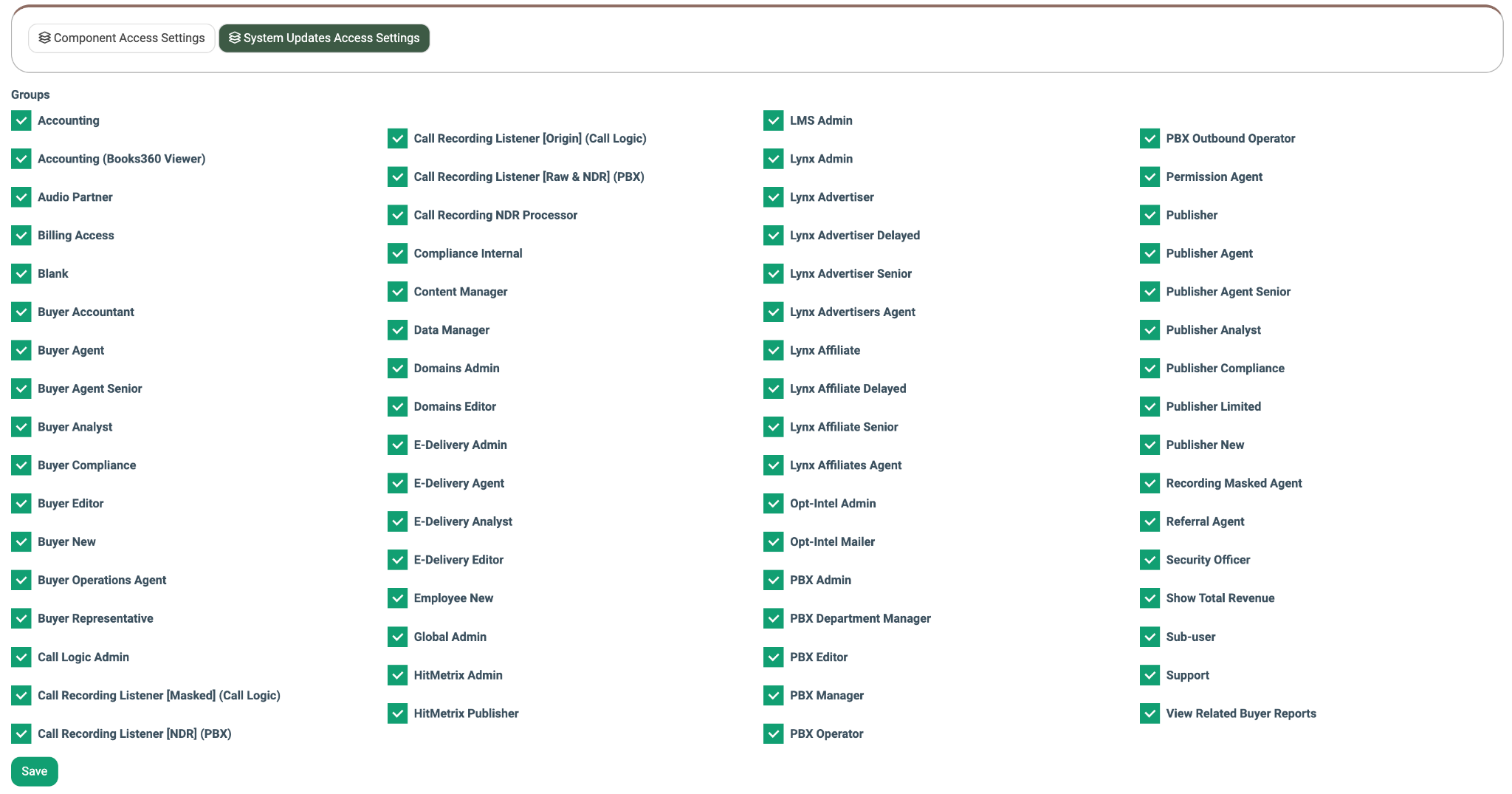
Read more about the Access Settings subtab in this Knowledge Base article.